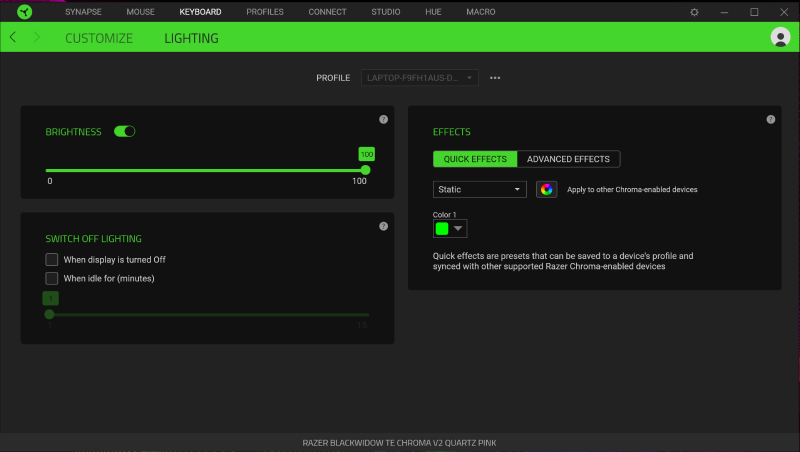
Note: Without Razer Synapse, the LEDs on the keyboard will revert to their default lighting effect (usually Wave or Spectrum Cycling) when the system is in standby or sleep mode. The LEDs will turn off if the USB ports are configured to shut down when the system is locked.
You can configure the lighting of your keyboard's LEDs through Razer Synapse, however, note that the "Switch off lighting when the display is turned OFF" setting will only work if:
- The system goes to sleep after a timeout
- Razer Synapse is running in the background at the time of system timeout
The setting will not work if:
- The system is forced to go to sleep, locked via "Win + L" or any other combination to lock the system or force it to turn off the display
- You physically turn off the monitor by pressing the power button
Follow the steps below to set your Razer keyboard's LEDs to turn on or off when your computer is on standby:
-
Open Razer Synapse.
-
Select your Razer Keyboard from the "DASHBOARD" under "DEVICES".
-
Click on the "LIGHTING" tab.

-
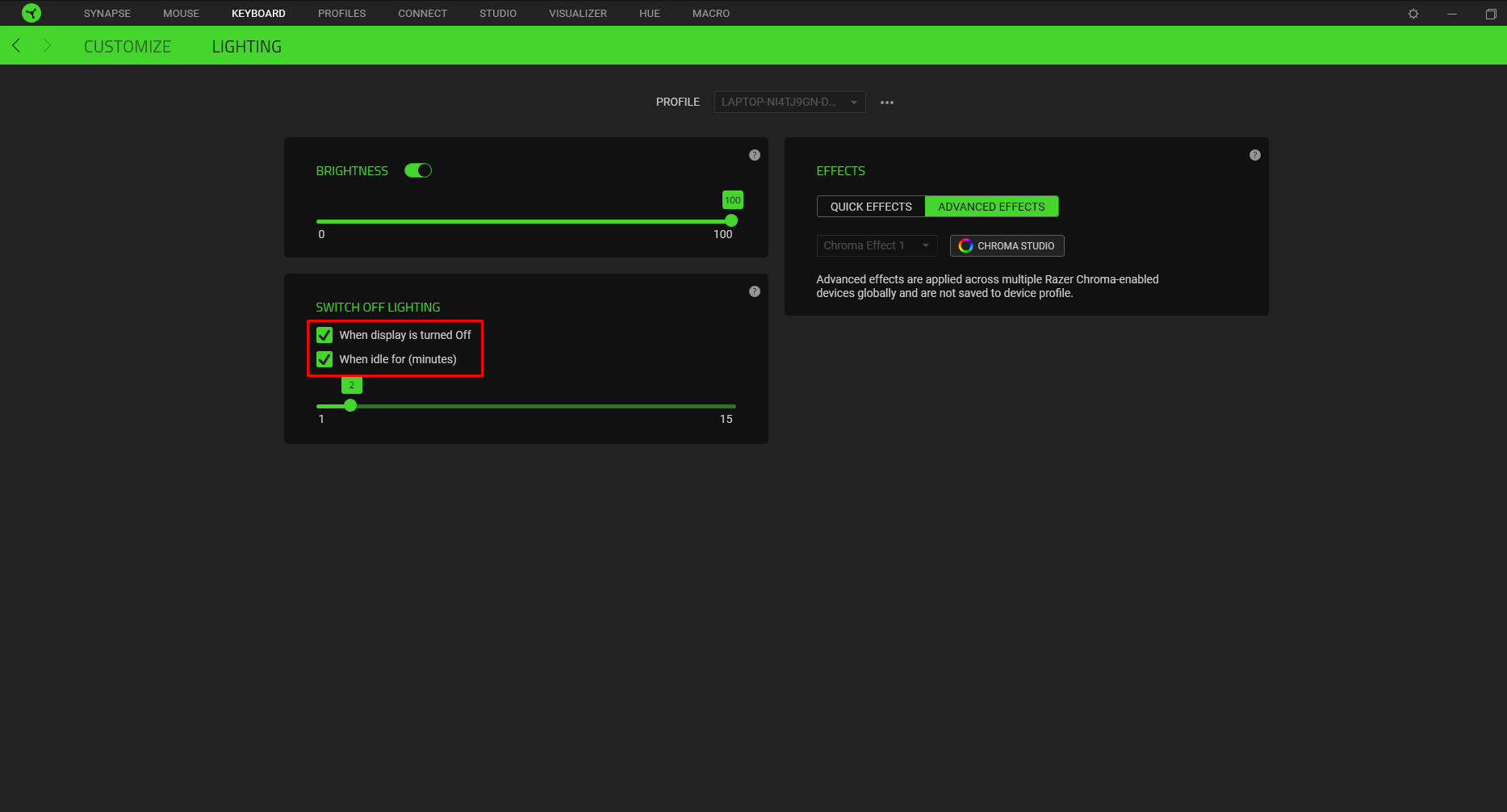
Check the checkboxes under "SWITCH OFF LIGHTING" if you want the LEDs to turn off when your computer is on standby. You can also configure the number of minutes your computer can be on idle before the lighting switches off.
-
Uncheck the checkboxes if you want the LED lighting to stay on and to behave normally through Windows basic keyboard functions.