
Flickering or banding on a Razer Kiyo webcam is possibly caused by the capture frequency or frame rate not matching the power line frequency of the light source. Adjust the anti-flicker (power line frequency) setting of your webcam in Razer Synapse to resolve this issue.
Select your webcam
Razer Kiyo Pro Ultra
- Launch Razer Synapse.
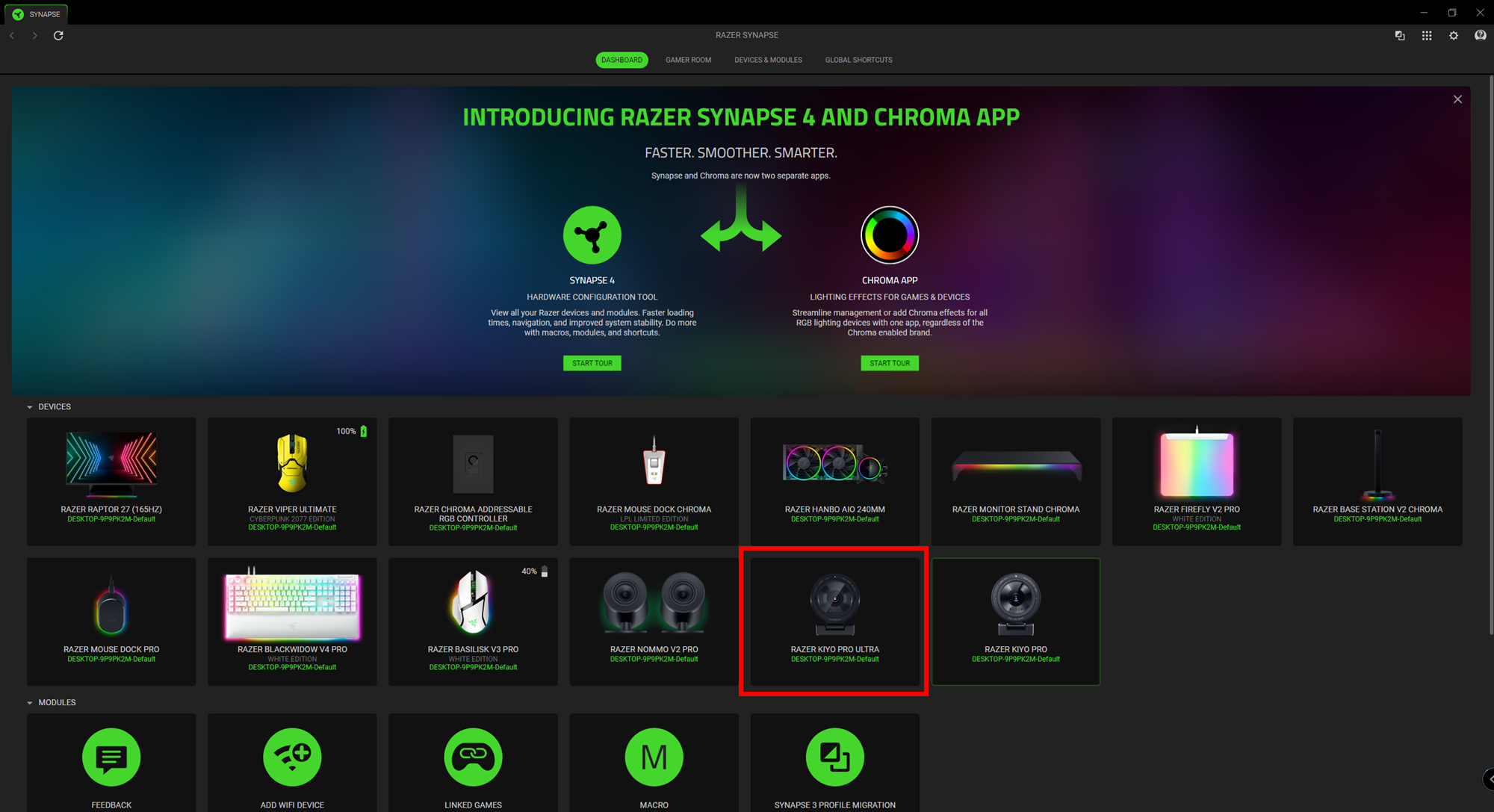
Select “KIYO PRO ULTRA” from the DASHBOARD.
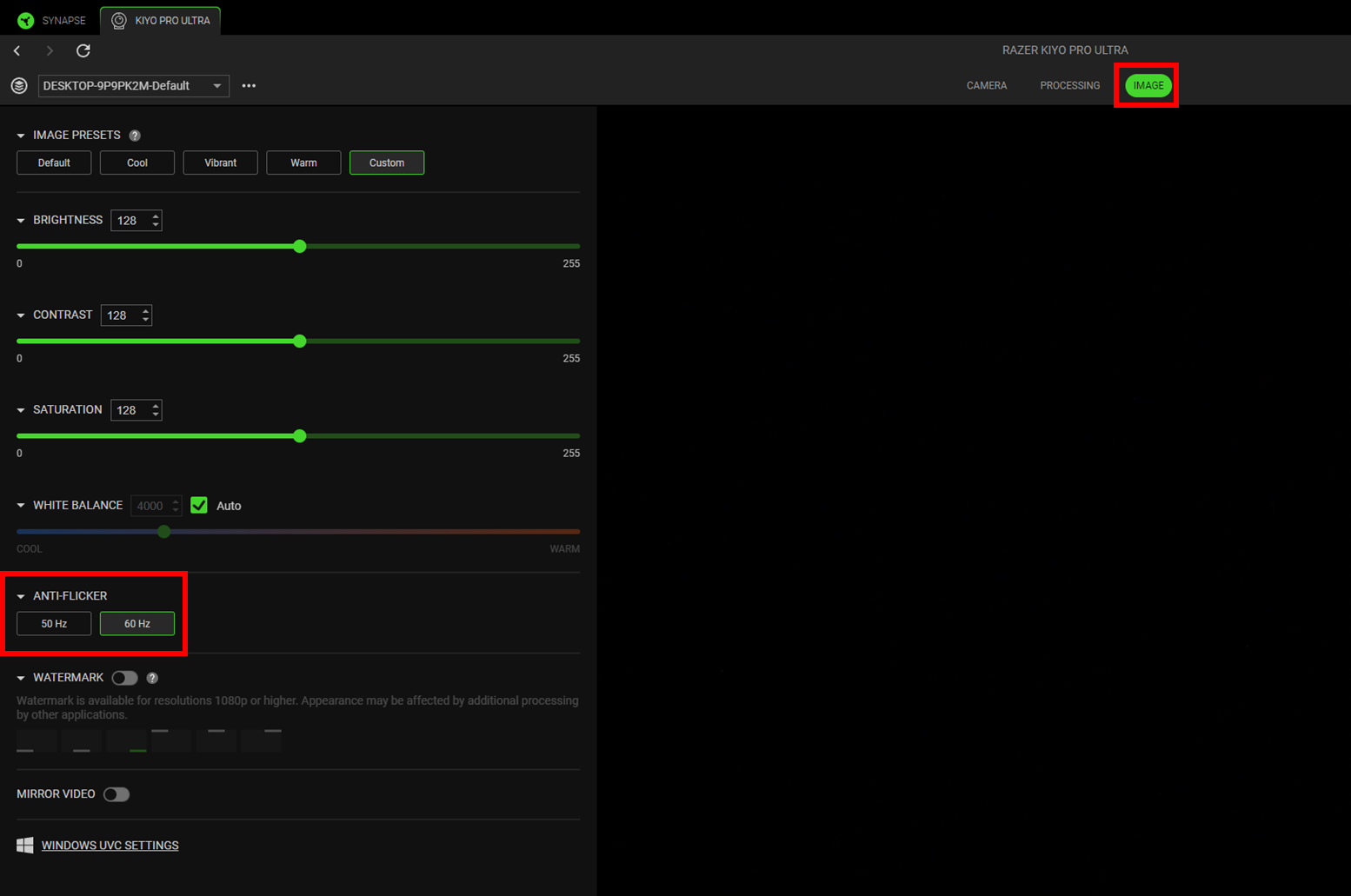
- Navigate to the “IMAGE” tab.
- Expand the “ANTI-FLICKER” drop-down menu.
Select the setting according to your region’s power line frequency.
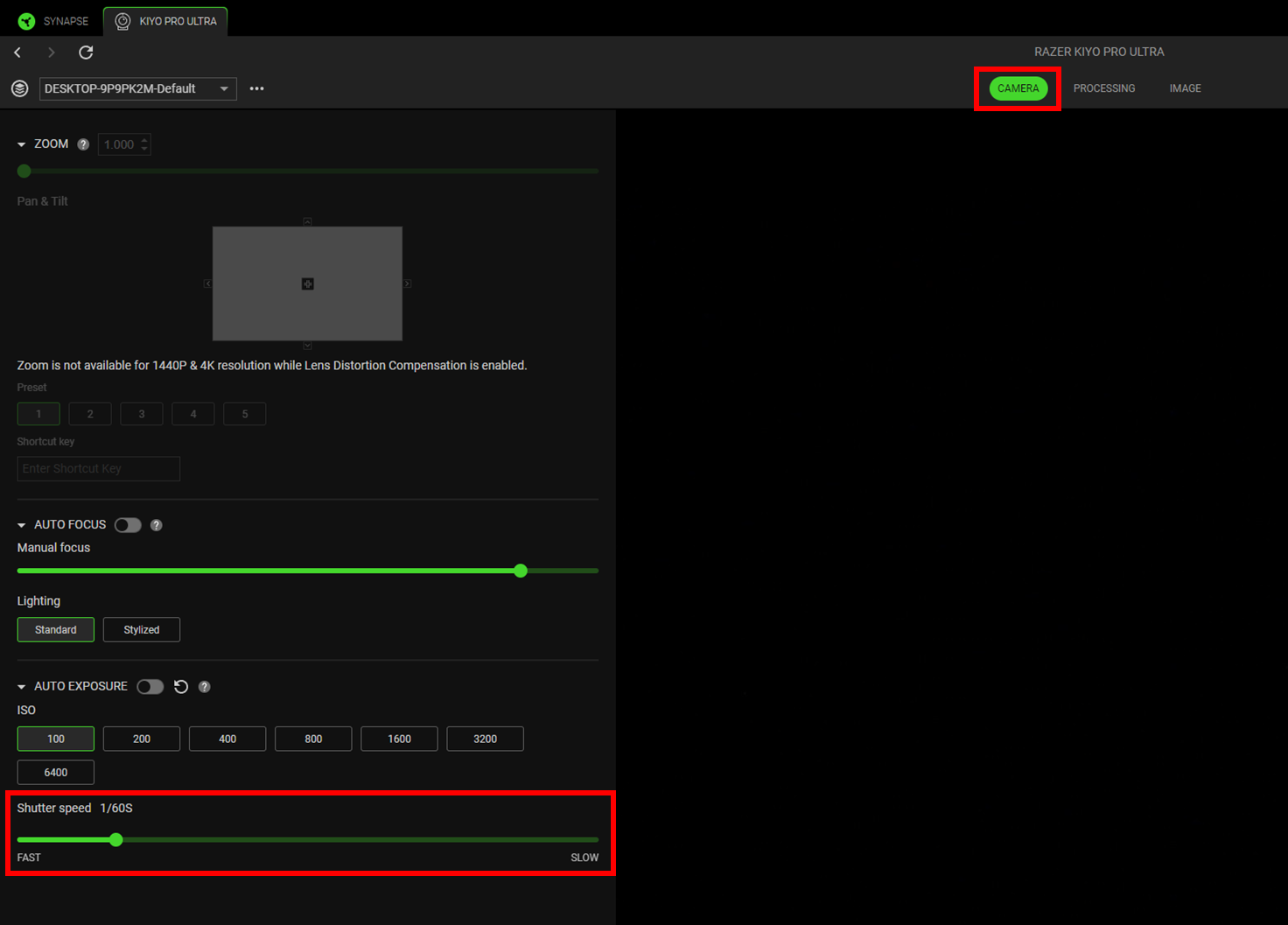
- Navigate to the “CAMERA” tab.
- Expand the “AUTO EXPOSURE” drop-down menu.
Use the slider to adjust the shutter speed to prevent flickering.
Razer Kiyo Pro
- Launch Razer Synapse.
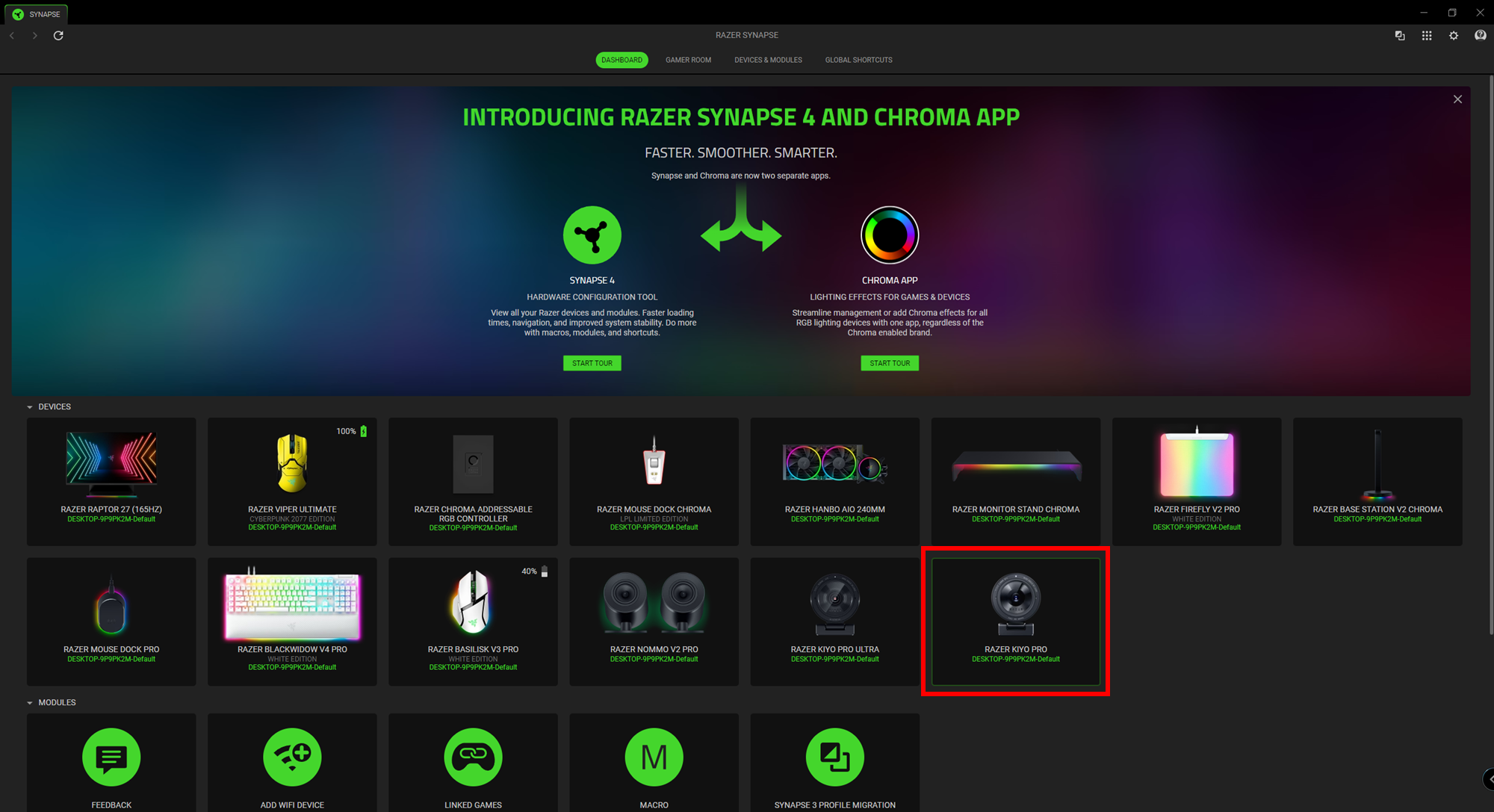
Select the Razer Kiyo Pro from the “DASHBOARD”.
Navigate to the “CUSTOMIZE” tab, then click on "Advanced Settings".
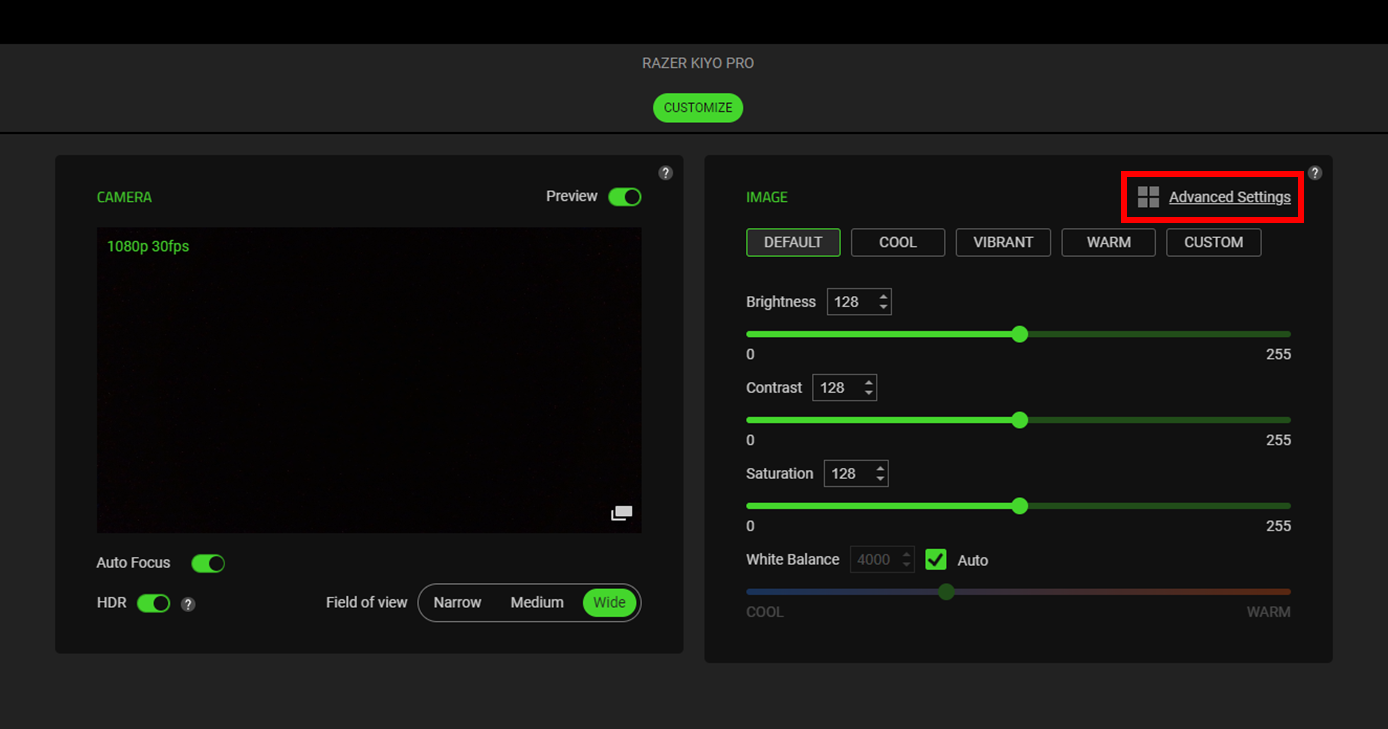
Choose a "PowerLine Frequency (Anti-Flicker)" setting that matches the lighting or powerline frequency.
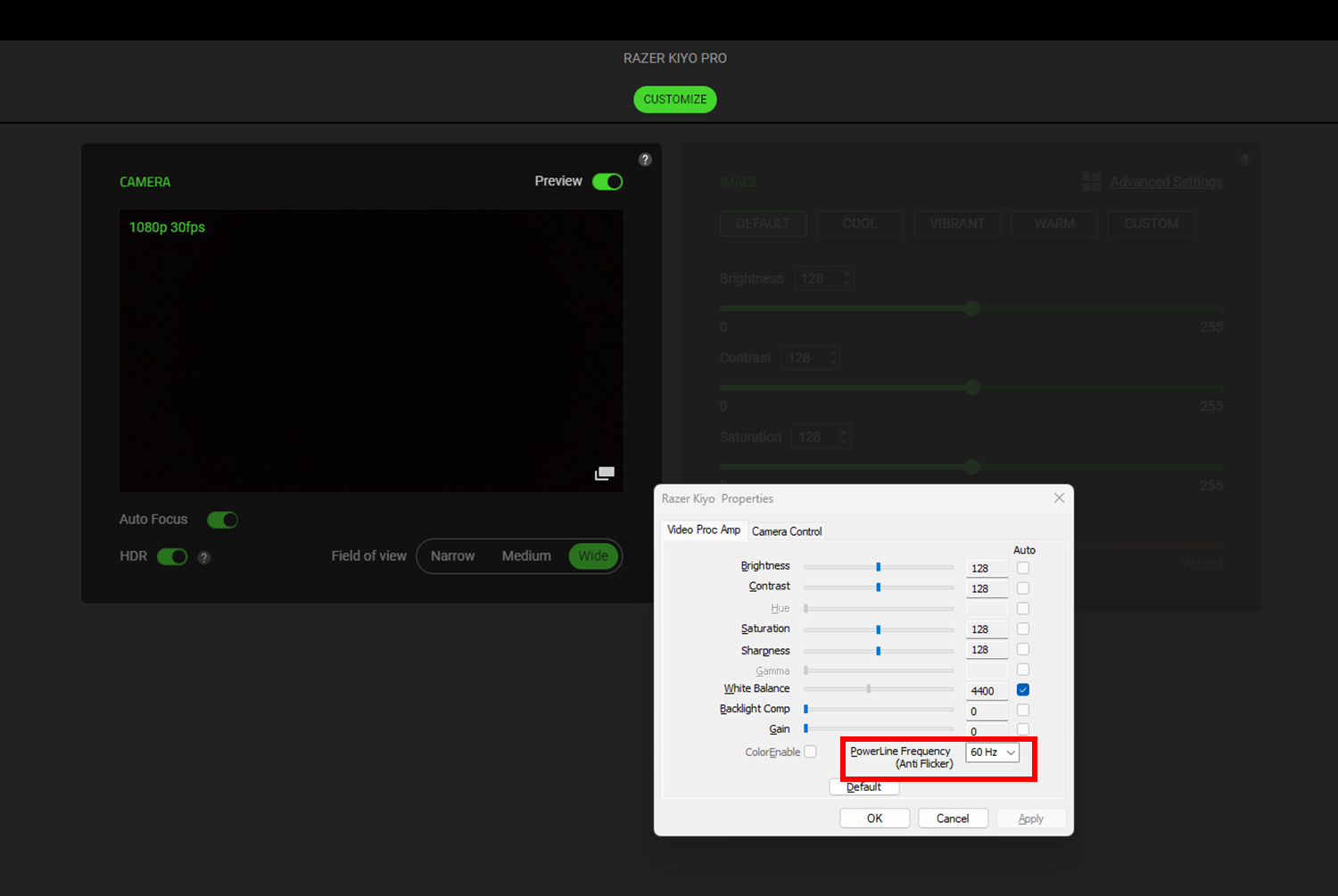
- Click “OK”.

