
Important: Make sure your Razer Blade model comes with THX Spatial Audio before you proceed. All Razer Blades manufactured after 2020 automatically come with THX software and therefore DO NOT require a code for activation.
For a list of compatible devices, see THX Spatial Audio Support & FAQs.Follow the detailed instructions below to configure THX Spatial Audio for PCs.
Select an option
THX Spatial Audio for PCs
The THX Spatial Audio for PCs - a Driver Resident Audio Processing Object (DRAPO) designed to work specifically with Razer laptops that come with it.
Below are the steps on how to configure THX Spatial Audio for PCs.
-
Open THX Spatial Audio For PCs.
-
Go to the “Audio Settings” tab.
The following are the available configurations:
-
Toggle the switch to select between “THX Stereo” and “THX SPATIAL AUDIO” modes.

-
Select your preferred EQ preset.
-
Music
-
Cinema
-
Game
-
Voice
-
Custom
Drag the slider to your preferred level to adjust the preset EQ settings. Click "Reset" to return EQ settings to default.

Note: The first three frequency levels will be greyed out if the selected output audio source is the speaker.
-
-
Other audio enhancements:
-
Dialogue Enhancement
-
Bass Boost
-
Music Setting
-
Volume Leveling, and more.
-
-
THX Spatial Audio For PCs – Synapse
Below are the steps on how to configure THX Spatial Audio for PCs – Synapse.
-
Open Razer Synapse.
-
Select your Razer Blade from the list of devices.
-
Go to the “SOUND” tab then toggle the "THX SPATIAL AUDIO" option to activate the THX Spatial Audio mode.
The following are the available configurations:
-
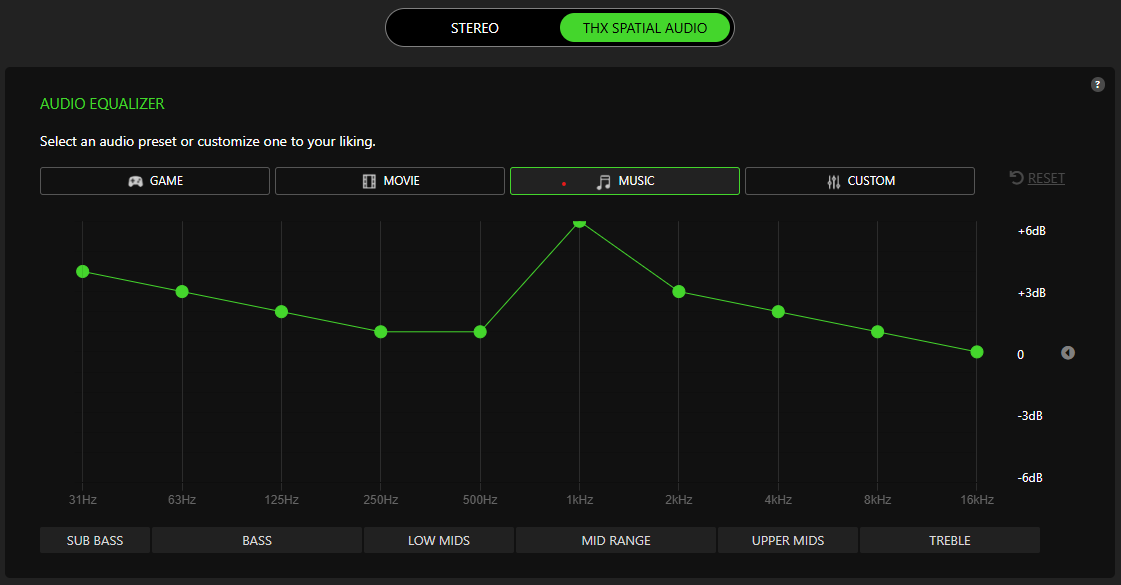
Toggle the switch to select between “STEREO” and “THX SPATIAL AUDIO” modes.
-
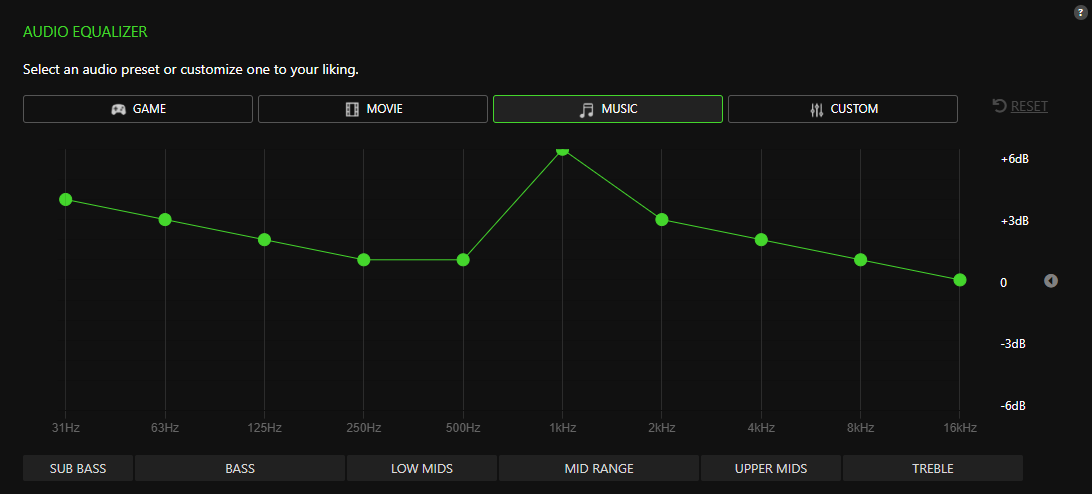
Select your preferred EQ preset.
- Game
- Movie
- Music
- Custom
Drag the slider to your preferred level to adjust the preset EQ settings. Click "Reset" to return EQ settings to default.
-
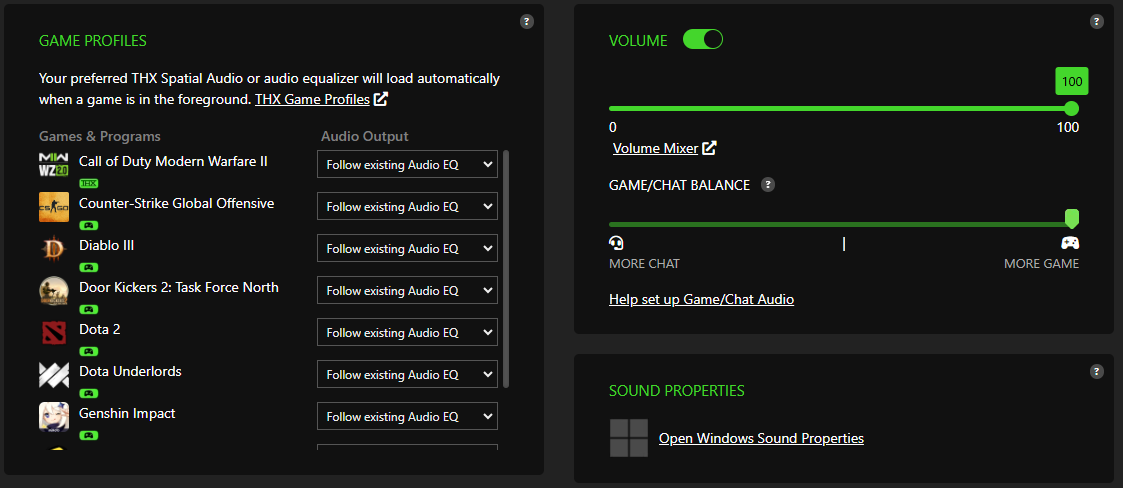
Using the various Game Profiles and settings, you can further customize your listening experience according to your needs.
-
Related articles:

