
Applicable Model:
Razer Updater v1.1.1.3_PI490-MCUv010400v2
-
https://rzr.to/s9pBkQ | January 19, 2024
-
Improved THS Logo lighting
STEP-BY-STEP PROCESS
Before you start:
-
Ensure Windows is up to date. See How to get the latest software and driver updates from Windows.
If you just updated Windows, install the "Optional updates" under Settings > Windows Update > Advanced options.
-
Make sure the laptop is plugged into a wall outlet and not just running on battery before proceeding.
-
Save all files and close all programs.
Update Process:
-
Download the latest keyboard firmware updater.
-
Run the updater.
-
Click “Yes" if the User Account Control window pops up.
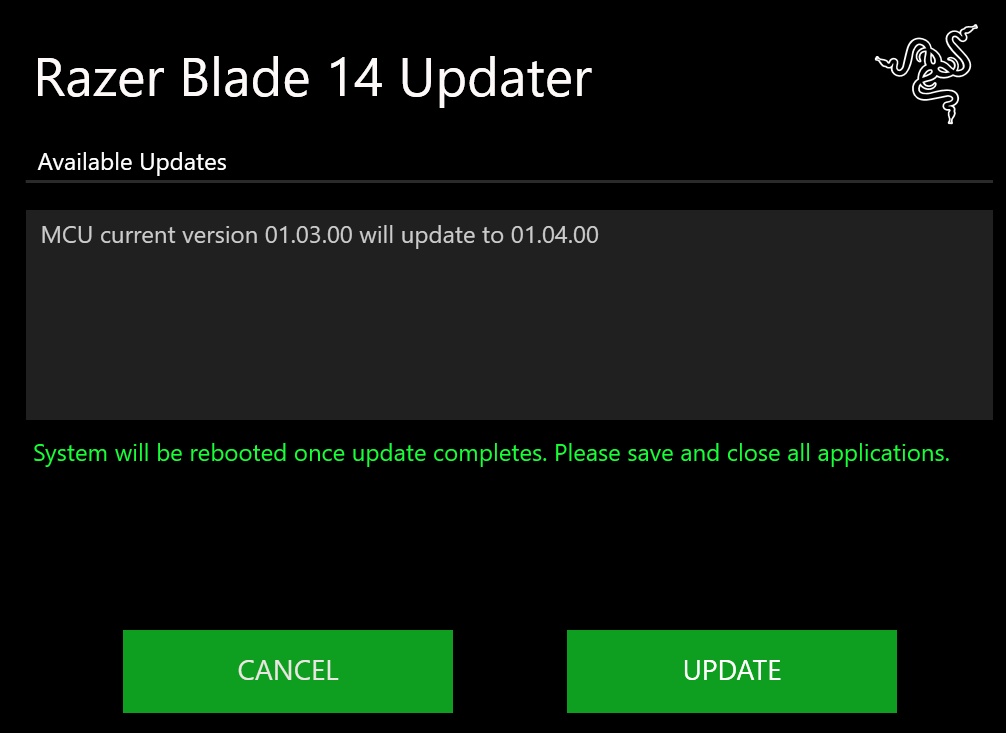
The Razer Blade Updater window will appear with details regarding your current firmware version and the version your Razer Blade will be updated to.
-
Click “UPDATE” to initiate the update process.
A progress bar will appear indicating the status of the installation process. During installation, you will not be able to access other applications.
-
The Razer Blade will restart a few times and will automatically boot to Windows once the update is complete.
Important: Do not force restart or shut down the Razer Blade during this process.

