
Applicable Models
Firmware v1.03.00_r1
- https://rzr.to/et0jpw | April 23, 2025
- General Bug Fixes
STEP-BY STEP-PROCESS
- Make sure the laptop is plugged into a wall outlet and not just running on battery before proceeding.
- Save all files and close all programs.
- Download the latest firmware.
- Run the updater.
- You may be prompted to confirm changes on your device by the User Account Control. Click "Yes" to confirm these changes.
- Click "NEXT" to proceed. The installer will close all running Razer applications if you have not done so.
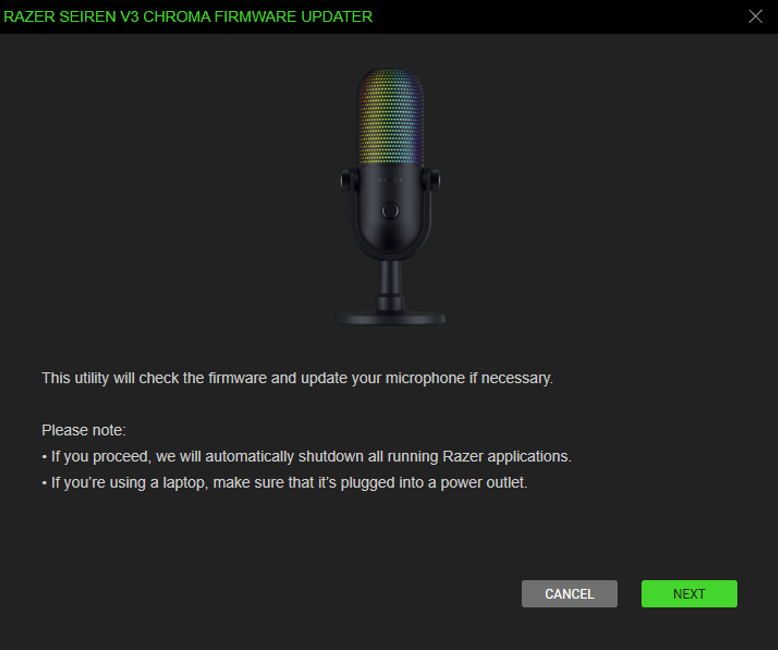
- Connect the microphone directly to your PC using the included USB cable.
Note: Do not use a non-powered USB hub.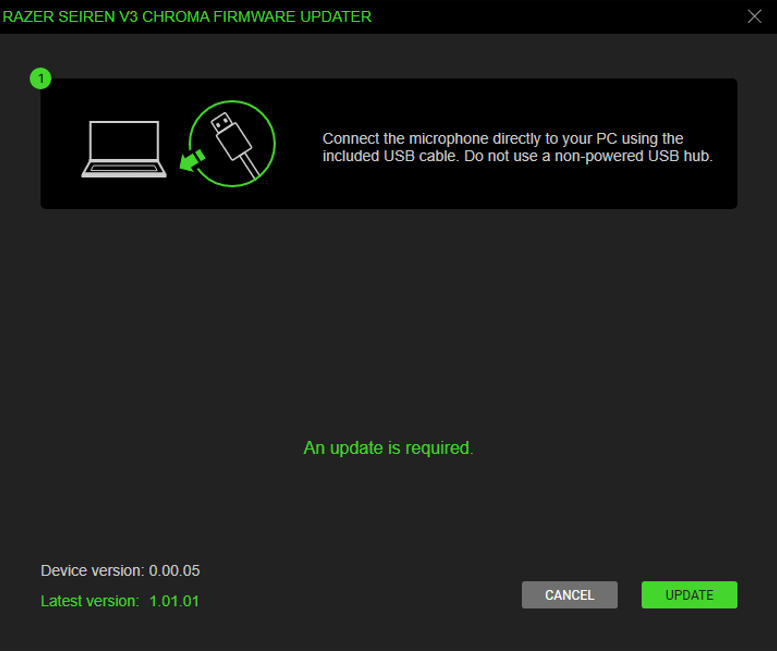
-
Click "UPDATE".
-
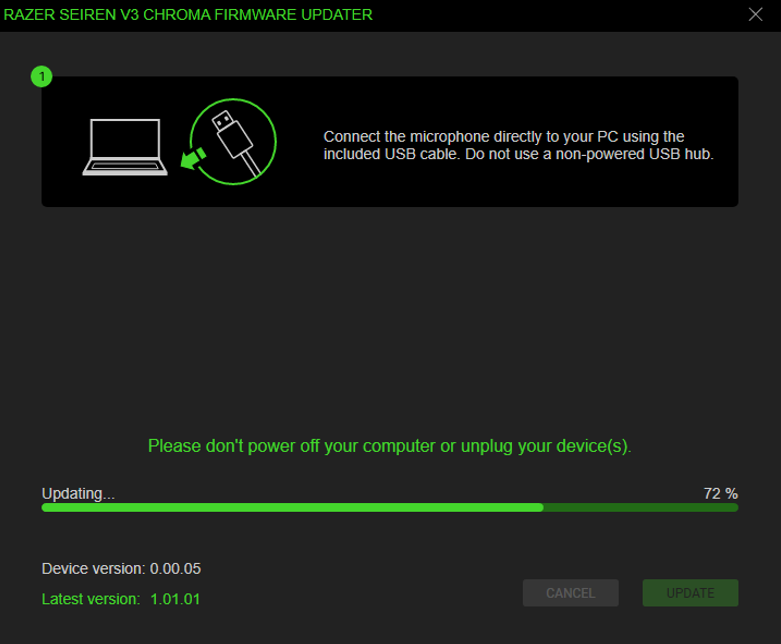
Wait until the update process is complete. Do not interrupt.
-
Click "CLOSE" once the update is complete.


