You can view the video below for instructions or review a copy of the video transcript.
The Razer Aether Series allows you to transform your space with immersive gaming lights for walls, chairs, and rooms with the convenience of easy setup through the Gamer Room App.
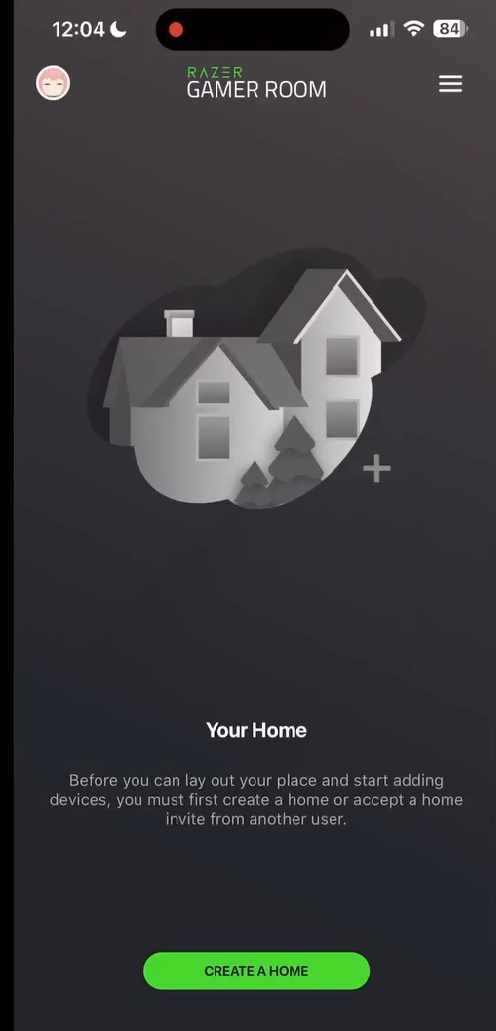
- Open the Gamer Room App on your phone.
- Tap “CREATE A HOME”.
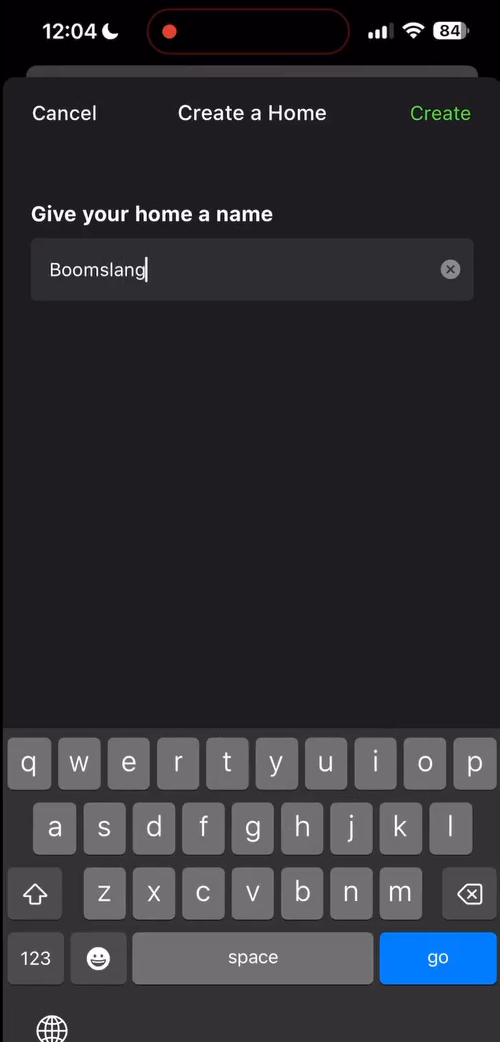
- Enter a name for your home then tap “Create”.
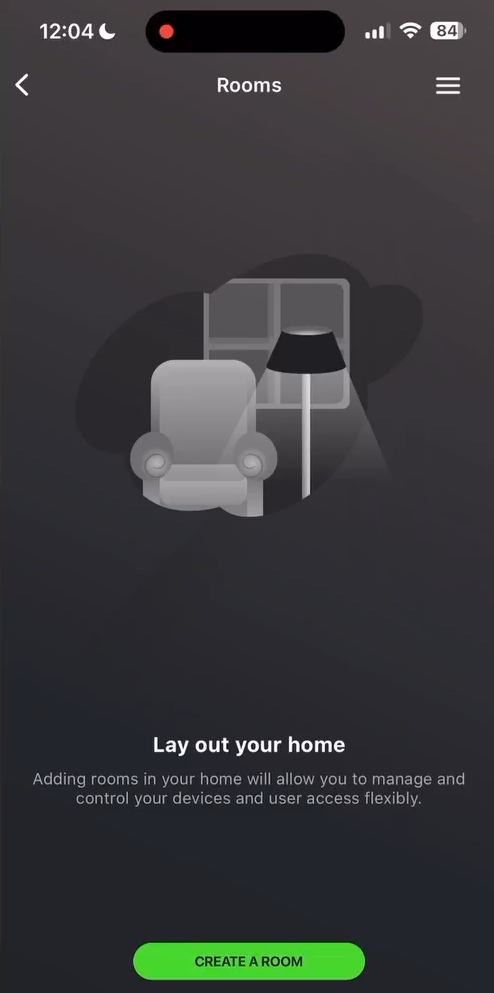
At this point, you can create Rooms inside your home if you prefer. To do this:
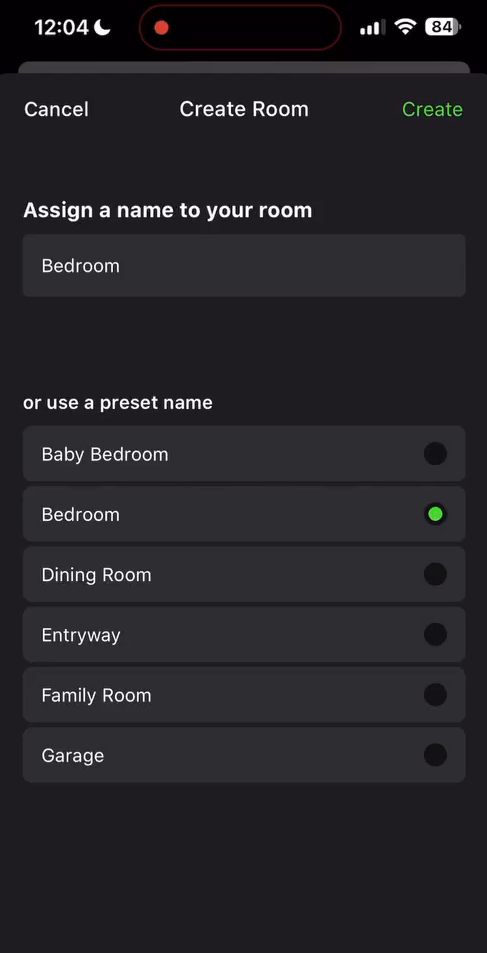
- Tap “Rooms”, then “CREATE A ROOM”.
- Enter a name for the room or choose from any of the preset names then tap “Create”.
- Tap the Menu icon at the upper-right corner of the screen and choose “Add a Device”.
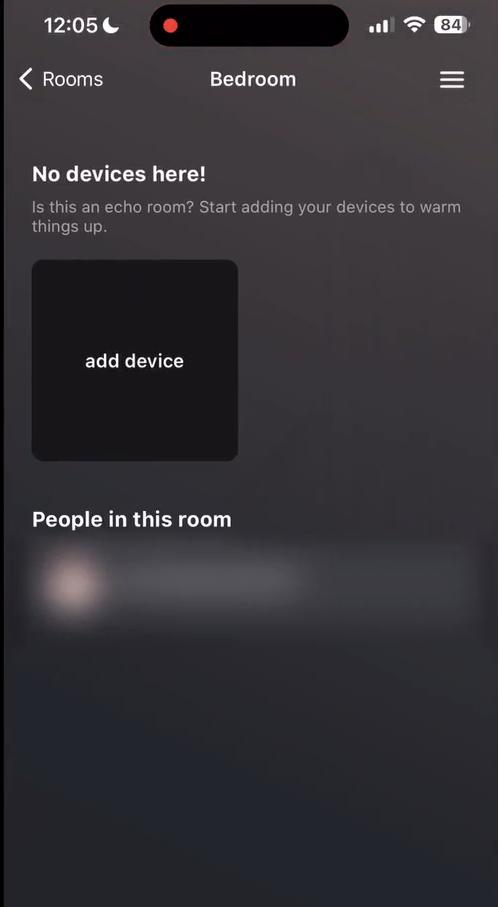
The options are:
- Add a Device
- Add a Room
- Create a Home
- Invite a User
- View Invites
- Create a Routine
- Home Settings
- Tap “Rooms”, then “CREATE A ROOM”.
- To enter pairing mode, Power on the Light Strip.
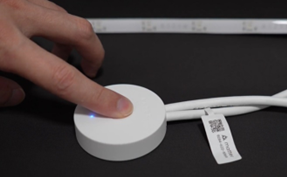
- Wait for the lights to turn static White and the LED indicator to turn blinking Blue. This indicates that the Light Strip is now in pairing mode.
Note: If your device had been paired previously, reset it by holding down the Power button and performing a power cycle on the unit. Do this by either unplugging and replugging it back or flipping the power switch. Wait for the lights to turn Red, Green, and Blue and settle on White and the LED indicator to turn blinking Blue. This indicates that the device is successfully reset and is now in re-pairing mode.
- Hold the device near the camera and scan the QR code.
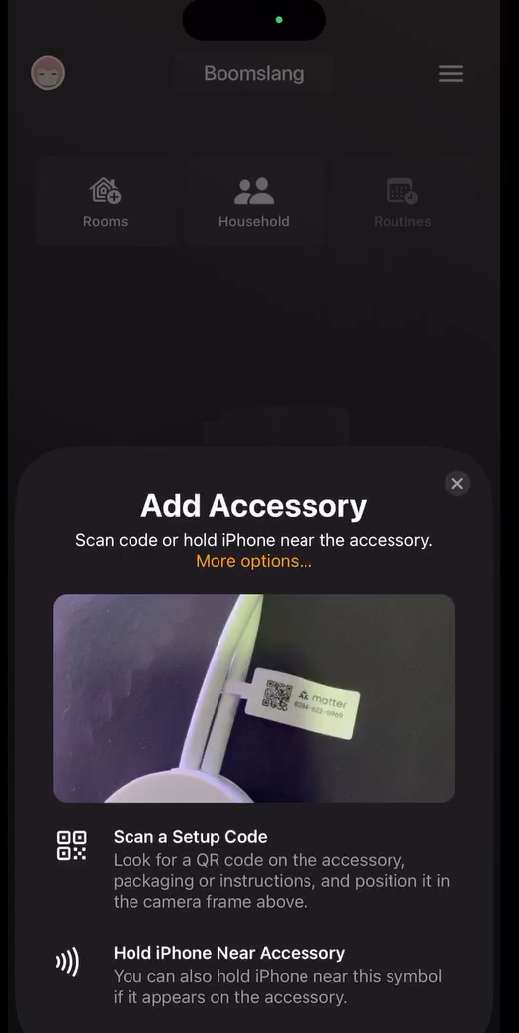
- Wait while the App is connecting to the device.
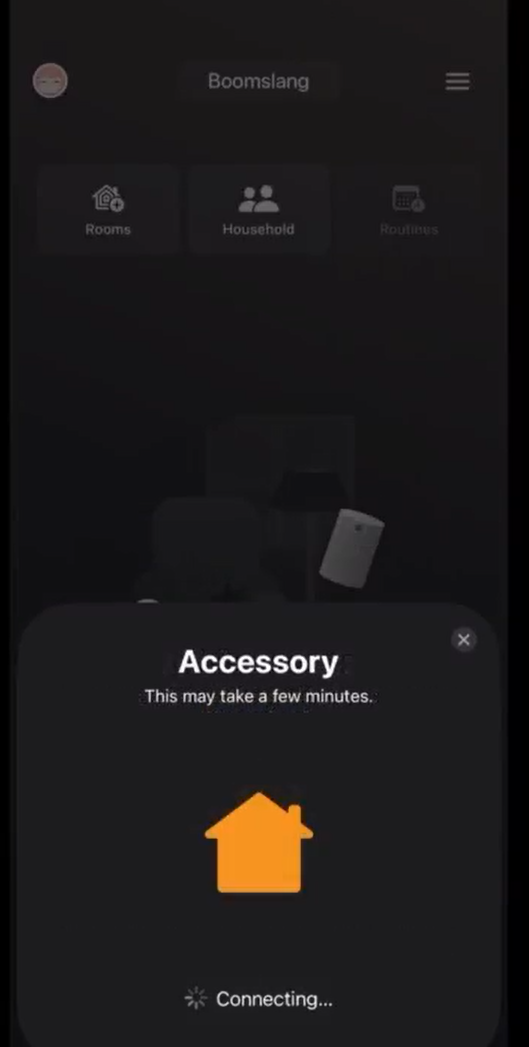
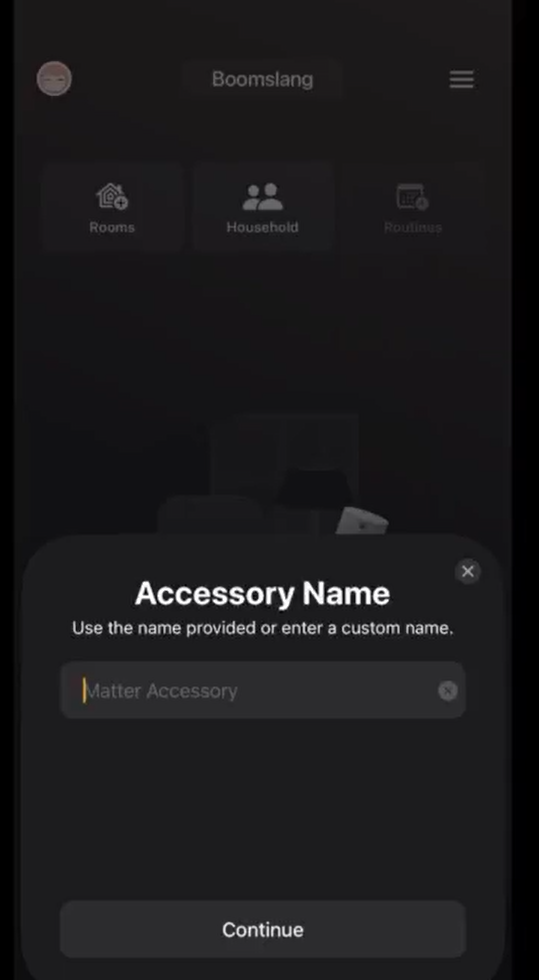
- Enter a custom name for your device or use the default name that appears in the field. Tap “Continue”.
- As soon as the device is added, tap “DONE”.
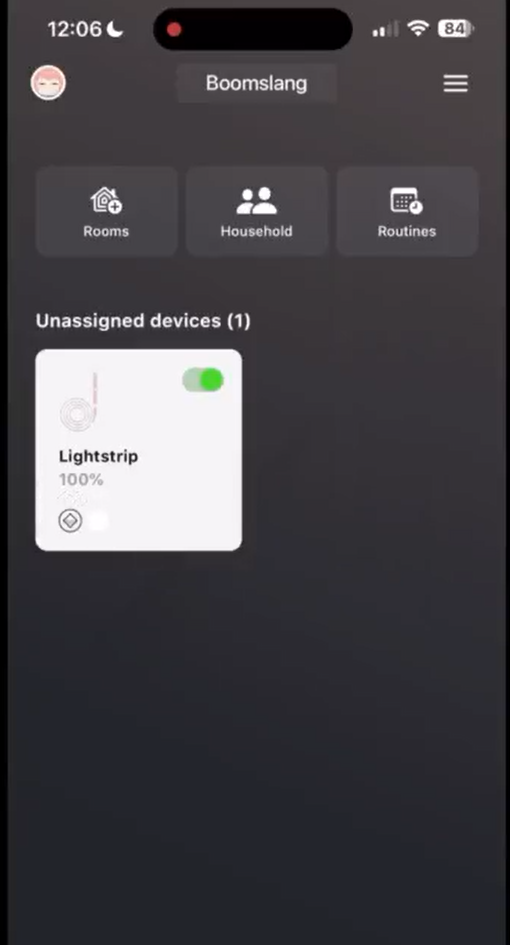
Your device(s) should now be visible in the main panel of your Home.