
Internet connection is not required to access the Razer Sila's web User Interface (UI). Just make sure that the web UI is enabled and that the PC you will be using is connected to the wired or wireless network of your Razer Sila.
-
Connect your PC to the wireless network of your Razer Sila or any of its LAN ports using an Ethernet cable.
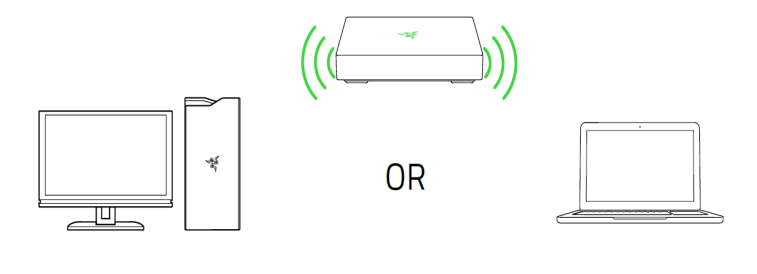
-
Launch a web browser and enter "sila.razer.com" or "192.168.8.1" in the address bar.
Note: If you encounter a “Web UI Disabled” message when accessing the Razer Sila's web user interface, perform a factory reset to resolve this issue. See How to reset the Razer Sila to factory settings for more details.
-
On the login page, enter the web password found on the label sticker at the bottom of the router and click "SIGN IN".
You will then be redirected to the Razer Sila's web User Interface.

