Applicable Model:
-
Note: Firmware applies to Razer Blade 18" (2024) RTX 4080 and 4090 models (with Thunderbolt™ 5 port).
RazerUpdater_v1.1.1.3_KI8100-NVM16.1v6
-
https://rzr.to/ouiujd | August 10, 2024
-
Fixed third monitor could not be lit up issue
STEP-BY-STEP PROCESS
Before you start:
IMPORTANT: Ensure BIOS is updated to version 1.04 before updating the firmware.
-
Ensure Windows is up to date. See How to get the latest software and driver updates from Windows.
If you just updated Windows, install the "Optional updates" under Settings > Windows Update > Advanced options.
-
Plug the Razer Blade into a wall outlet. Do not let it run on battery alone before proceeding.
-
Save all files and close all programs.
-
Download the latest firmware updater.
Update Process:
-
Run the updater.
-
Click “Yes" if the User Account Control window pops up.
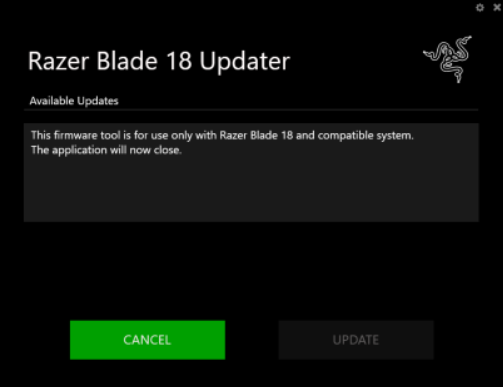
Note: The Razer Blade Updater window will appear with details regarding your current firmware version and the version your Razer Blade will be updated to.
-
Click “UPDATE” to initiate the update process.
A progress bar will appear indicating the status of the installation process. During installation, you will not be able to access other applications.
-
The Razer Blade will restart a few times and will automatically boot to Windows once the update is complete.
Important: Do not force restart or shut down the Razer Blade during this process.
-
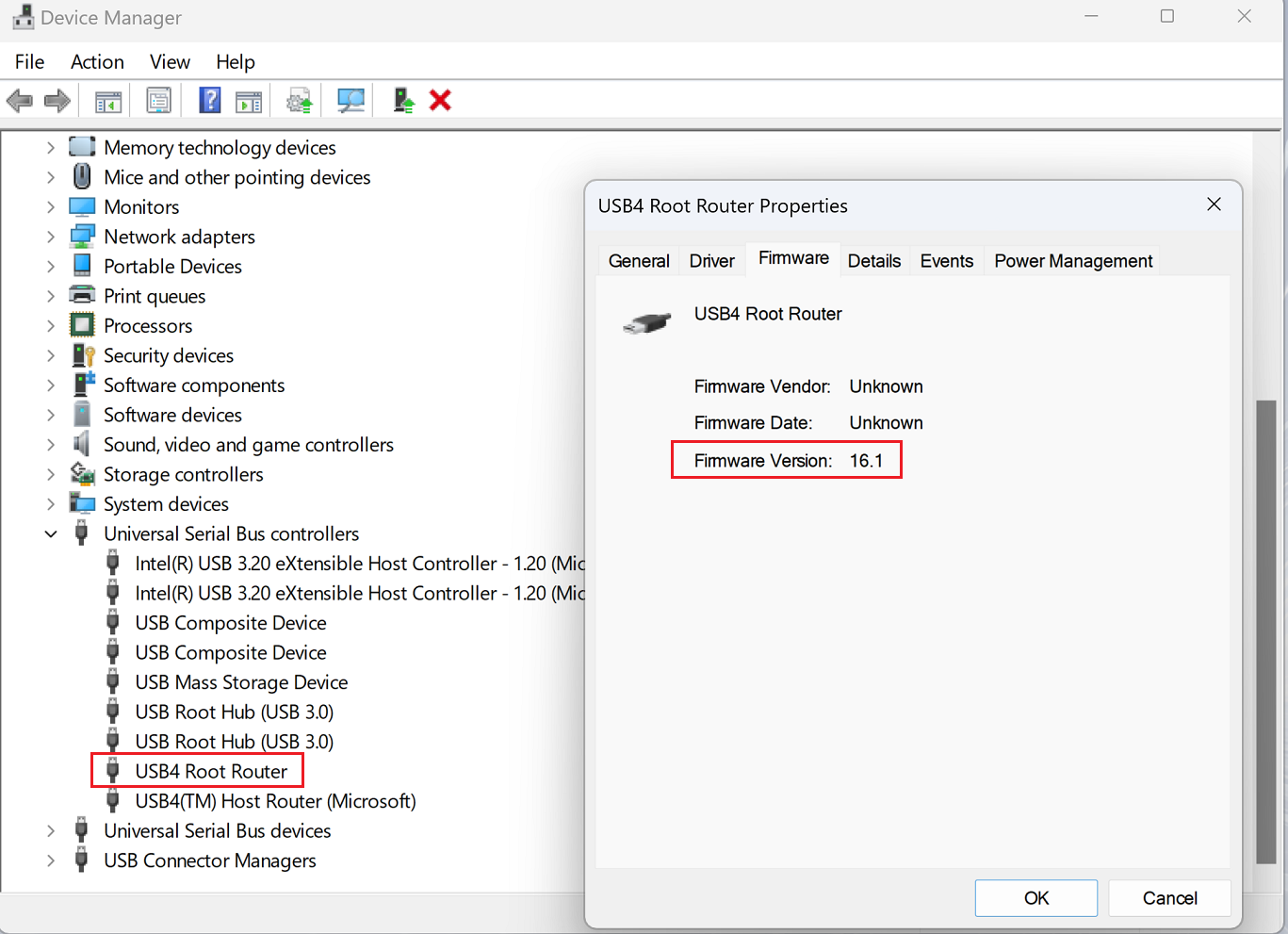
Go to Device Manager to check if the update is successful.