After upgrading from Razer Synapse 3 to Razer Synapse 4, you can then migrate your user profiles. This article will guide you through the features within Razer Synapse which can help you move your Razer Synapse personalization and settings from Razer Synapse 3 to Razer Synapse 4.
You can view the video below for instructions or review a copy of the video transcript.
Important:
- Do not uninstall Razer Synapse 3 manually as it may cause issues with the profile migration.
- Ensure you have Razer Synapse 3 installed and perform the upgrade to Razer Synapse 4 via the banner or installer available on the Razer website.
Note: The Razer Synapse migration tool only presents profiles for backup profiles that are present on the local machine.
Migrate your user profile
Migrate user profiles during first-time upgrade from Razer Synapse 3 to Razer Synapse 4
- Upgrade your Razer Synapse. See How to install or upgrade Razer Synapse for more details.
- Launch Razer Synapse 4 and log in with your Razer ID.
You will be prompted to transfer all your connected devices’ Profiles, Macros, and Chroma Effects from Razer Synapse 3 to Razer Synapse 4.

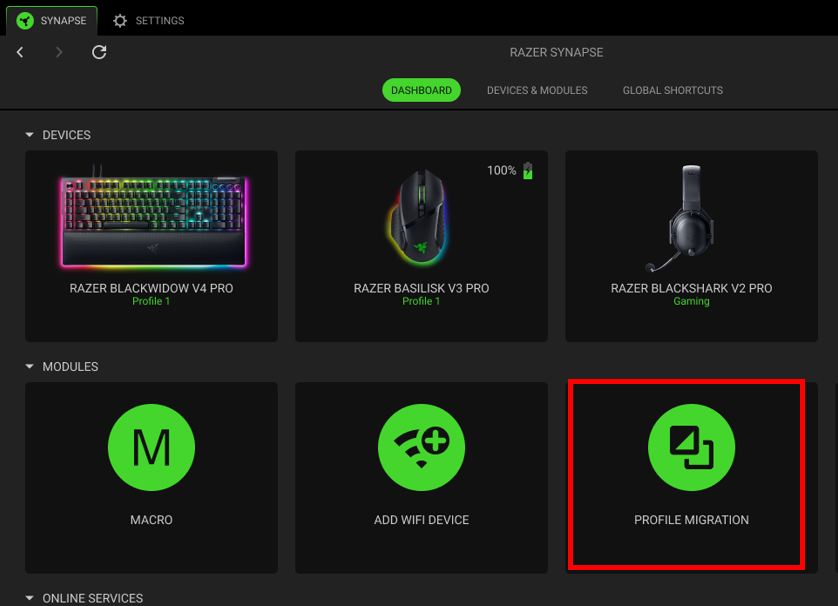
- Click the “PROFILE MIGRATION” tool under the MODULES section of the DASHBOARD.
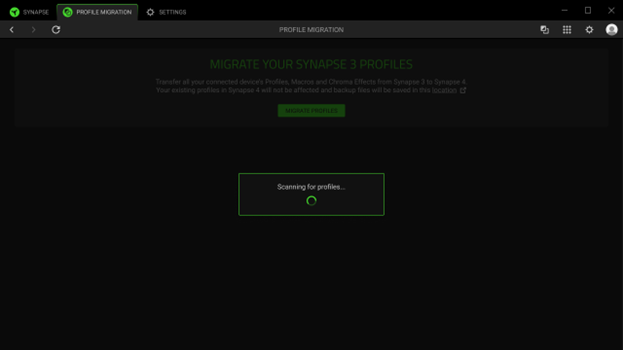
You will be notified that Razer Synapse 4 will start scanning for any Razer Synapse 3 backup profiles.
All located profiles will be shown and are ready for migration.

- Expand each section and choose which profiles to migrate.
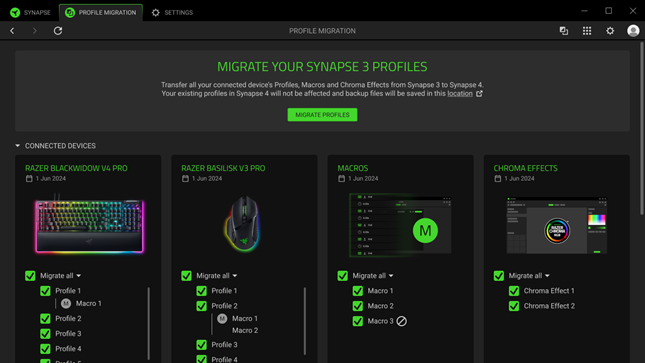
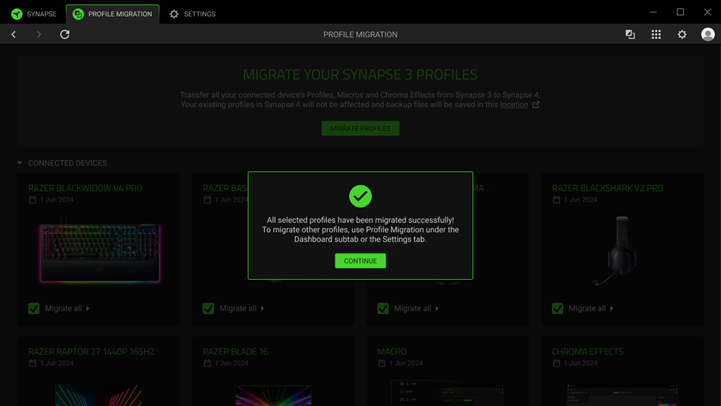
- Click on “MIGRATE PROFILES” to start the migration process.
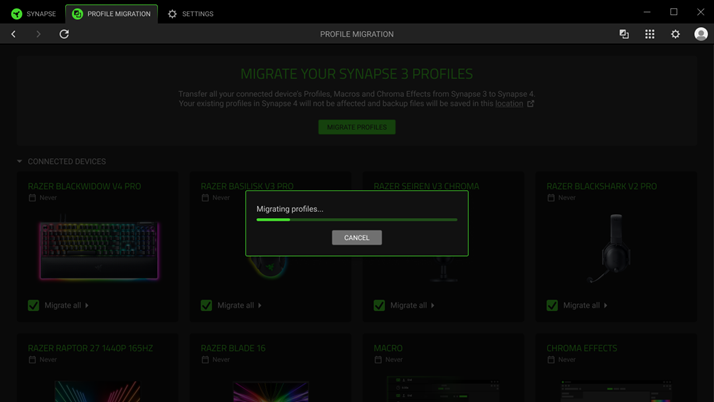
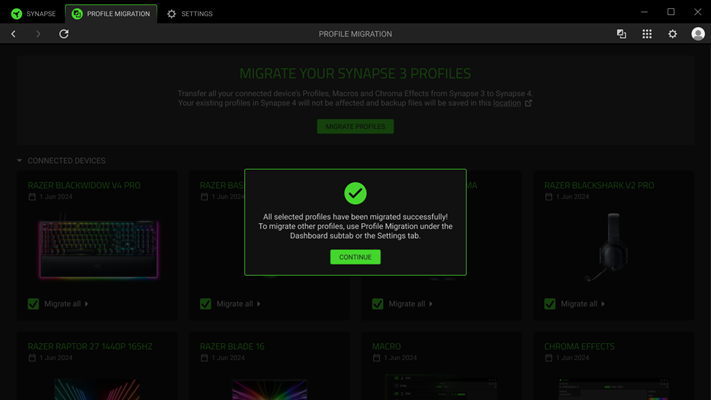
You will be notified that all your selected profiles have been migrated successfully.
Migrate user profiles after using the Razer Synapse 4
If you did not migrate your user profiles during the upgrade process, you can still migrate your Razer Synapse 3 profiles at your preferred time.
- Click the “PROFILE MIGRATION” tool under the MODULES section of the Dashboard.
- Expand each section and choose which profiles to migrate.
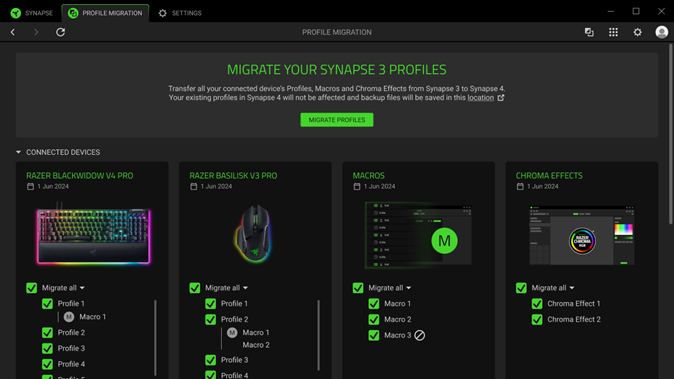
- Click on “MIGRATE PROFILES” to start the migration process.
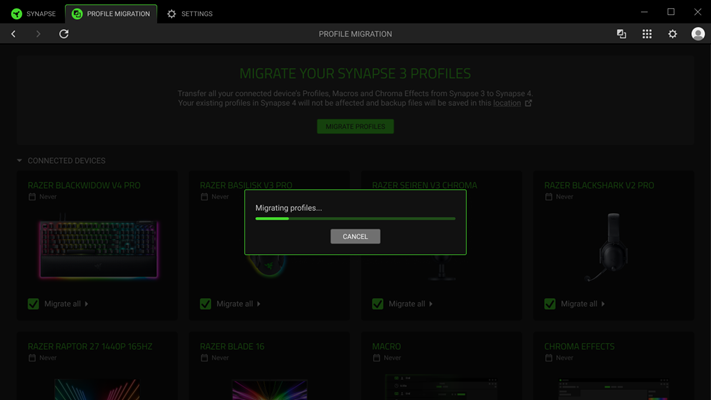
You will be notified that all your selected profiles have been migrated successfully.
Manually migrate your cloud profile data
Retrieve cloud profile data
-
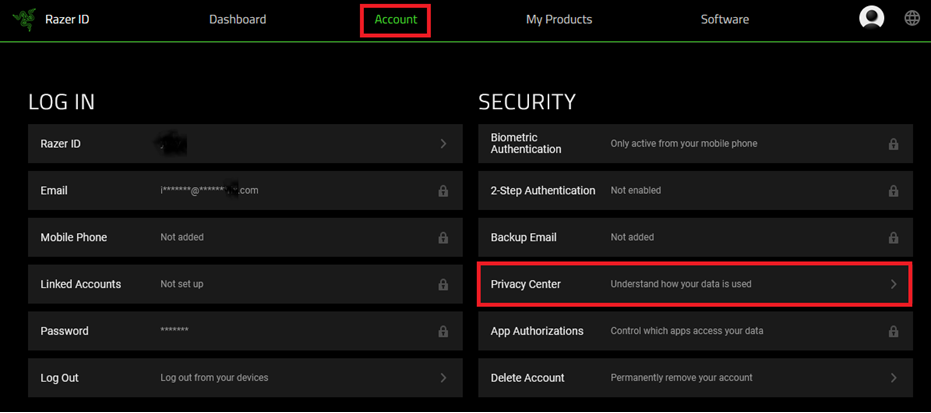
Log in to your RazerID.
-
Click “Account”, select “Privacy Center”.
-
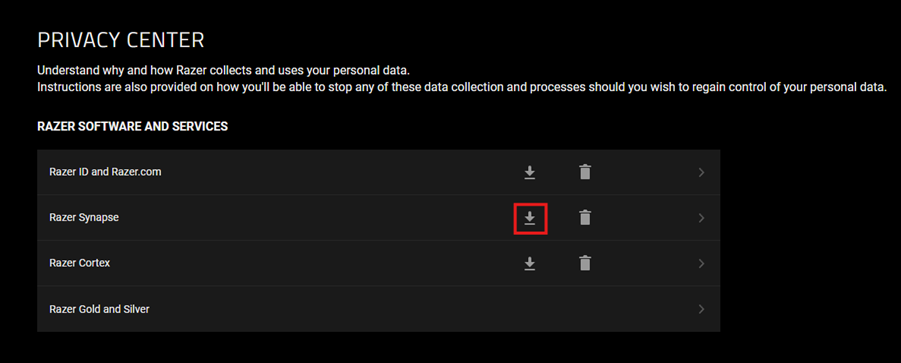
Download your Razer Synapse data.
-
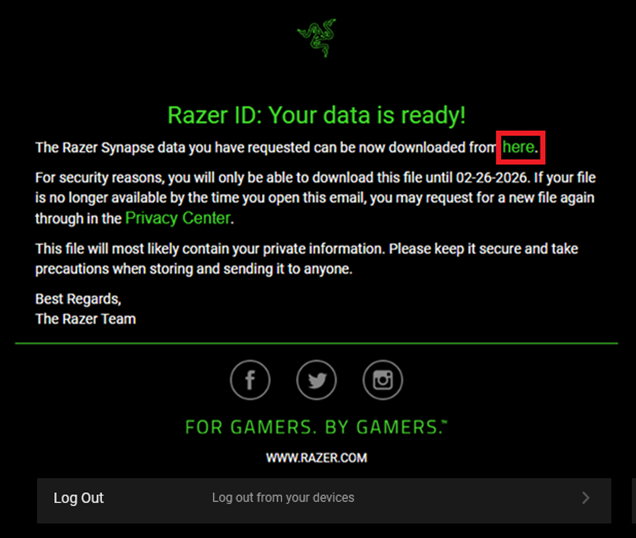
Once you receive the email, click the “here” link to download your cloud profile data.
-
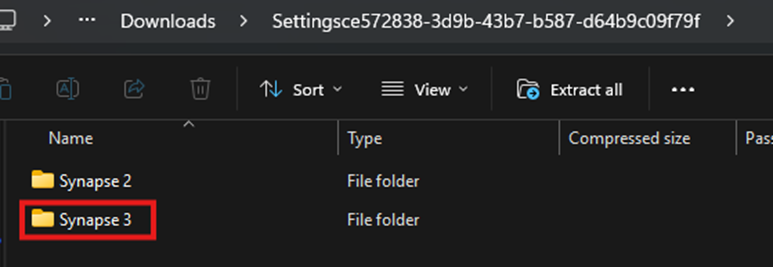
Extract the contents of the cloud profile data from the “Synapse 3” folder.
Migrate profile to Razer Synapse 4
-
Download the Profile Migration folder.
-
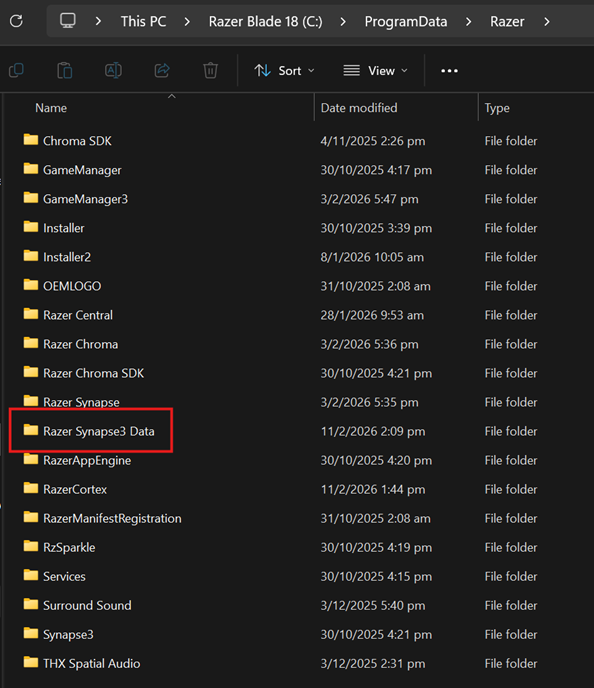
Extract and copy the contents from the “Razer Synapse3 Data” folder.
-
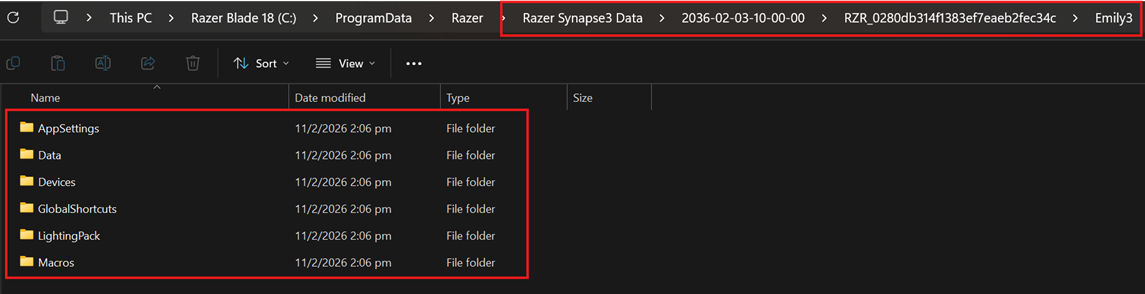
On your Windows PC, go to “C:\ProgramData\Razer”.
-
Paste the “Razer Synapse3 Data” folder.
-
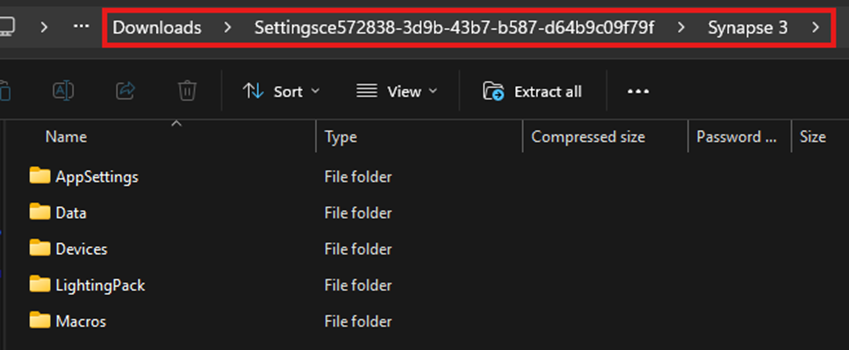
Copy the contents from the cloud profile data in the “Synapse 3” folder.
-
Paste the contents in the “Emily3” folder.