Effective February 3, 2026, Razer Synapse 3 will no longer receive updates or support cloud services. After this date, cloud syncing of configurations across PCs using the same Razer ID will be disabled.
Note: Your installed devices will continue to be configurable in Razer Synapse 3. However, if you uninstall these devices completely, you will need to upgrade to Razer Synapse 4 to continue customization.
Download Razer Synapse 4 and migrate your existing Razer Synapse 3 profiles using the Profile Migration Tool to retain access to your configurations. See How to migrate your Razer Synapse 3 Profile to Razer Synapse 4 for instructions.
This article provides you the instructions on how to create or delete macros on Razer Synapse.
Razer Synapse 4
You can view the video below for instructions or review a copy of the video transcript.
How to create a macro
-
Plug a Razer Synapse-enabled product into your computer.
-
Open Razer Synapse 4.
-
Select "MACRO" > "New Macro".

Note: By default, macro profiles will be named Macro 1, Macro 2, and so on.
-
Rename your macro for easier identification.
- Click on the macro to rename.
- Click the ellipsis button then click “Rename”.

- Enter your desired macro name.

-
Record your keystrokes or mouse functions to add to the macro.
- Click the drop-down button next to RECORD.
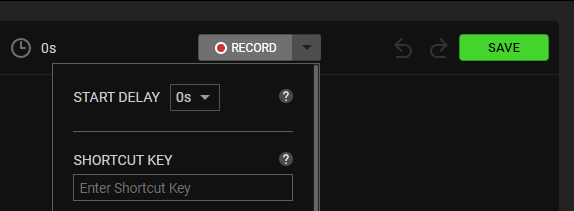
- Set the delay functions and how the mouse movement is recorded. If you select Record Delay, there is a countdown before Razer Synapse 4 starts recording.

- Click “RECORD”.
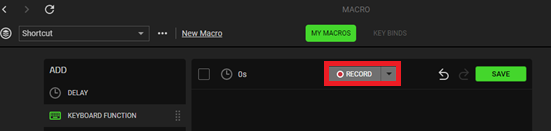
- Click “STOP” to stop recording.

- Click “SAVE” to save your recorded macro.

- Click the drop-down button next to RECORD.
Once your macro is saved, you can then assign it to any applicable Razer Synapse-enabled product.
How to delete a macro
Note: This will delete all data in the macro.
-
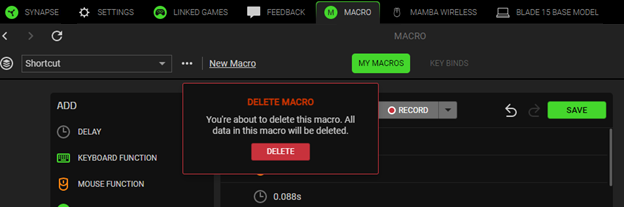
Click on the ellipsis button of the macro you wish to delete.
-
Select "Delete".

-
Click "DELETE".
Razer Synapse 3
You can view the video below for instructions.
How to create a macro
-
Plug a Razer Synapse 3-enabled product into your computer.
-
Open Razer Synapse 3.
-
Select "MACRO".

-
Click on the plus icon "+".

Note: By default, macro profiles will be named Macro 1, Macro 2, and so on. Rename your macro for easier identification.
- Click on the macro to rename.
- Click on the checkmark to save changes.

-
Select a macro to start adding input sequences.

There are two ways to create a macro:
- Record – records your keystrokes or mouse functions which will be added to the macro.
- Insert – manually insert keystrokes or mouse functions to the macro.
Record
-
Click on "Record".

-
Set the delay functions and how the mouse movement is recorded. If you select Record Delay, there is a 3-second countdown before Razer Synapse 3 starts recording.

-
Click "START" when you are ready to record your macro.
-
Click "STOP" after you finished recording your macro.
Your macro is automatically saved. You can then assign it to any applicable Razer Synapse 3-enabled product.
Insert
-
Click "Insert".

-
Select an action:
- Keystroke
- Mouse Button
- Text
- Run Command
-
Set macro properties on the right-side section of the screen.
-
Input an applicable function.

You can also set a delay before initiating the next action.

Your macro is automatically saved. You can then assign it to any applicable Razer Synapse 3-enabled devices.
For a guide on how to assign macros, see How to assign macros on Razer Synapse 3-enabled Razer products.
How to delete a macro
-
Click on the ellipsis button of the macro you wish to delete.
-
Select "Delete".
Note: This will delete all data in the macro.

-
Click "DELETE".
