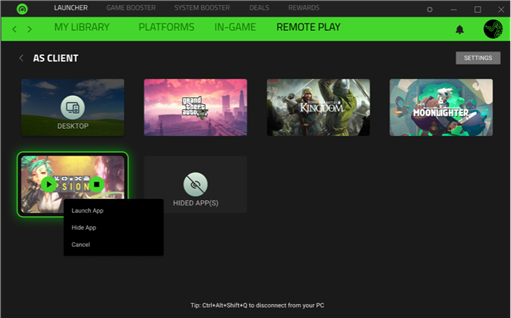
Razer Cortex 11 Remote Play is a self-hosted game streaming service that offers low latency connection and gaming server capabilities with support for AMD, Intel, and Nvidia GPUs hardware encoding. Host your games using Razer Cortex Remote Play or join as a Client using Razer Nexus app on your mobile devices.
Step-by-step process to set up Remote Play
Run as Host
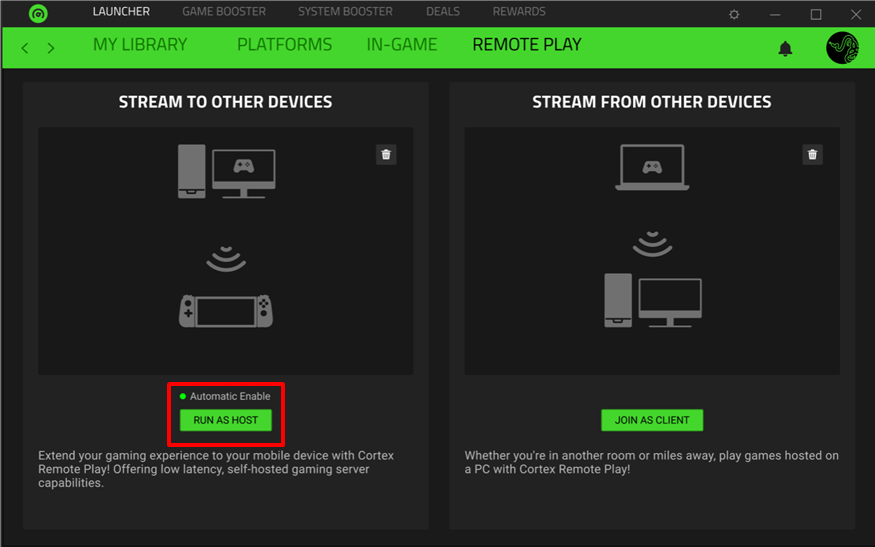
- Go to “LAUNCHER” > “REMOTE PLAY”.

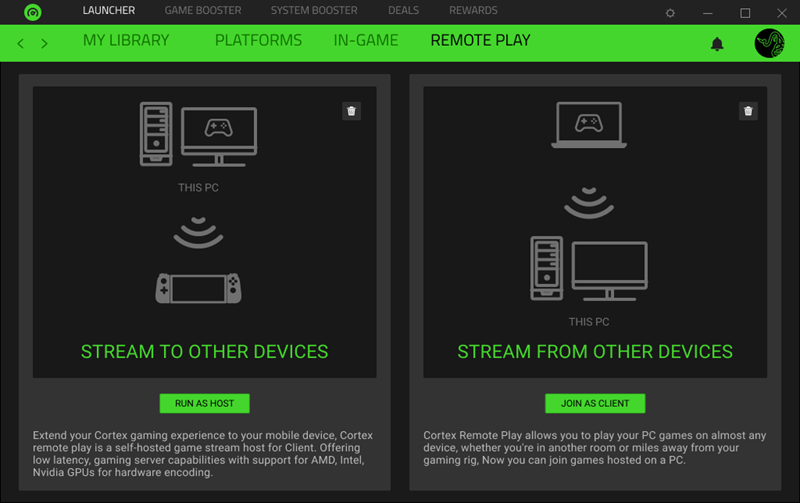
- Click on “RUN AS HOST” to start installing.
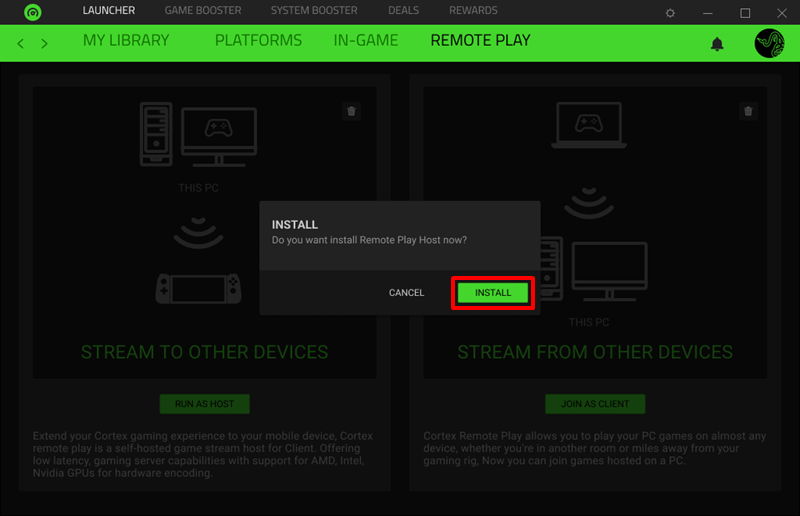
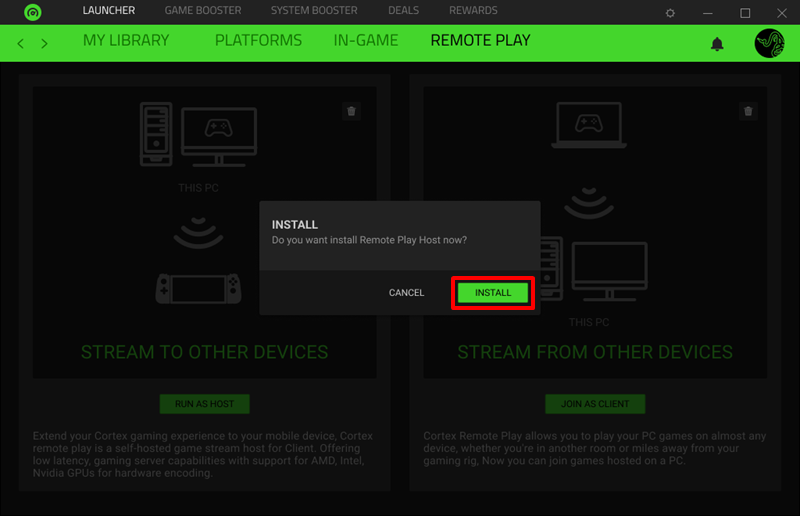
- Click on “INSTALL”.
- Wait until the installation is complete.
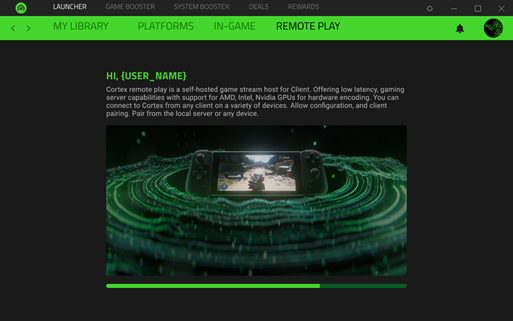
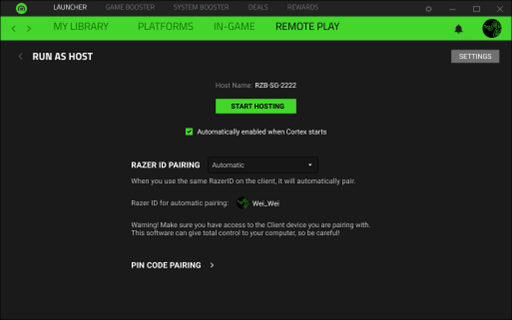
- Click on “START HOSTING”.
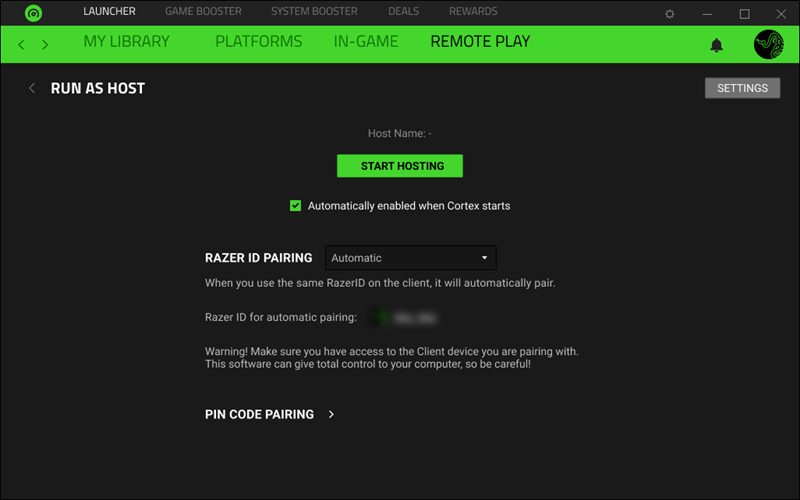
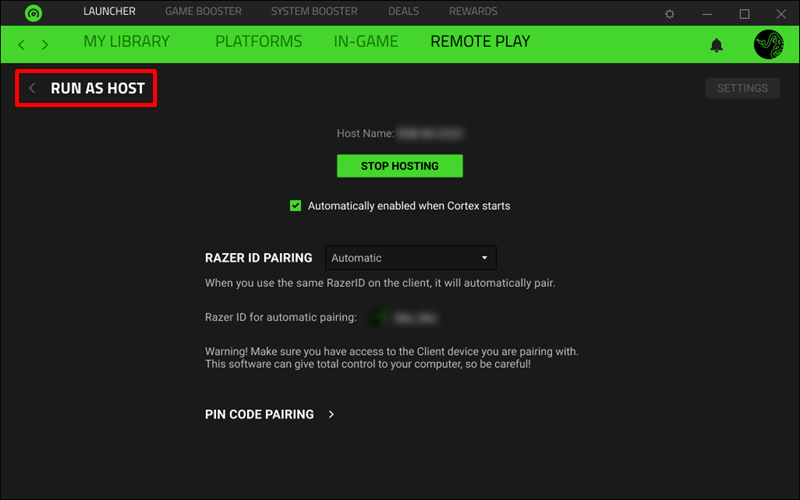
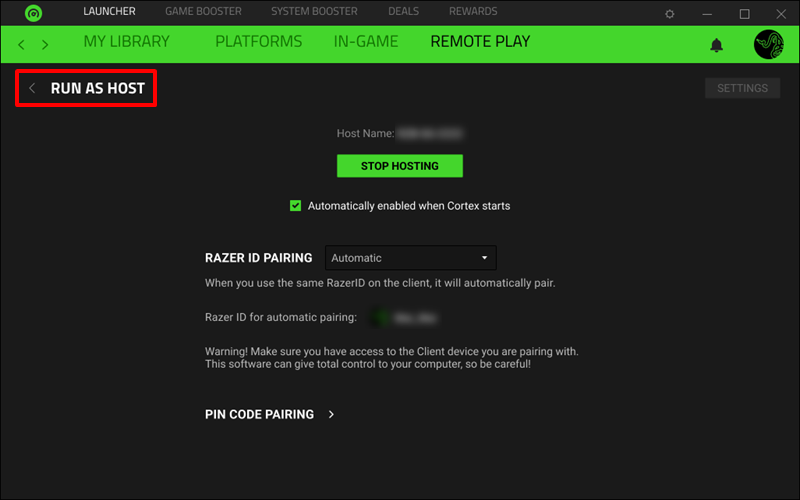
- The Host Name will now appear on the hosting screen. Click on "RUN AS HOST" to return to home screen.
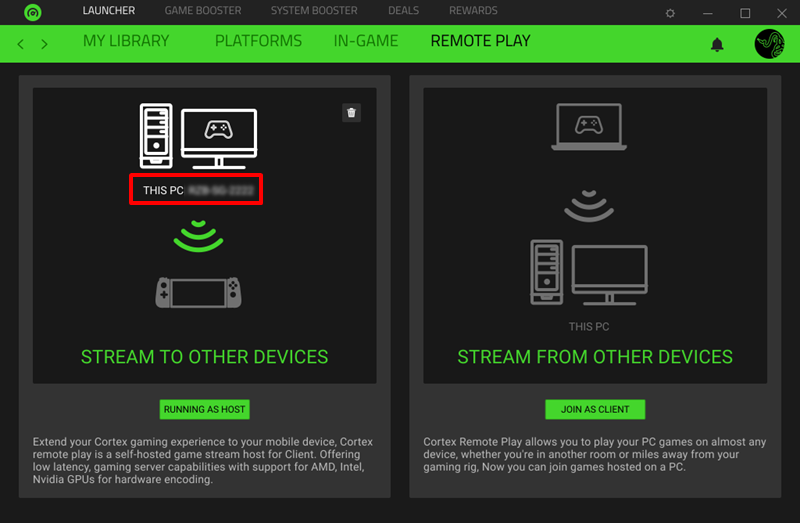
- The Host Name will now appear on the Cortex Remote Play home screen.
Stop Hosting
- Go to “LAUNCHER” > “REMOTE PLAY”.
- Click on “RUNNING AS HOST”.
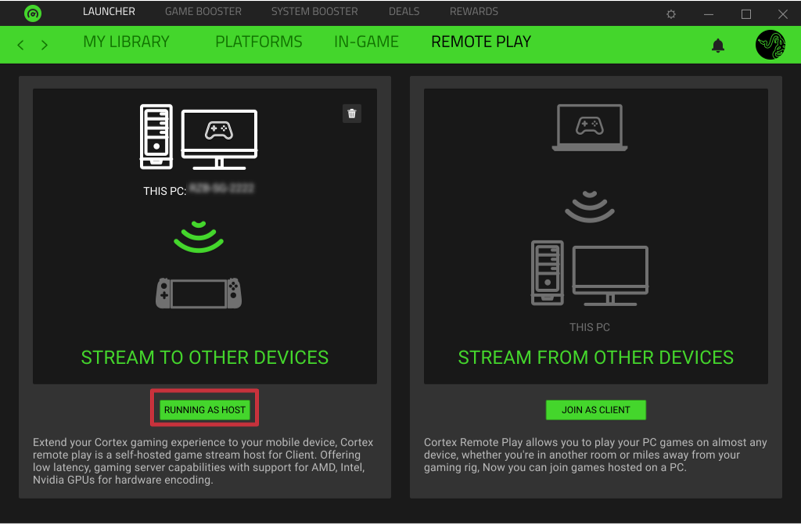
- Click on “STOP HOSTING”.
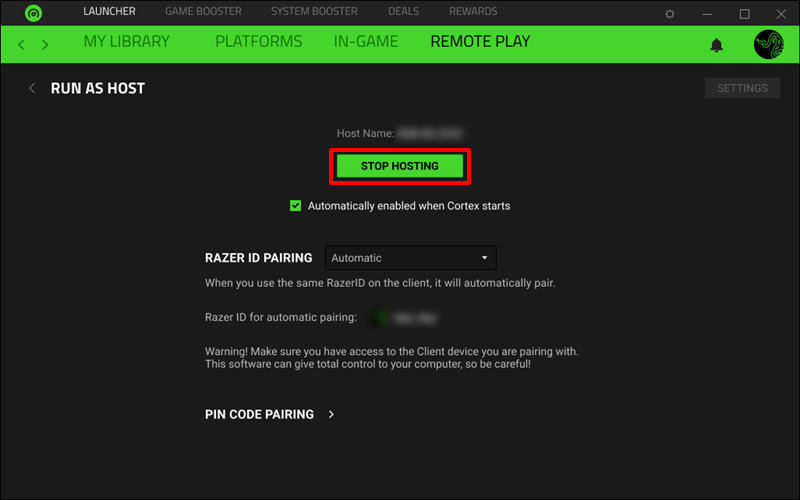
- The Host Name will no longer show on the screen. Click on "RUN AS HOST" to return to home screen.
The host name will no longer appear on the home screen.
Join as Client
- Go to “LAUNCHER” > “REMOTE PLAY”.
- Click on “JOIN AS CLIENT”.
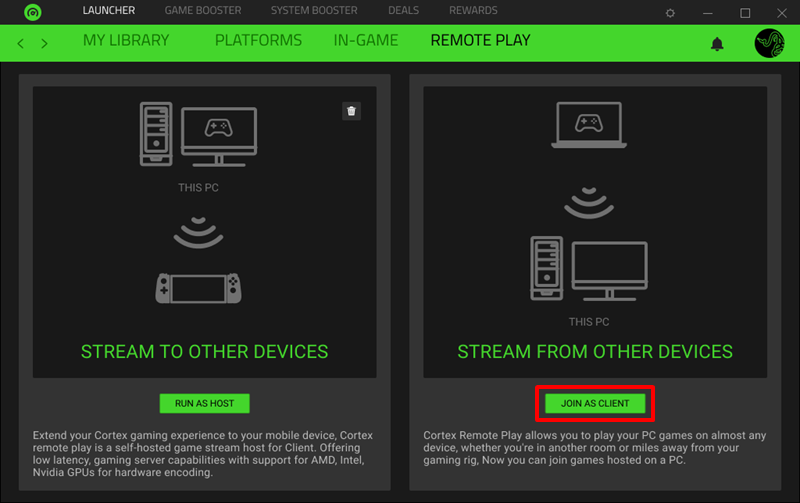
- Click on “INSTALL” .
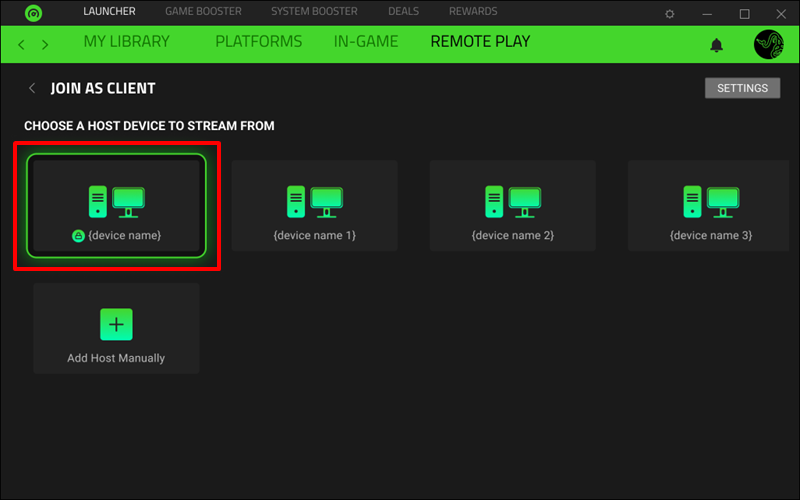
- Choose the Host Device to stream from.
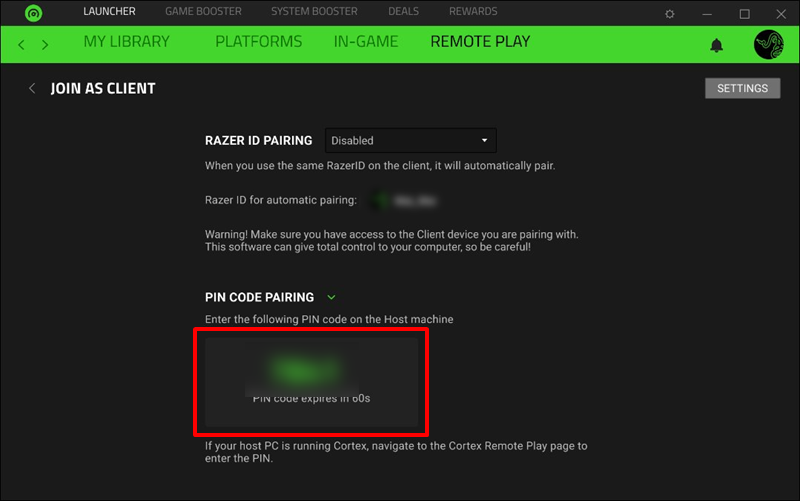
- Enter the PIN from the host computer.
- Choose a game to stream.