
Dim or non-functional LEDs on your Razer keyboard can be caused by misconfigured settings. Follow these steps to fix dim or non-functional LEDs on your Razer keyboard.
You can view the video below for instructions or review a copy of the video transcript.
-
Press and hold the “FN” + “F12” keys together. On most Razer keyboard models, you can increase the brightness of your keyboard LED lights by doing this.
Note: Some Razer keyboards will require different key combinations. Check the User Guide of your device for more information.
- If the brightness does not increase, reset your keyboard’s settings. You can do this by exiting Razer Synapse.
- Go to the Razer icon on your taskbar and click “Exit Synapse”.

If the keyboard LEDs light up after disabling Razer Synapse, your Razer Synapse profile could be incorrectly configured or corrupted.
To fix this, create a new profile on Razer Synapse and edit your advanced lighting effects. Alternatively, you can choose from one of the listed Quick Effects.

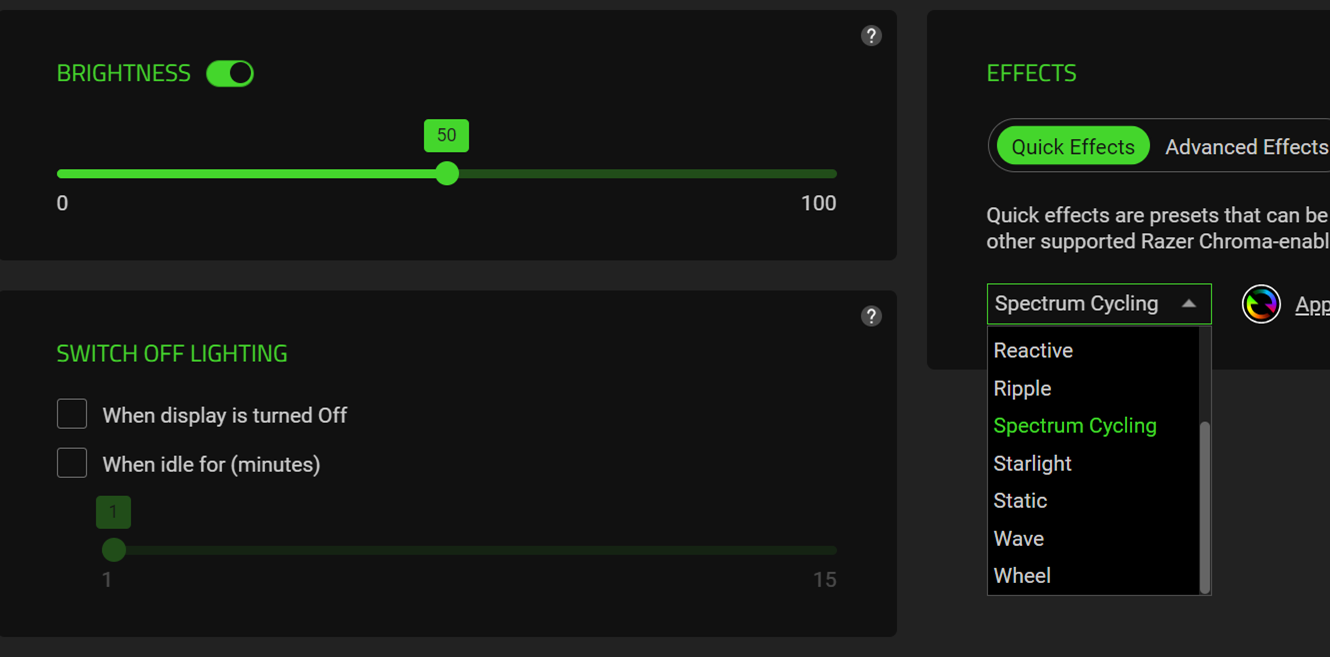
You have successfully fixed dim or non-functioning LEDs on your Razer keyboard.

