Applicable models:
Mice:
You can assign an AI launcher to your mouse or keyboard to activate an overlay that allows you to utilize AI engines. AI Prompt Master is equipped with prompt templates such as Rephrase, Summarize, and Compose. Additionally, you can also easily create your own templates.
Important: You need to assign an AI launcher to a button on your mouse to utilize this feature. See the answer below for more details.
Choose an action
Rephrase
You can view the video below for instructions.
-
Launch the AI Prompt Master.
-
Long-press the AI Launcher button on your mouse.
-
Press the Ai button on your keyboard.

-
-
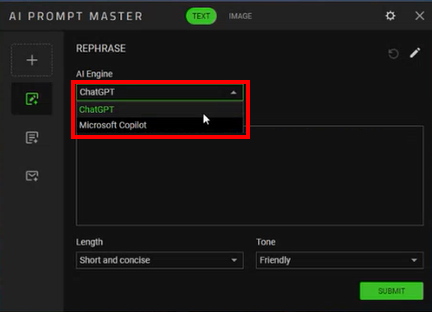
Choose your preferred AI Engine.
-
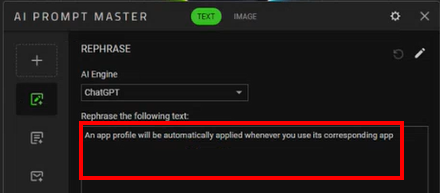
Enter the text you want to rephrase.
-
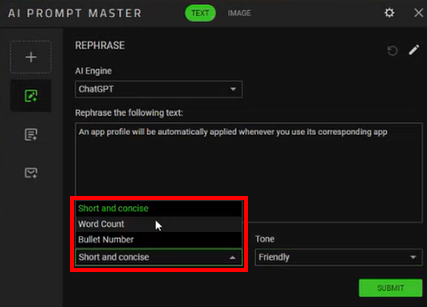
Choose an option from the “Length” drop-down menu.
-
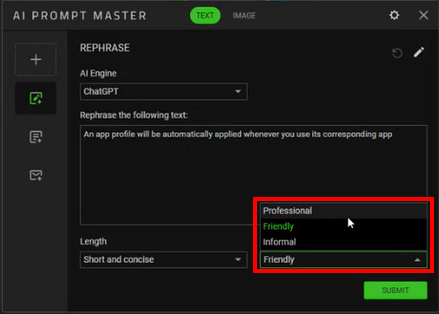
Choose an option from the “Tone” drop-down menu.
-
Click “SUBMIT”.
Summarize
You can view the video below for instructions.
-
Launch the AI Prompt Master.
-
Long-press the AI Launcher button on your mouse.
-
Press the Ai button on your keyboard.
-
-
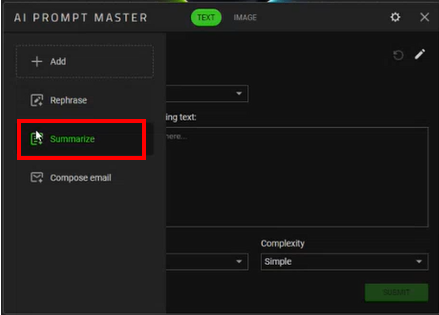
Hover your mouse over the left navigation menu then click “Summarize”.
-
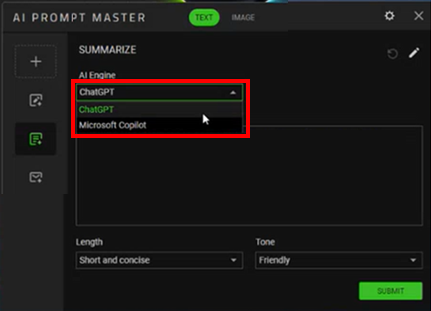
Choose your preferred AI Engine.
-
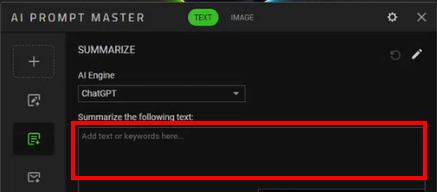
Enter the text you want to summarize.
-
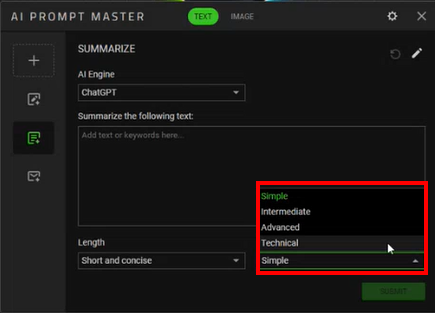
Choose an option from the “Length” and “Complexity” drop-down menus.
-
Click “SUBMIT”.
Compose Email
You can view the video below for instructions.
-
Launch the AI Prompt Master.
-
Long-press the AI Launcher button on your mouse.
-
Press the Ai button on your keyboard.
-
-
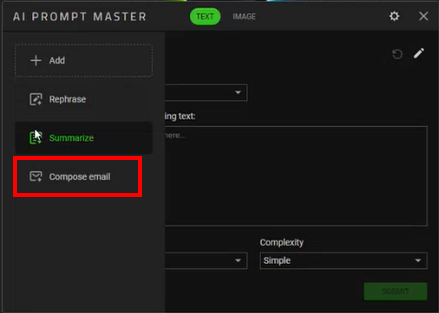
Hover your mouse over the left navigation menu then click “Compose email”.
-
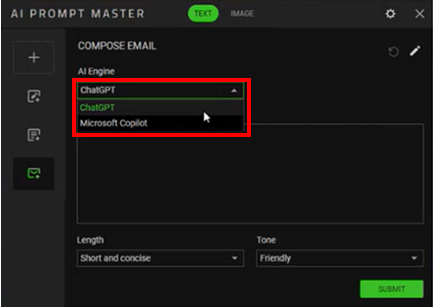
Choose your preferred AI Engine.
-
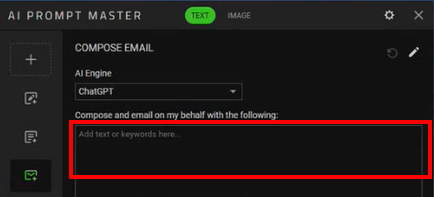
Enter the contents of the email you want to send.
-
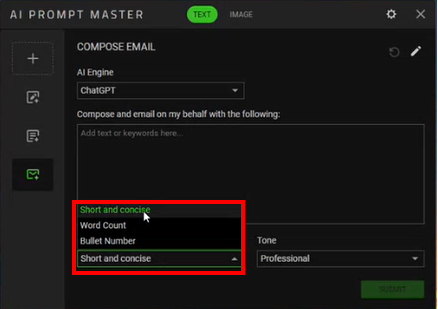
Choose an option from the “Length” and “Complexity” drop-down menus.
-
Click “SUBMIT”.
Add
-
Launch the AI Prompt Master.
-
Long-press the AI Launcher button on your mouse.
-
Press the Ai button on your keyboard.
-
-
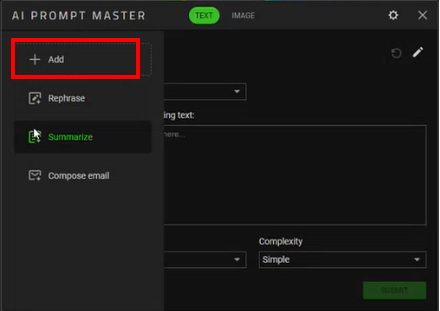
Hover your mouse over the left navigation menu then click “+ Add”.
-
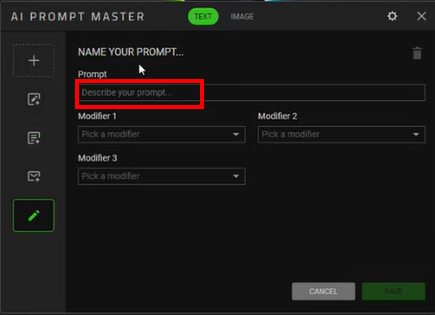
Enter the name of your prompt in the "Prompt" field.
-
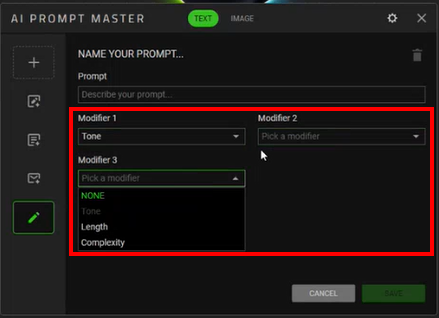
Customize up to three modifiers. The options are:
-
NONE
-
Tone – This modifier will list the following items:
-
Professional
-
Friendly
-
Informal
-
-
Length – This modifier will list the following items:
-
Short and concise
-
Word Count
-
Bullet Number
-
-
Complexity – This modifier will list the following items:
-
Simple
-
Intermediate
-
Advanced
-
Technical
Note: Each modifier must be unique. If “Tone” has been chosen as Modifier 1, you should choose NONE, Length, or Complexity as the next modifier.
-
-
-
Click “SUBMIT”.
Image
Important: You need to create and log in to your AI Engine account to use this feature.
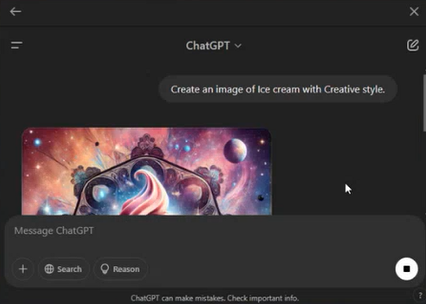
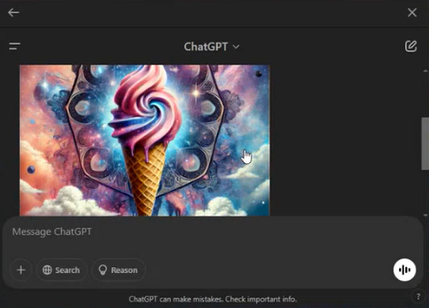
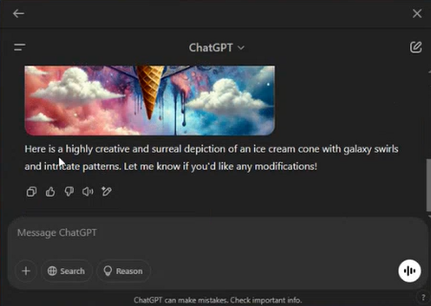
The AI Engine will generate an image according to your presets.
-
Launch the AI Prompt Master.
-
Long-press the AI Launcher button on your mouse.
-
Press the Ai button on your keyboard.
-
-
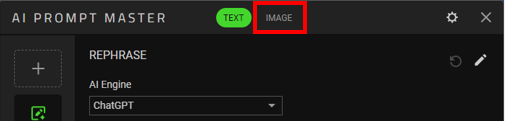
Click "IMAGE".
-
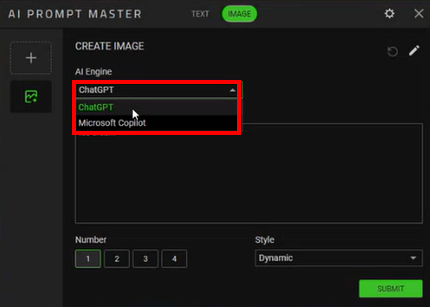
Choose your preferred AI Engine.
-
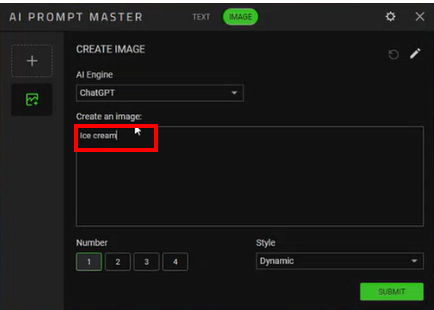
Enter the text of the image you want to generate.
-
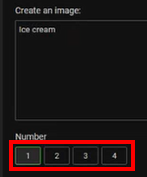
Choose the number of images you want to create.
-
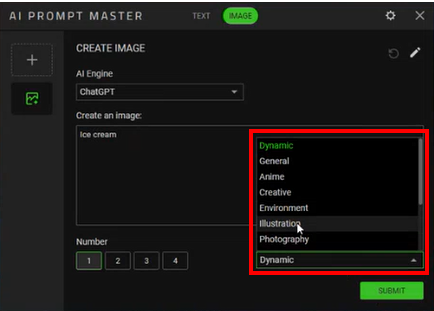
Choose an option from the “Style” drop-down list.
-
Click “SUBMIT”.