Applicable Products:
- Razer HyperFlux V2 Wireless Charging System | RZ81-0493
- Razer Basilisk V3 Pro 35K | RZ01-0524
- Razer Basilisk V3 Pro | RZ01-04620
- Razer Cobra Pro | RZ01-0466
- Razer Naga V2 Pro | RZ01-0440x
Firmware updater v1.00.02_r2
- https://rzr.to/ucmpzg | June 4, 2025
- Added support for additional Razer wireless charging accessories.
STEP-BY-STEP PROCESS
Before you start
- Make sure the laptop is plugged into a wall outlet and not just running on battery before proceeding.
- Save all files and close all programs.
- Download the latest firmware.
Update Process
-
Run the updater.
-
Click "Yes" if the User Account Control window pops up.
-
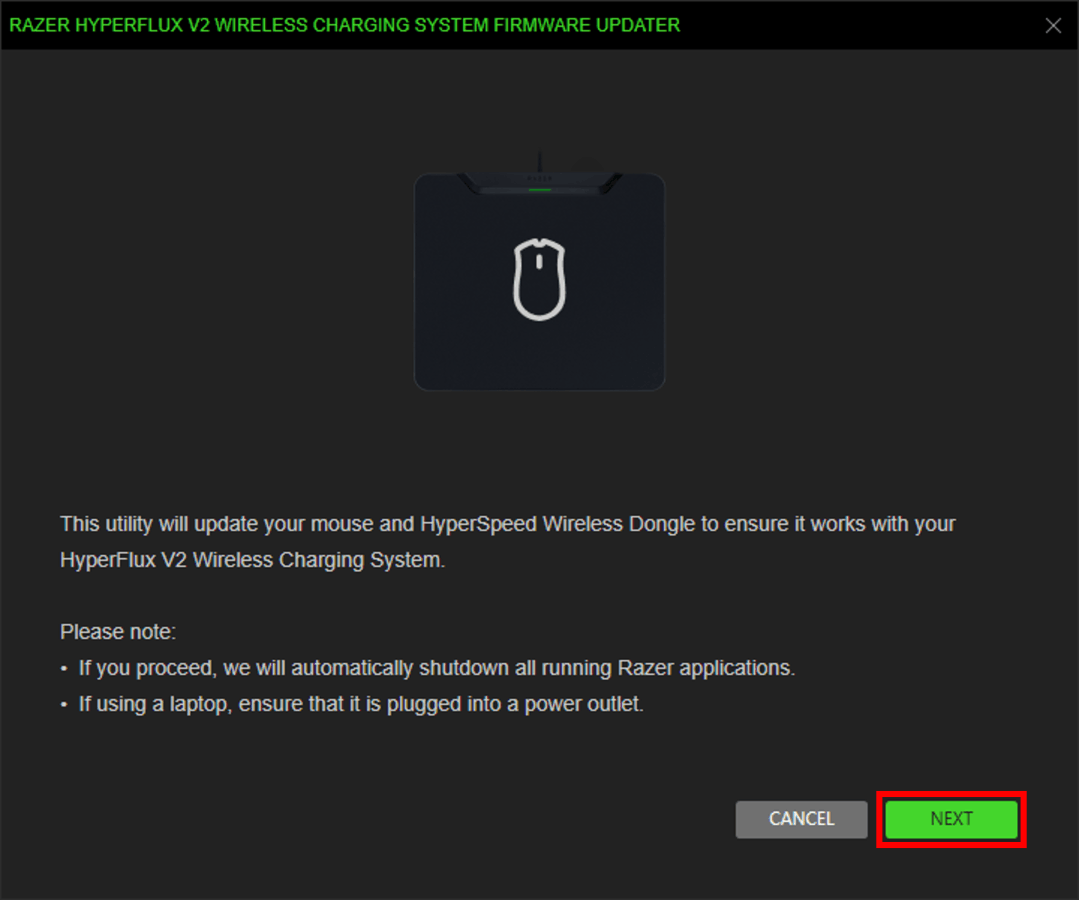
Click "NEXT" to proceed. The updater will close all running Razer applications.
-
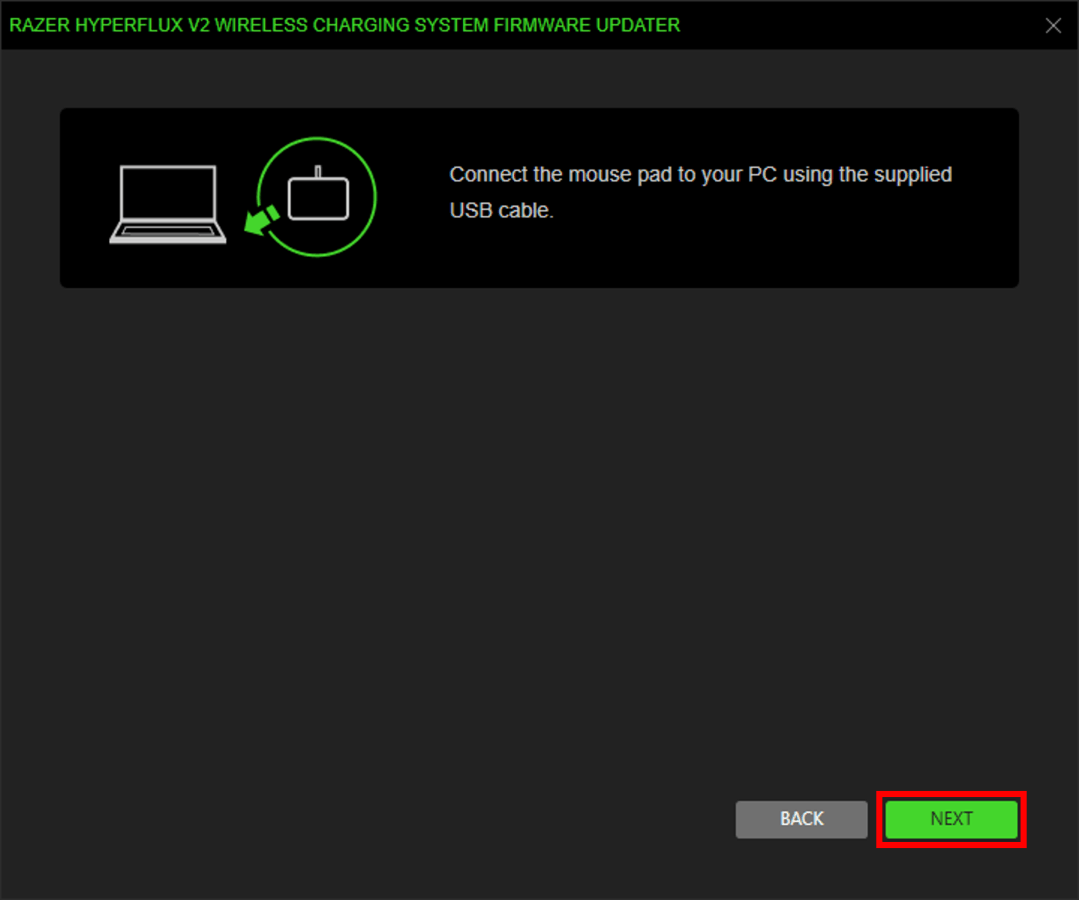
Connect the mouse pad to the PC using the supplied USB cable then click "NEXT".
-
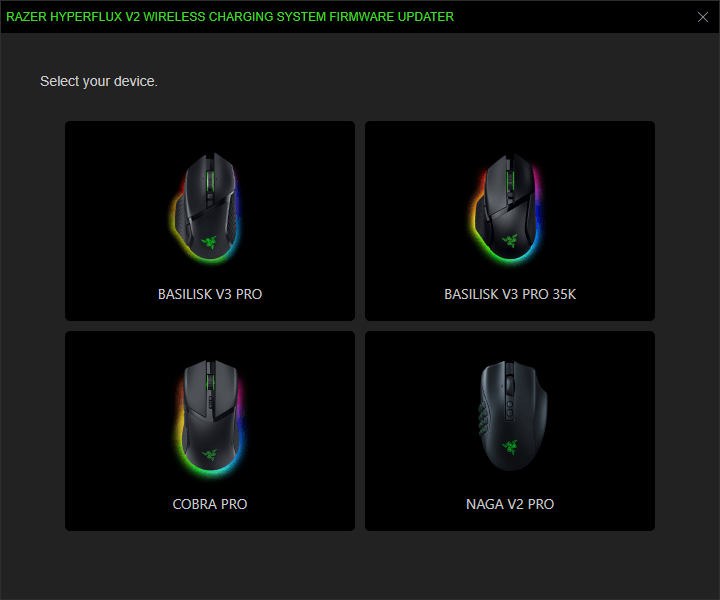
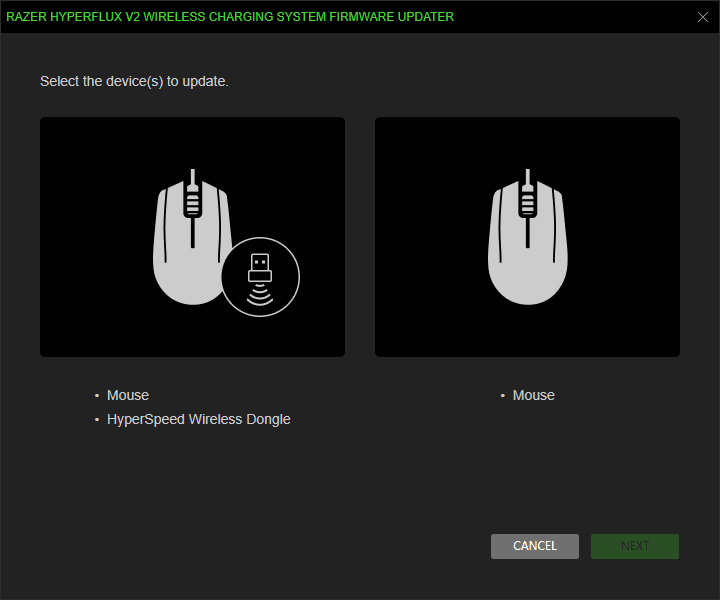
Select the device you want to update.
-
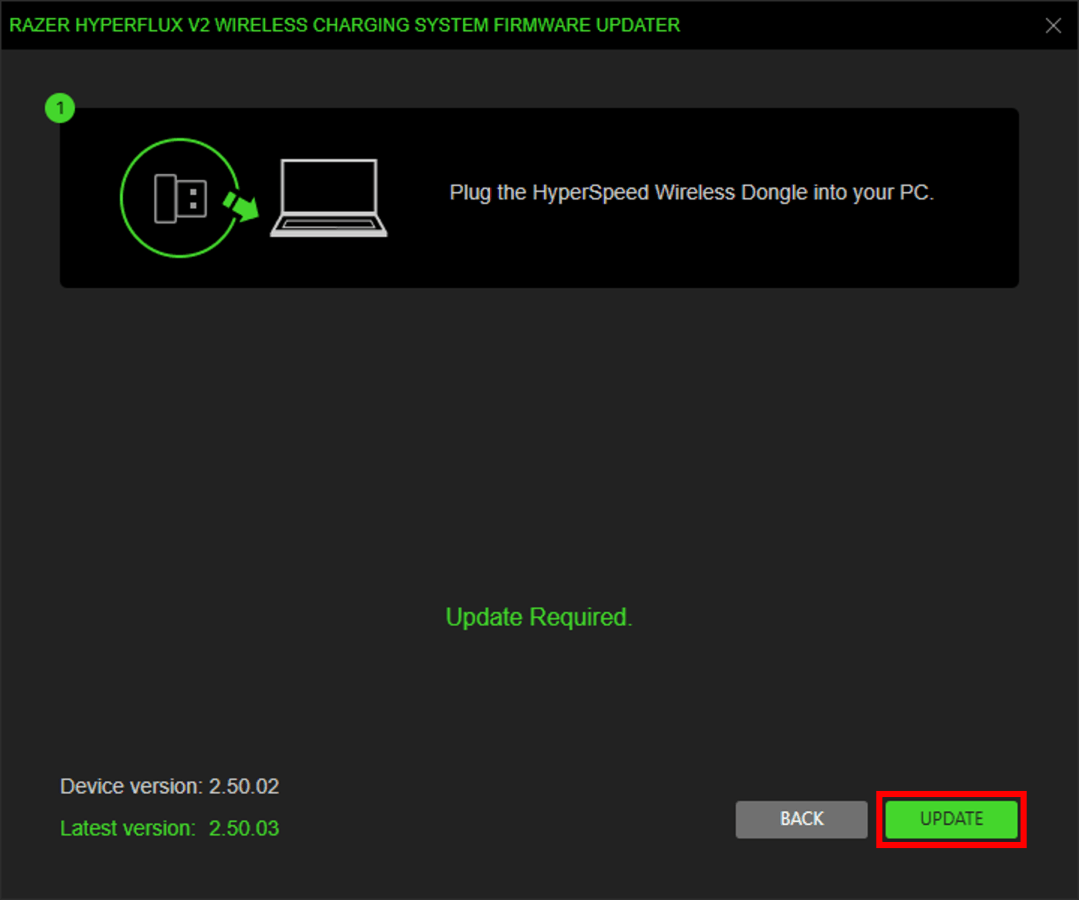
Plug in the HyperSpeed Wireless Dongle to the PC then click "UPDATE".
-
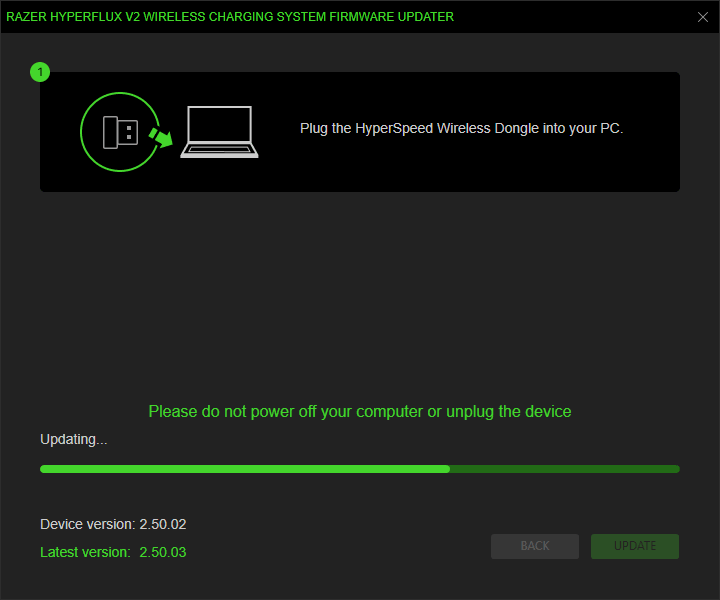
Wait until the update process is complete. Do not interrupt.
-
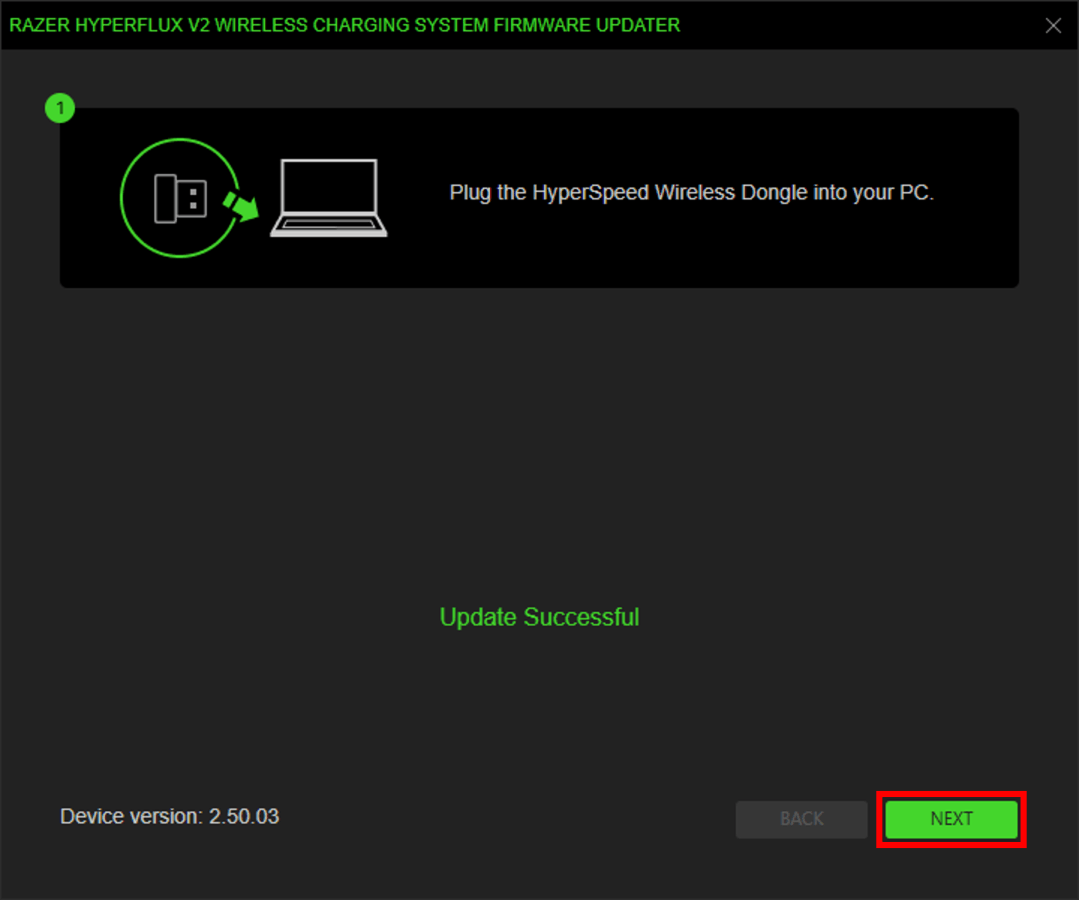
Click "NEXT".
-
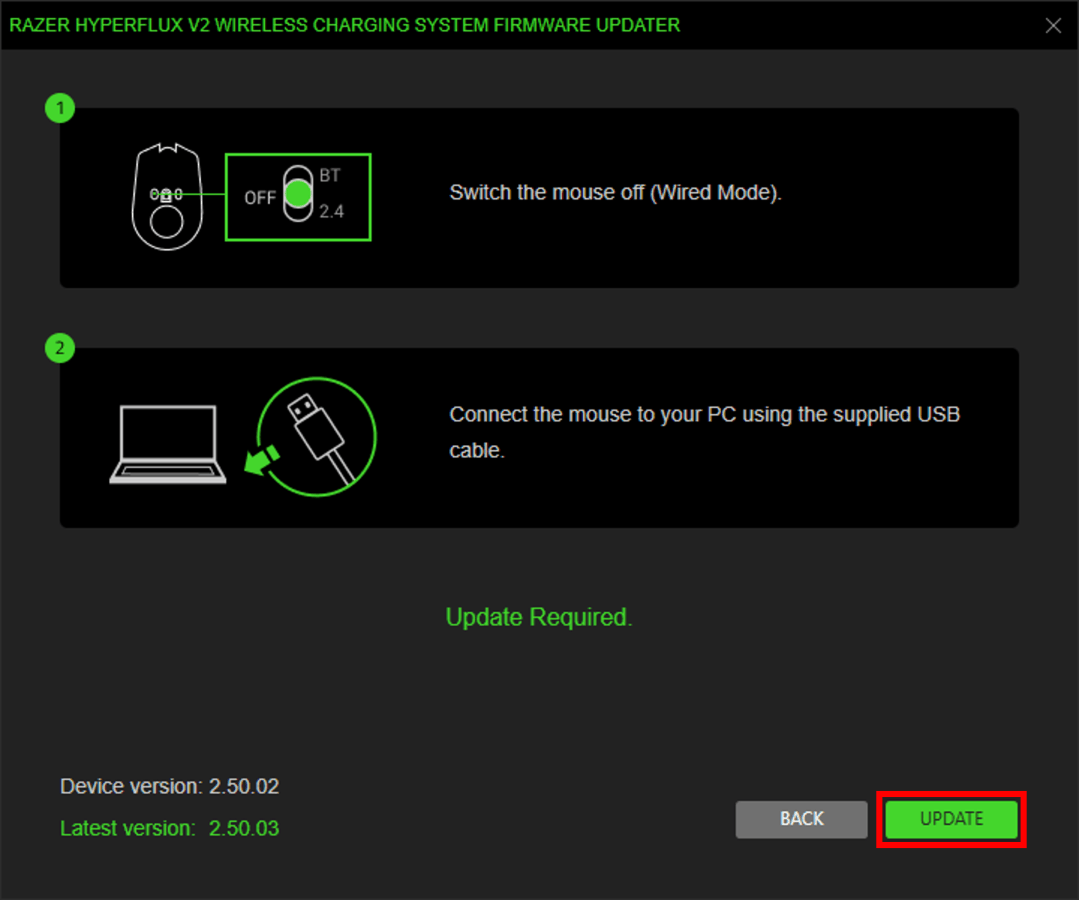
Switch off the mouse, connect it to the PC using the supplied USB cable, then click "UPDATE".
-
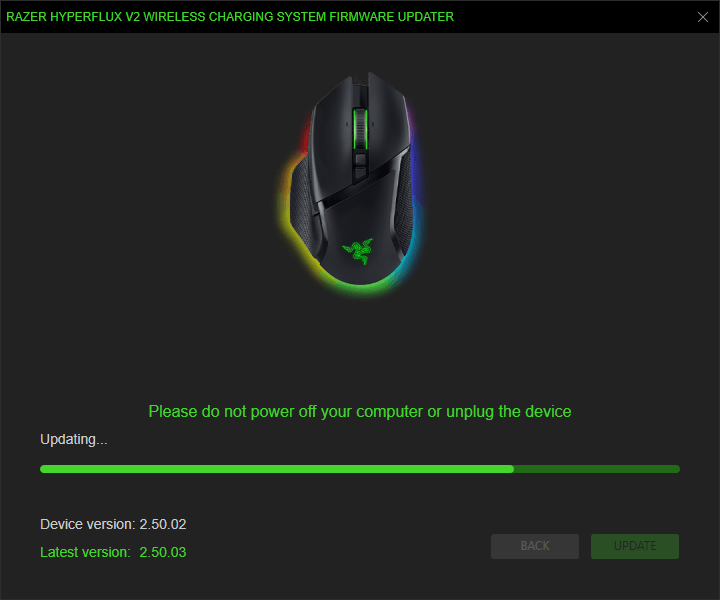
Wait until the update process is complete. Do not interrupt.
-
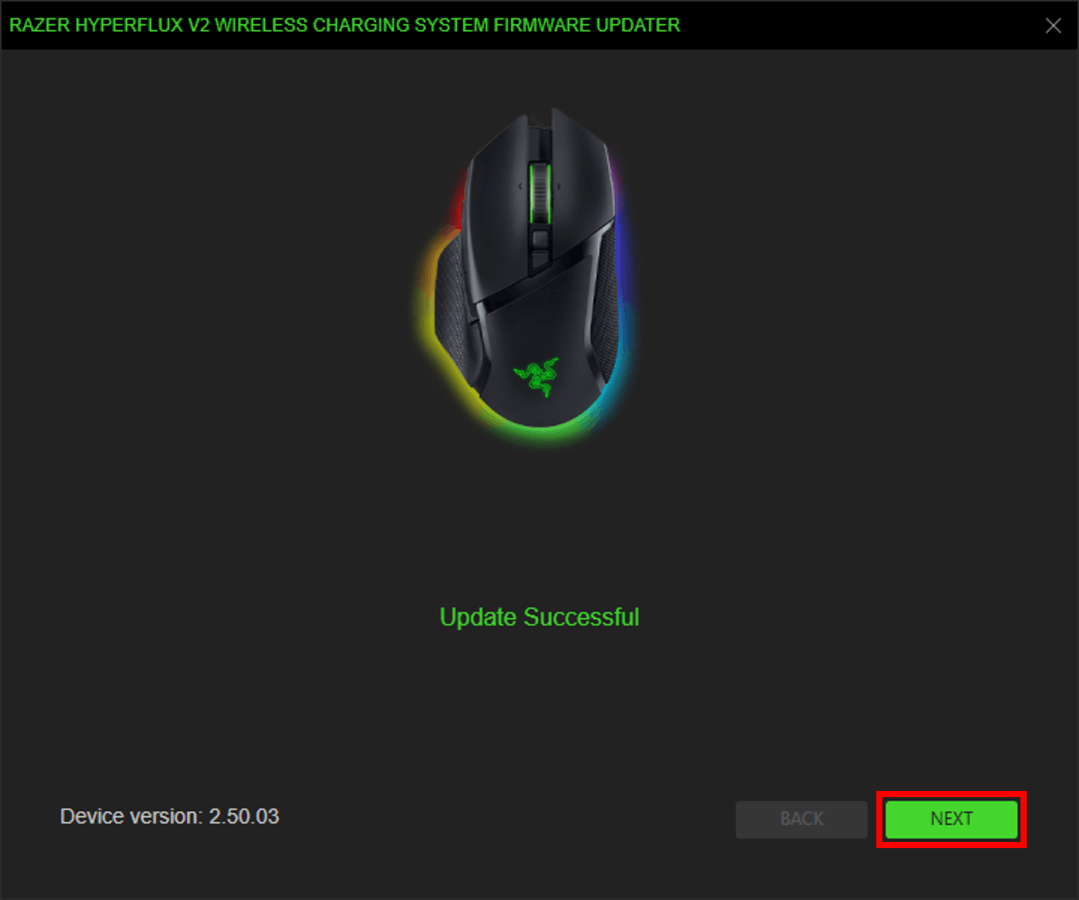
Click "NEXT".
-
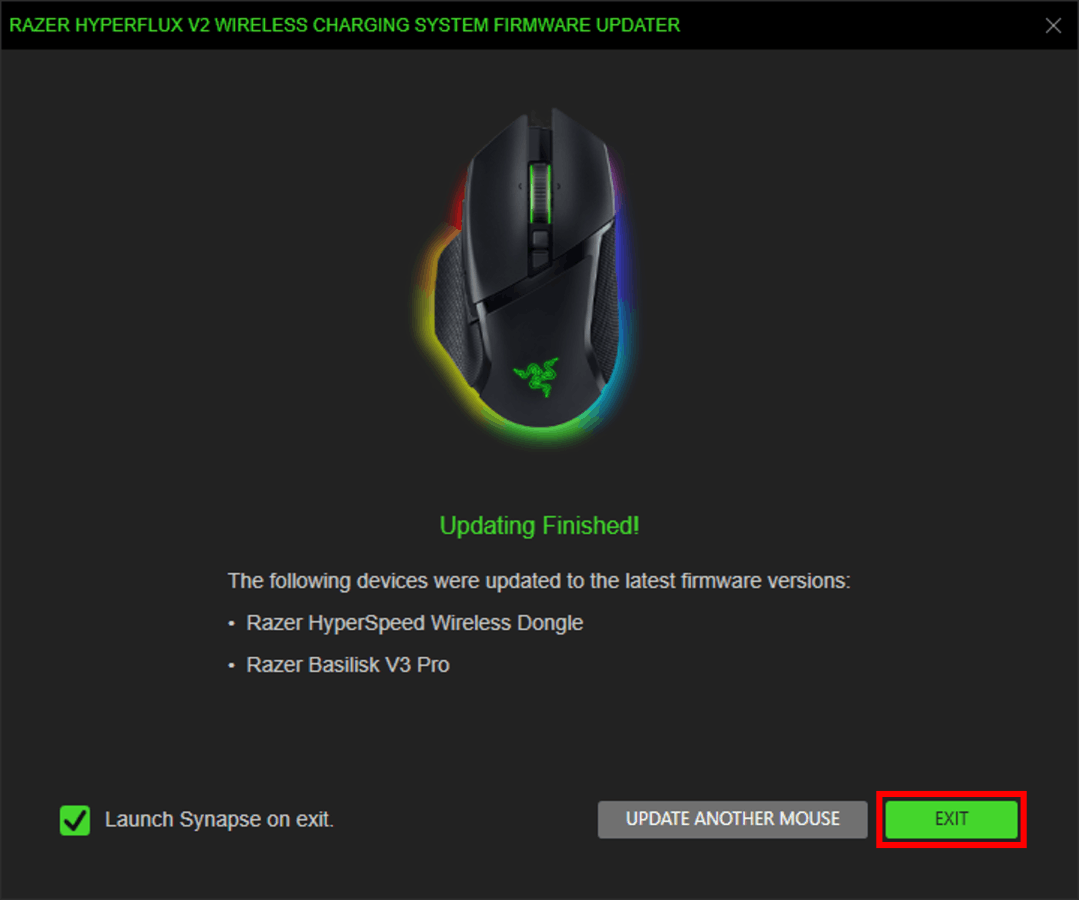
Click "EXIT" once the update is complete, or update another mouse.
Note: The "Launch Synapse on exit" option is checked by default.