
The Razer Sila features a mesh networking function that allows you to extend your wireless network coverage by connecting additional Razer Sila routers. This article provides step-by-step instructions for setting up a mesh network and troubleshooting common issues, such as intermittent connections and undetected routers.
Note: The Razer Sila app will no longer be usable after the 16th of October 2024.
Select a Razer Sila mesh network topic
Creating a mesh network with the Razer Sila
Note: Configure the Razer Sila devices one at a time.
Before you start, prepare the following:
- Main Razer Sila with an established working internet connection
- Content from the Razer Sila’s package to be configured as a mesh
Step-by-step process:
-
Make sure that the main Razer Sila, hereon addressed as “Razer Sila Main#1” is online and the status indicator is Green.

-
Unbox and power on the second Razer Sila device that is to be configured as part of the mesh network, hereon addressed as “Razer Sila Mesh#2” or “Razer Sila Mesh#3”, if you are adding a third Razer Sila.
-
Power on the “Razer Sila Mesh#2" or "Razer Sila Mesh#3".

-
Press the Mesh “Sync” button on the back of the “Razer Sila Main#1” for six seconds to initiate the pairing. The status indicator will blink blue to indicate that the router is now in pairing mode.
Note: Pairing mode will only be active for 90 seconds.

-
Press the Mesh Sync button “Razer Sila Mesh#2" or "Razer Sila Mesh#3” for six seconds while the “Razer Sila Main#1” is in pairing mode. The status indicator of both Razer Silas will blink blue. Once successfully paired they will light up solid green to show that both devices are now paired and online.

-
Unplug “Razer Sila Mesh#2" or "Razer Sila Mesh#3” and place it where better wireless coverage is needed inside your home.
Note: The distance between the Razer Sila devices, metal and physical obstructions, and other wireless devices within the area may affect the overall wireless performance of the mesh network.

Troubleshooting intermittent connections in a Razer Sila mesh network
Note: Live support for Razer Sila is no longer available. Please refer to our knowledge base or Insider Forum for support.
Intermittent connection with mesh setup is commonly due to a firmware update specific to the RazerSila-2.0.411_api-2.0.38 version. Its indication is the Razer Sila logo light turning red, sometimes alternating between red and blinking blue. If this occurs, a power cycle is needed to resolve the issue.
Follow the steps below to perform a power cycle:
-
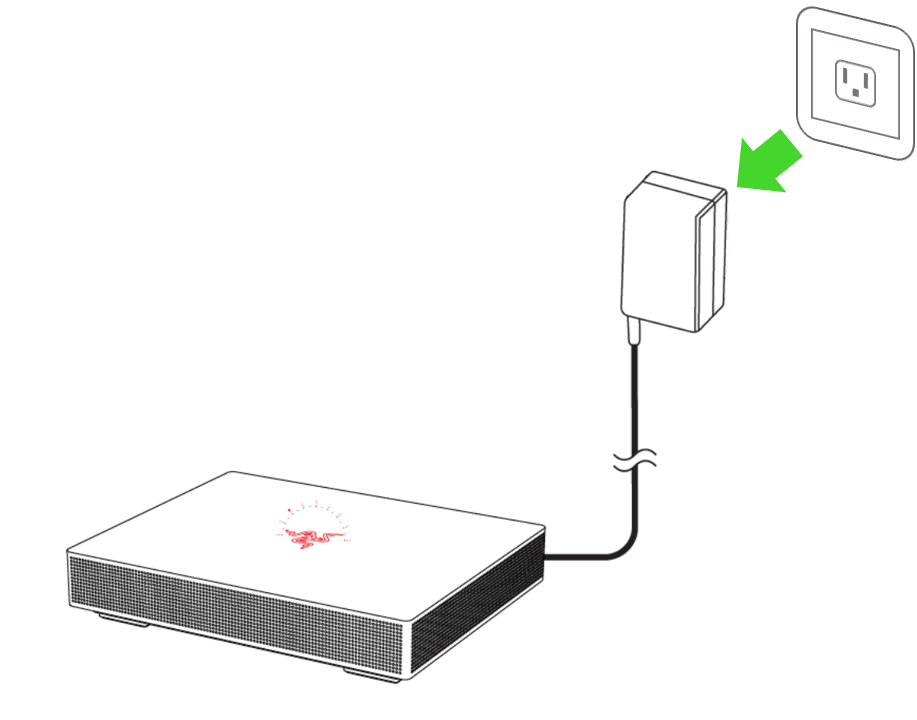
Unplug the power adapter for about 10 seconds.
-
Plug the power adapter back in. The status indicator will light up in red to show that the router is currently offline and will blink in blue to show that the router is connecting to the internet.

-
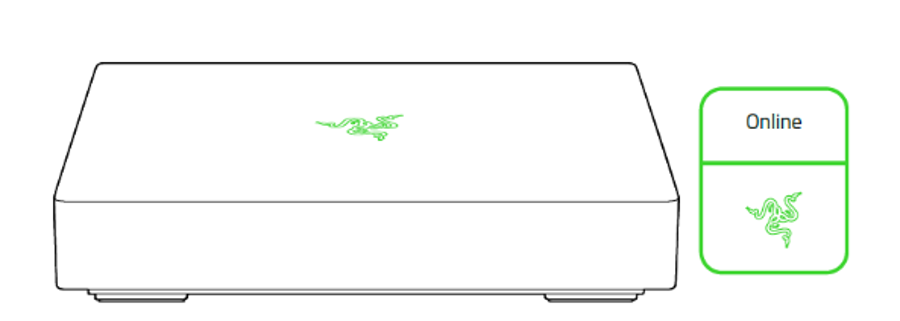
Wait for the status indicator to light up in green, indicating that the router is now online.
Troubleshooting an undetected Razer Sila in a mesh network
One of the features of the Razer Sila is its mesh network where the users can extend the range of their wireless network with the use of additional Razer Sila routers.
Sometimes, the effectivity of this mesh network is optimized because of the distance between the Razer Sila routers, thick concrete walls, and metal objects within the area.
To resolve the issue, follow the troubleshooting steps below:
-
Determine which of the Razer Sila routers is having a connection issue by checking the Razer Sila web UI.
-
Check the color of its LED indicator. If it is red, check the surroundings of the Razer Sila if there are obstructions or interfering objects.
-
Remove or reposition objects that may be interfering with the connection. In cases of immovable objects (walls, columns, and the like), move the Razer Sila instead to an appropriate location.
-
If the issue persists, turn off the Razer Sila. Wait for 30 seconds then turn it back on.
-
If the above steps did not resolve the issue, consider performing a factory reset.
Note: A factory reset will erase all stored settings.

