Select OS version
Note: This only applies to Razer Blade models and external monitors that feature HDR support.
For Windows 10
-
Select the Start button, then select Settings > System > Display.
-
Choose the HDR-capable display under "Select and rearrange displays" if you have multiple displays connected to your PC.
-
Select "Windows HD Color settings".
-
Ensure it says "Yes" next to "Stream HDR video" under "Display capabilities".
-
Turn on "Stream HDR video".

For Windows 11
-
Select the Start button, then select Settings > System > Display.
-
Choose the HDR-capable display under "Select a display to view or change its settings" if you have multiple displays connected to your PC.
-
Select "HDR".
-
Check to make sure it says "Supported" next to "Play streaming HDR video" under "Display capabilities".
-
Toggle "Play streaming HDR video" on.

How to enable HDR when running on battery
By default, HDR is disabled when the device is running on battery power to preserve battery life. To play HDR content on a built-in HDR display when running on battery, follow these steps.
-
Select the Start button, then select Settings > System > Display.
-
Choose the laptop display (Display 1) under "Select" and rearrange displays if you have an external display connected to your laptop.
-
Select "Windows HD Color settings".
-
Clear the "Don’t allow HDR games and apps" on the battery checkbox under Battery options.
If HDR was already turned on when your laptop is plugged in, HDR will stay on if you unplug it and run on battery power.
For more information, visit https://support.microsoft.com/help/4040263/windows-10-hdr-advanced-color-settings.
How to enable HDR for gaming
-
Click the Start button, then go to Settings > System > Display.
-
Select the external monitor display that supports HDR gaming.
-
Enable HDR in Windows.
- On Windows 10, click "Windows HD Color settings" and toggle on the switch for "Stream HDR video".
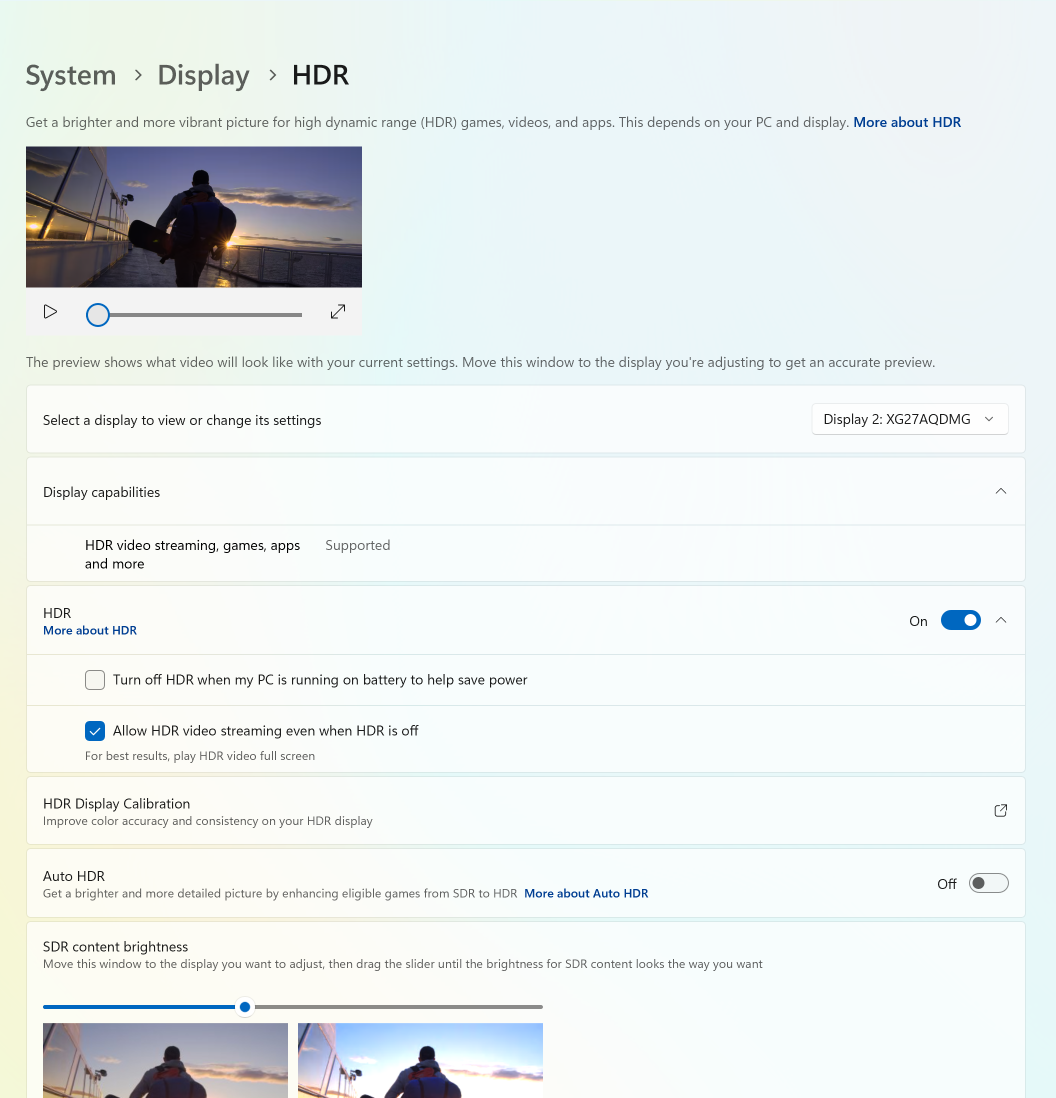
- On Windows 11, toggle on the switch for "HDR" and check "Allow HDR video streaming even when HDR is off". Enable "Auto HDR" to enhance the color and brightness of non-HDR supported games.
-
Adjust the HDR or SDR brightness to optimize your visuals while gaming.
-
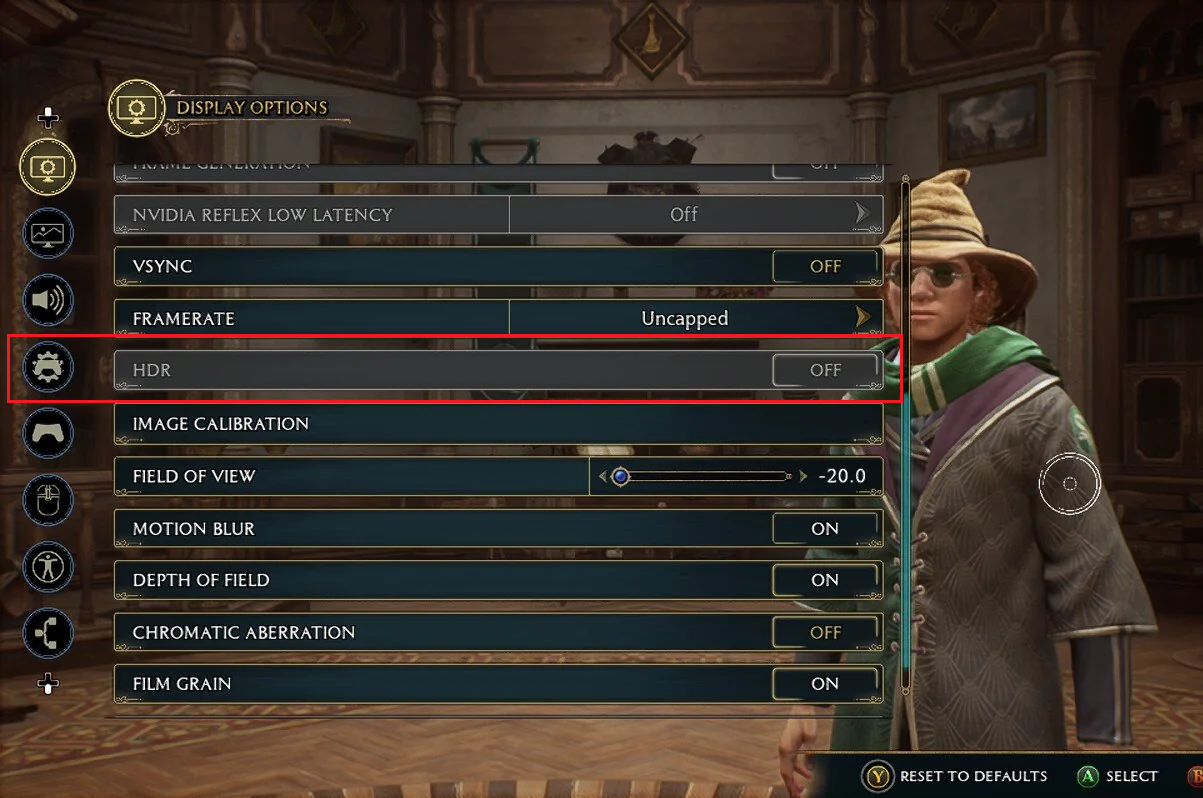
Launch the game and enable HDR in its settings if available.