
This process will use the recovery partition that was included as part of the original image on your Razer Blade. If you have erased the recovery partition or if you are not able to recover your Razer Blade using the steps below, see How to create and use a system recovery stick for the Razer Blade.
Important: This process will remove all data, files, settings, games, and applications. Back up your blade.icm file in “C:\Windows\System32\spool\drivers\color” and all other data to an external drive. To backup and restore custom color profile, see How to backup and restore custom color profile on the Razer Blade.
Before proceeding with the reset process, take note of the following:
-
Windows updates, Razer Synapse updates, and software installation will be required once your Razer Blade has been successfully recovered.
-
If your Razer Blade was upgraded to a different OS other than the one it was shipped with (such as Windows 8 to Windows 10), the recovery partition will recover it to the original OS.
-
The process will take some time to complete, require several updates, and system restarts.
Select preferred method
Factory reset your Razer Blade using the F9 recovery method
-
Shut down your Razer Blade.
-
Power on your Razer Blade.
-
Continually press the F9 button until the System Recovery menu appears.
-
Select “START RECOVERY”.
Important: While the system recovery is in progress, do not turn your Razer Blade off or unplug it from its power source.
After the system recovery process, your Razer Blade will restart on its own.
Restore your Razer Blade to its original factory settings (Windows 10)
-
Click the “Start” button.
-
Go to Settings > Update & security > Recovery.
-
Click on the “Get started” button under “Reset this PC”.

-
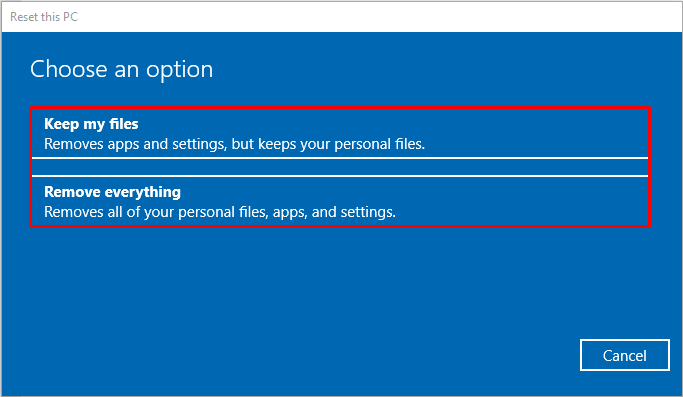
Select either “Keep my files” or “Remove everything”.
-
Select either “Just remove my files” or “Remove files and clean the drive”.
-
Click “Next” when prompted.
-
Click “Reset”.
-
Click “Continue” when prompted.
Important: While the system recovery is in progress, do not turn your Razer Blade off or unplug it from its power source.
After the system recovery process, your Razer Blade will restart on its own.
Restore your Razer Blade to its original factory settings (Windows 11)
-
Click “Start” > “Settings”.

-
Click “System” > “Recovery”.

-
Click the “Reset PC” button under Recovery options.

-
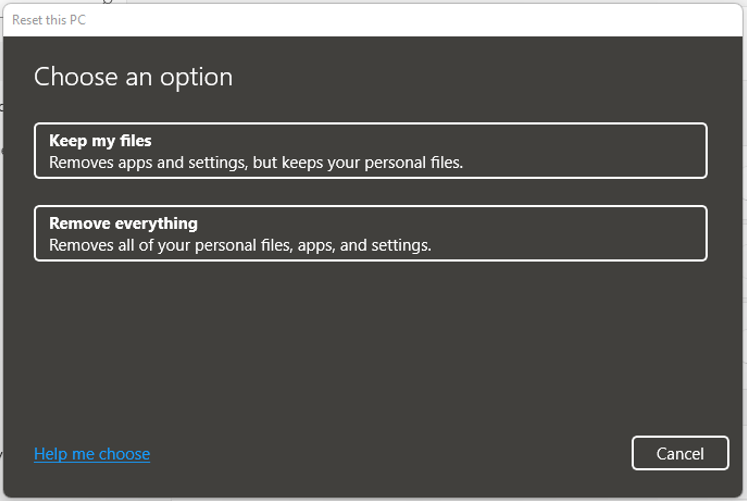
Click either “Keep my files” to keep your personal files or “Remove everything”.
-
Choose either “Cloud download” or “Local reinstall”.

-
Click “Next” to proceed.

-
Click “Reset”.

-
Click “Continue” when prompted.
Important: Do not turn your Razer Blade off or unplug it from its power source while the system recovery is in progress. After the system recovery process, your Razer Blade will restart on its own.

