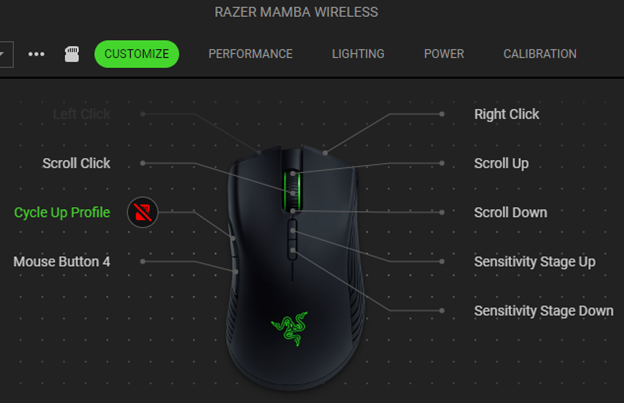
Use Razer Synapse to program your Razer mouse buttons to switch between preprogrammed profiles.
See the step-by-step instructions below on how to assign a Razer mouse button to switch profiles in Razer Synapse.
-
Launch Razer Synapse 4.
-
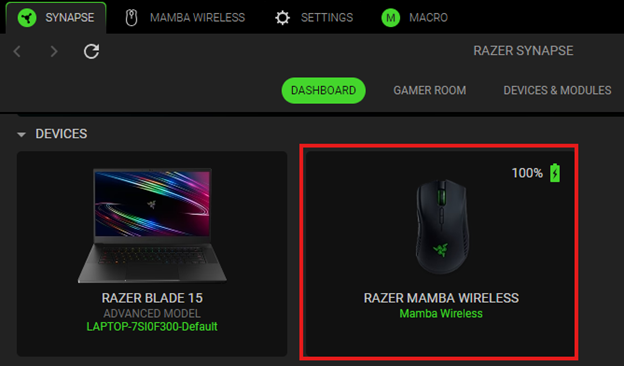
Select your mouse from the DASHBOARD.
-
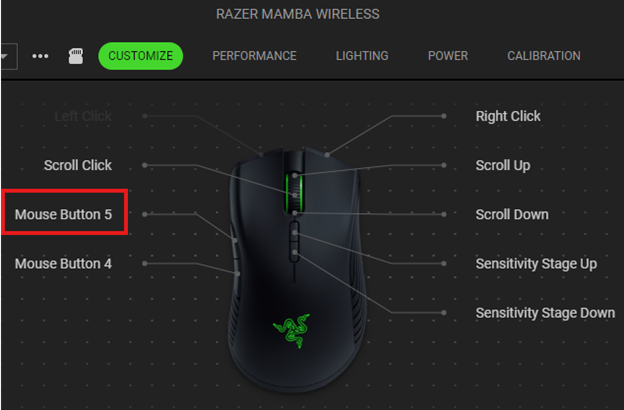
Select a button you want to customize.
-
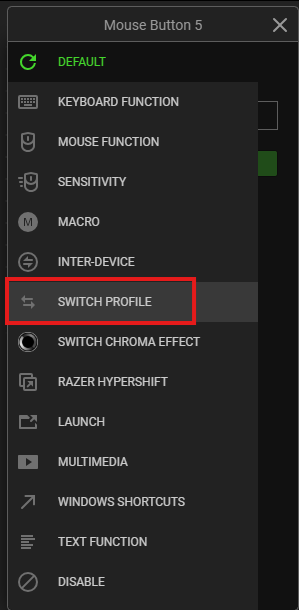
Click “SWITCH PROFILE”.
-
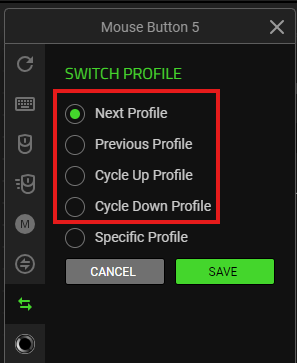
Select the type of switching you prefer to use.
-
“Next” or “Previous” lets you go to the next or previous profile used. You can program “Next” and “Previous” on separate buttons.
-
“Cycle Up” or “Cycle Down” lets you cycle up or down between profiles. If you have reached the last profile, the next click will send you back to the first profile.
-
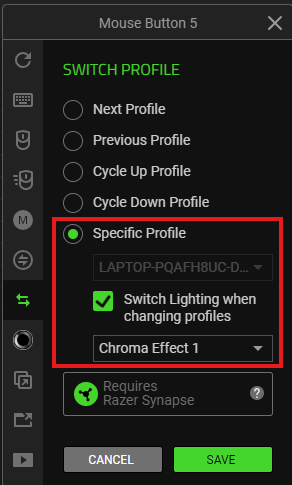
"Specific Profile” lets you choose which of your Chroma Effects will be applied for that profile. Click this button to switch to the chosen profile and its assigned lighting effect.
-
-
Click “SAVE” to complete the process.
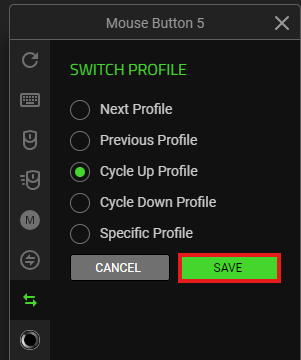
Note: Keep Razer Synapse running in the background to use this function.
The assigned button is displayed after the shortcut on your device layout.