
NOTE: this will vary depending on the Web Browser but can usually be found under browsing history.
Select your web browser
For Google Chrome
-
Open Google Chrome.
-
Go to the History Page by pressing "Ctrl + H".
-
Select "Clear browsing data".

-
Change the Time range to "All Time".
-
Check "Cookies and other site data" and "Cached images and files".
Note: This will erase any login credentials you have saved. You will need to re-enter those credentials when visiting the website again.

-
Click "CLEAR DATA".
For Firefox
-
Open Firefox.
-
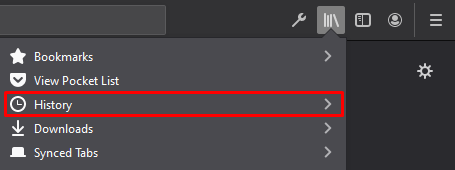
Click the "Library" icon and select "History".
-
Click "Clear Recent History".

-
Adjust the Time range to clear. Select "Everything".
-
You can check/uncheck the options to select which history data you wish to delete.

-
Click "Clear Now".
For Microsoft Edge
-
Open Microsoft Edge.
-
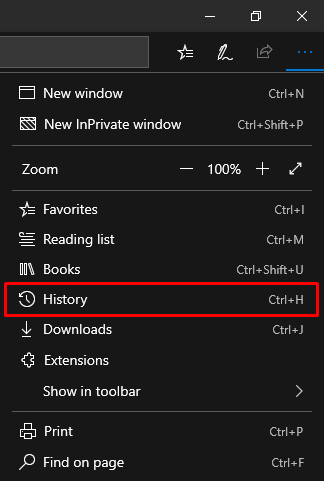
Open the History sidebar by pressing "Ctrl + H".
-
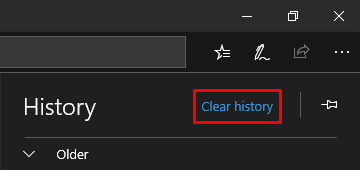
Click "Clear History".
-
Uncheck/check the options to choose which history data you wish to delete.

-
Click "Clear".

