
Windows color profiles can be backed up and restored to retain your preferred settings whenever you install a fresh version of Windows. If you restore your Razer Blade using the factory recovery tools, the custom profile will automatically be applied.
Follow the detailed instructions below on how to backup and restore custom color profile on the Razer Blade.
Select the Razer Blade model
Razer Blade 2024 or later
If your Razer Blade model is 2024 or later, you can load different color profiles via Razer Synapse.
Backup custom color profile:
- Go to "C:\ProgramData\Portrait Displays\Razer\".
- Save all the files in this folder into a separate folder.
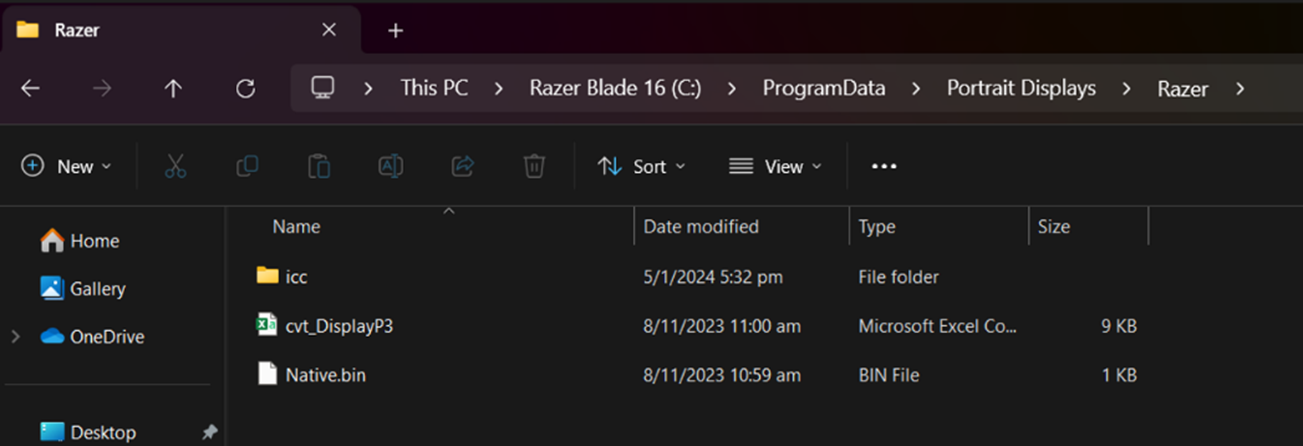
How to Restore or Load your Custom Color Profile:
- Copy the files you backed up earlier into "C:\ProgramData\Portrait Displays\Razer\".
- Open Razer Synapse.
- Select “DISPLAY”.
- Click on the “Restore Profile(s)” link under LAPTOP COLOR GAMUT.
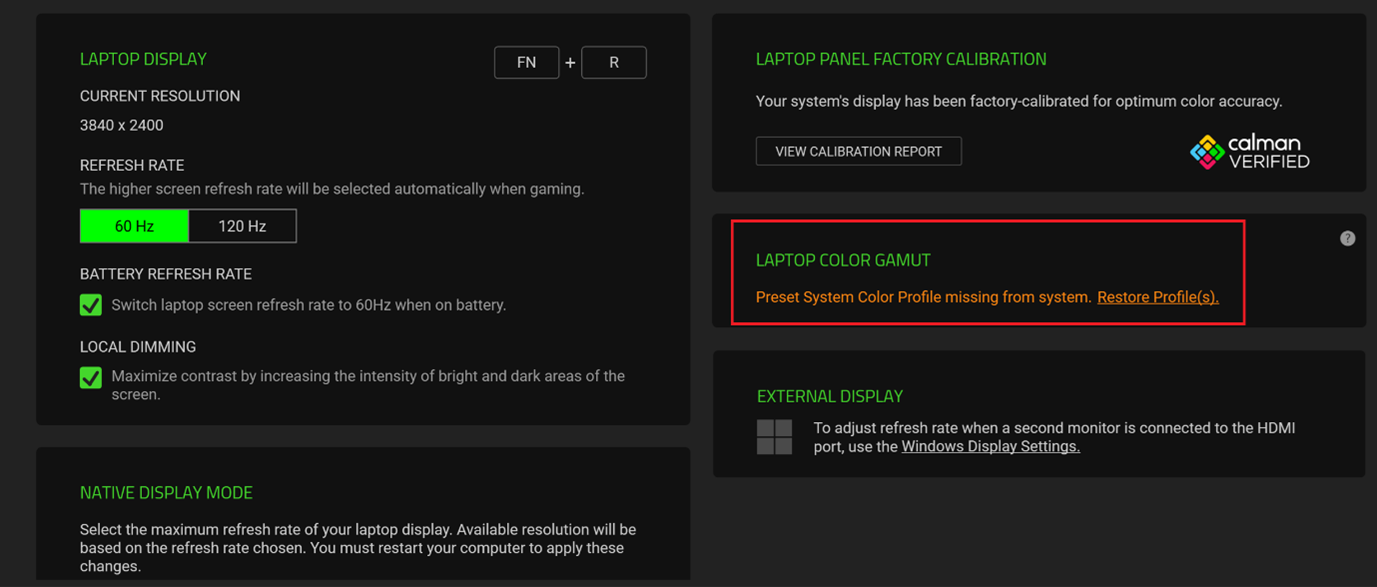
Razer Blade 2023 or earlier
Backup custom color profile:
- Go to "C:\Windows\System32\spool\drivers\color".
- Find the file named "Blade.icm" and save it to a separate location (another drive, USB flash drive, etc.).
How to Restore or Load your Custom Color Profile:
- Open the "Start Menu".
- Search and select "Color Management".

- Under "Devices", select the display for which you want to change the color profile from the drop-down menu.
Note: For a multi-monitor setup, click "Identify monitors". - Enable the "Use my settings for this device" and then select "Add".

- Click "Browse".

- Locate and select the ICC profile (.icm file type) you wish to load then click "Add".
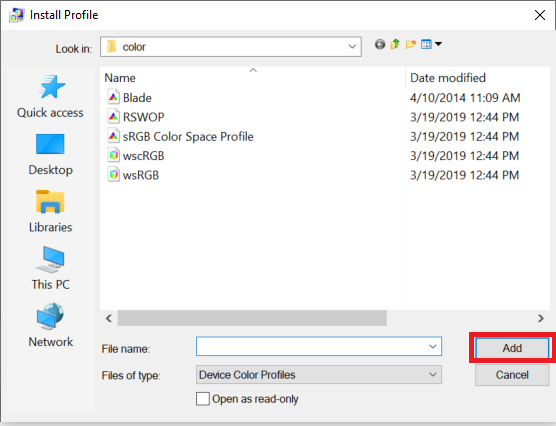
- Once the profile has been successfully added, it should be visible as shown below.
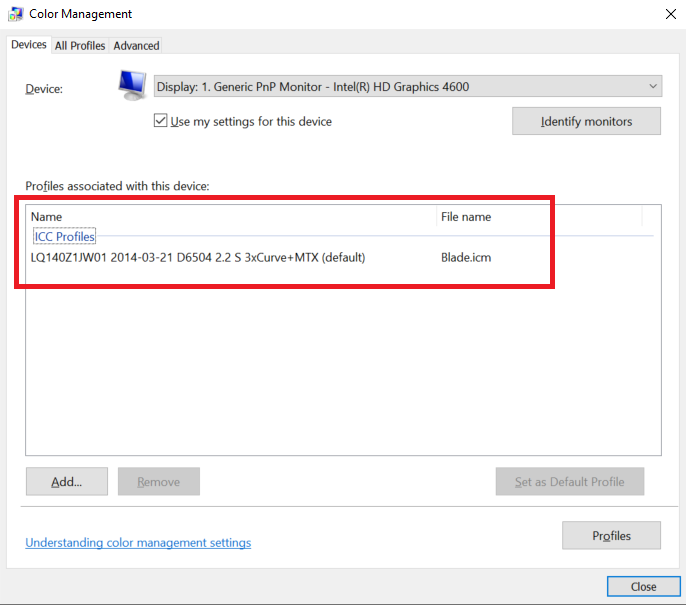
- If the result is not as desired or something went wrong, click on "Profiles" then select "Reset my settings to the system defaults".


