
Light bleeds are described as the appearance of light leaking around the edges or corners of Liquid-Crystal Display (LCD) screens.
Backlight bleeding is commonly unnoticeable during normal use. However, if it becomes non-tolerable or distracting, follow these steps.
Step-by-step process:
Note: Some light bleeding is expected when viewing images with dark background in a dark room.
-
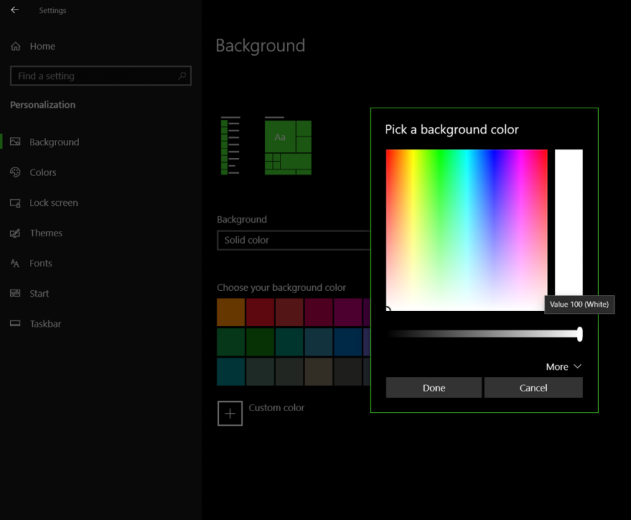
Set the background of your Razer Blade to solid black.
- Go to Settings > Personalization > Background.
- Select “Solid color” from the “Background” dropdown list.
- Select “Black” as the background color.

-
Adjust the brightness of the screen until light bleeding is less visible.

-
Set the background to solid white or open an application with a bright background.
-
Check if the backlight bleeding is still noticeable.
-
Adjust screen brightness to your preferred level.
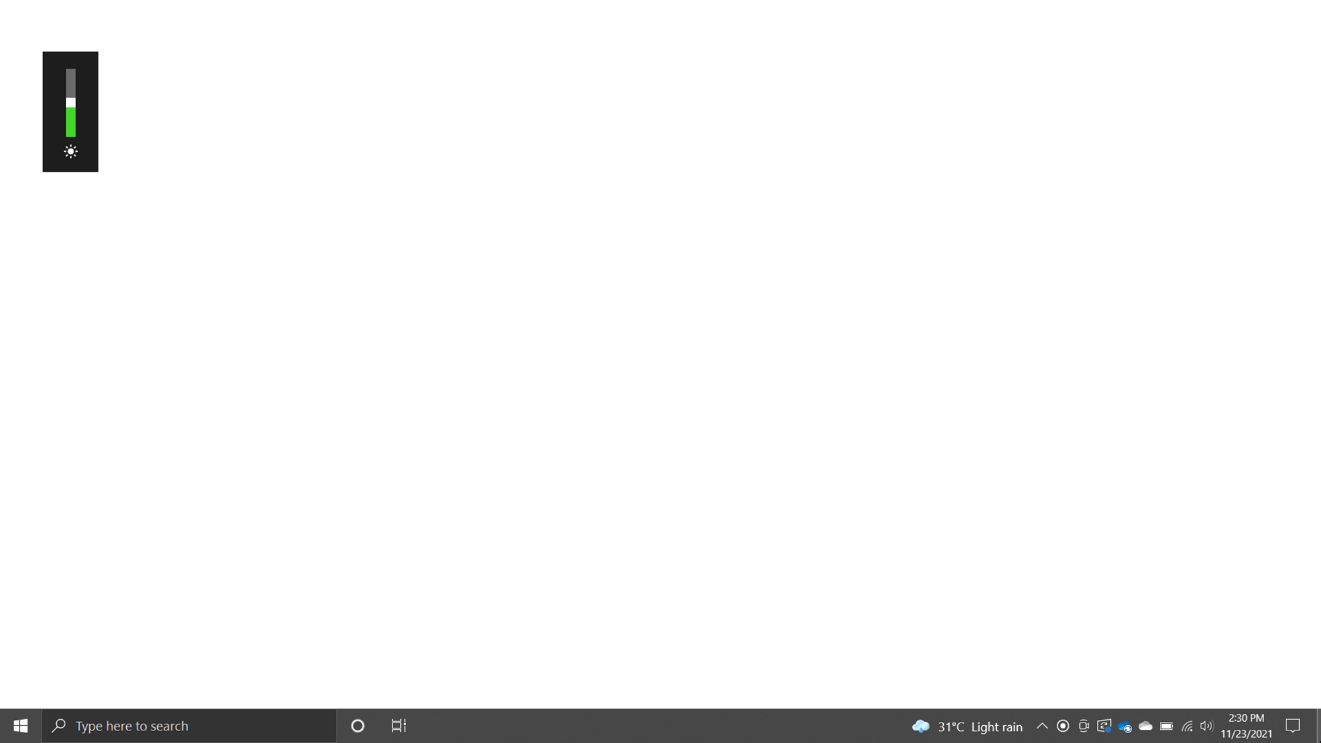
You should now have reduced light bleeding on your Razer Blade display.

