
Light bleed is the appearance of light leaking around the edges or corners of a Liquid-Crystal Display (LCD) screen. It is most visible when viewing dark content at high brightness in a dark room, and some amount is normal for LCD displays.
If the light bleed on your Razer Blade is becoming distracting during everyday use, follow the steps below to assess its severity and reduce its visibility.
Step-by-step Process
Note: Some light bleeding is expected when viewing images with dark background in a dark room.
-
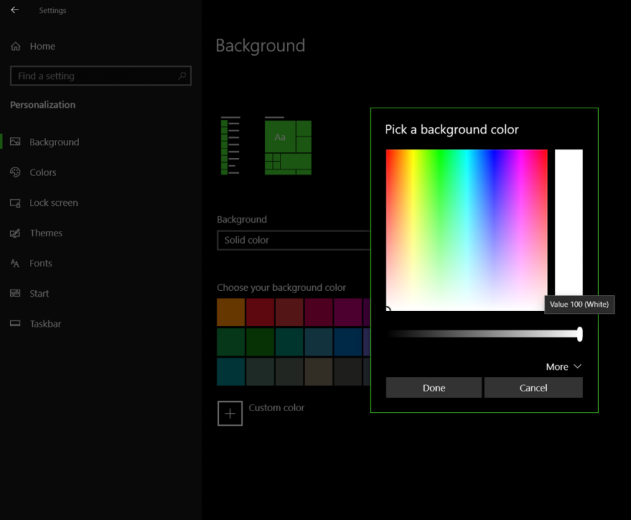
Set the background of your Razer Blade to solid black.
- Go to Settings > Personalization > Background.
- Select “Solid color” from the “Background” dropdown list.
- Select “Black” as the background color.

-
Adjust the brightness of the screen until light bleeding is less visible.

-
Set the background to solid white or open an application with a bright background.
-
Check if the backlight bleeding is still noticeable.
-
Adjust screen brightness to your preferred level.
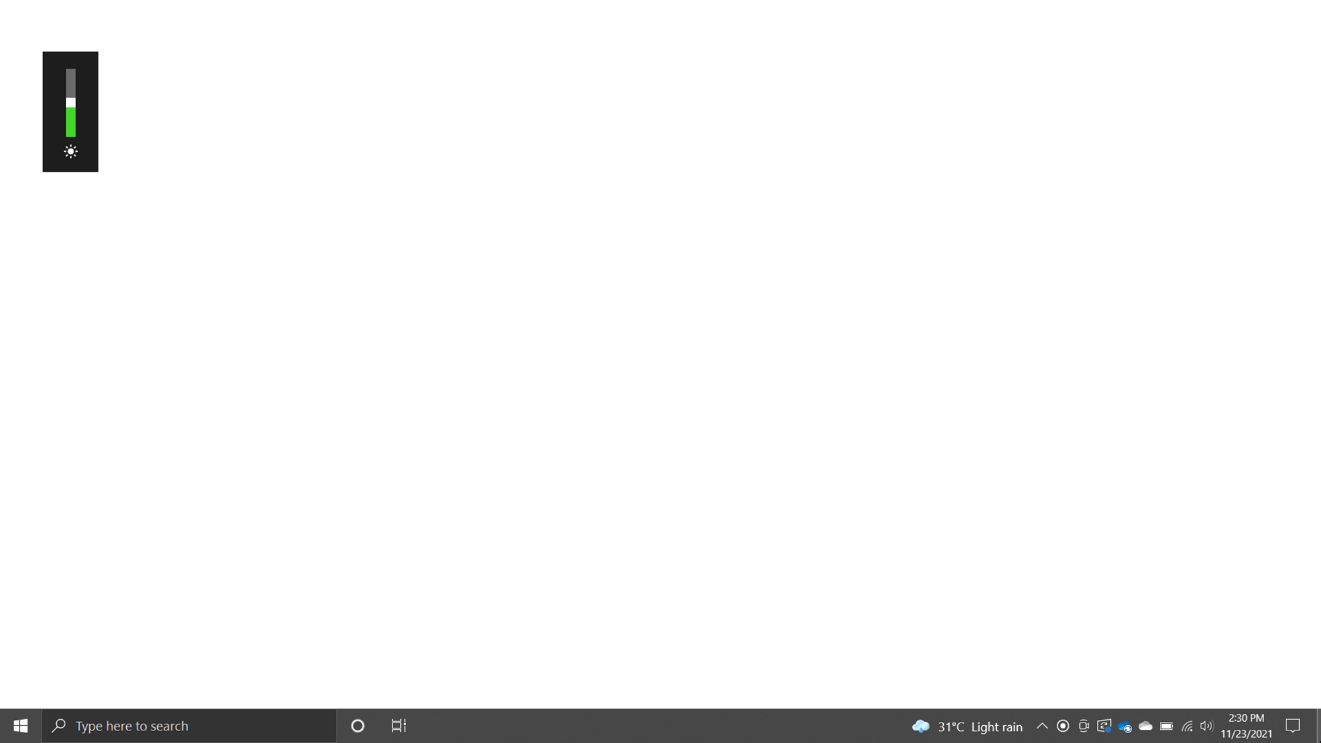
You should now have reduced light bleeding on your Razer Blade display.
If light bleed is visible during normal everyday use and not just on a black background in a dark room, or if it is concentrated heavily in one area, your display may have a hardware defect.

