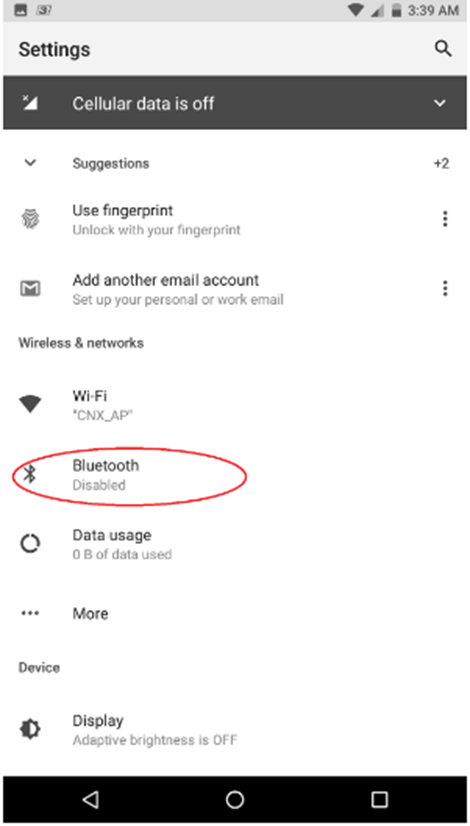
How to connect or pair to a Bluetooth device on the Razer Phone

| Answer ID: 1595
This article will show you how to connect to a Bluetooth device on your Razer Phone.


Follow the steps below to pair or connect Bluetooth devices to your Razer Phone.

Note: To check what Android version you have, see How to determine the version of the Android OS on the Razer Phone.

For Android Oreo

  1. Go to "Settings" > "Connected Devices".

    Connected Devices option under Settings on an Android Oreo phone

  2. Tap the "Bluetooth" switch to turn on the Bluetooth.

    Bluetooth switch under Connected Devices on an Android Oreo phone

  3. Tap "Pair new device". The Razer Phone will start searching for available Bluetooth devices.
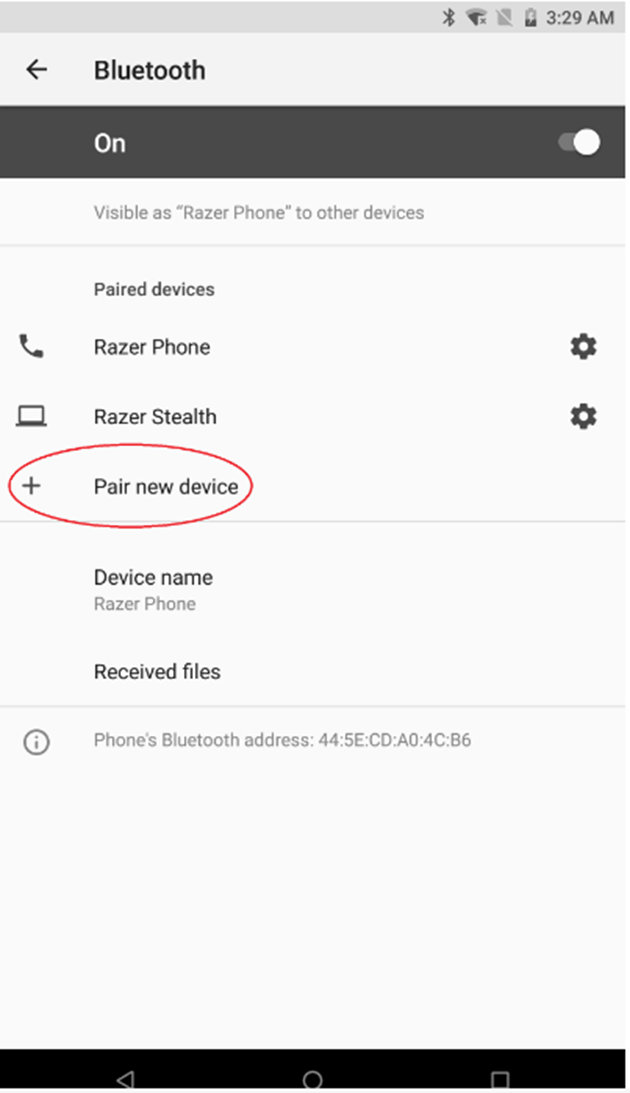
    Pair new device option under Bluetooth on an Android Oreo phone

  4. Select the Bluetooth device you wish to pair with.
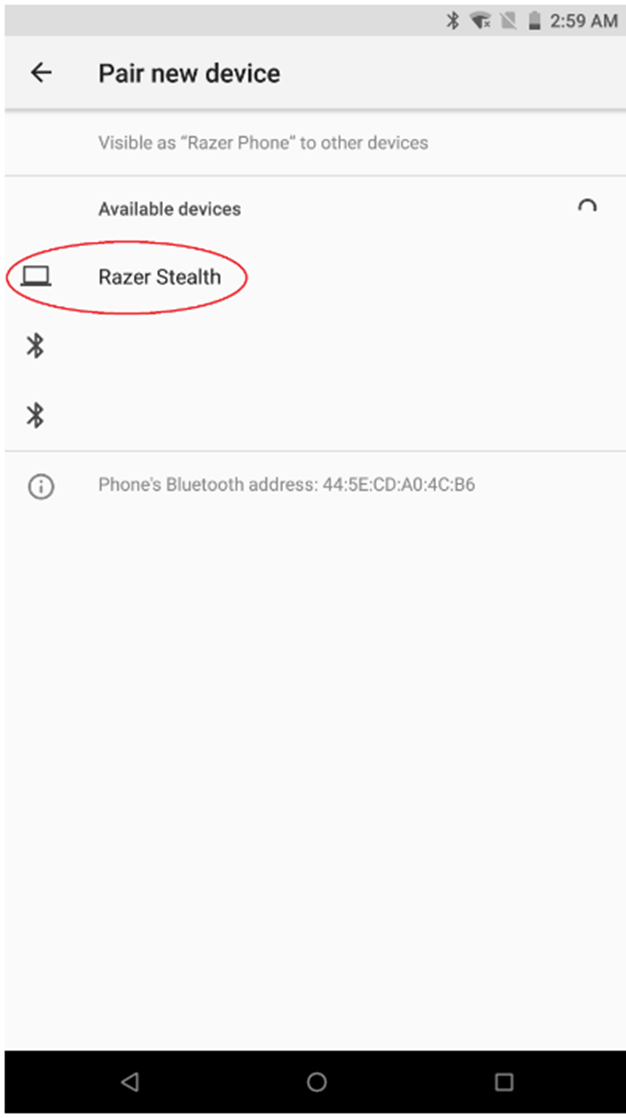
    List of available devices under Pair new device on an Android Oreo phone

  5. A pairing code will be displayed on both devices to confirm that you are connecting to the correct Bluetooth device. Click "PAIR".

    PAIR option on the pop-up window in the Bluetooth page on an Android Oreo phone

For Android Nougat

  1. Open the app list and select "Settings".

    Settings icon on an Android Nougat screen

  2. Select "Bluetooth".

    Bluetooth option under Settings on an Android Nougat screen

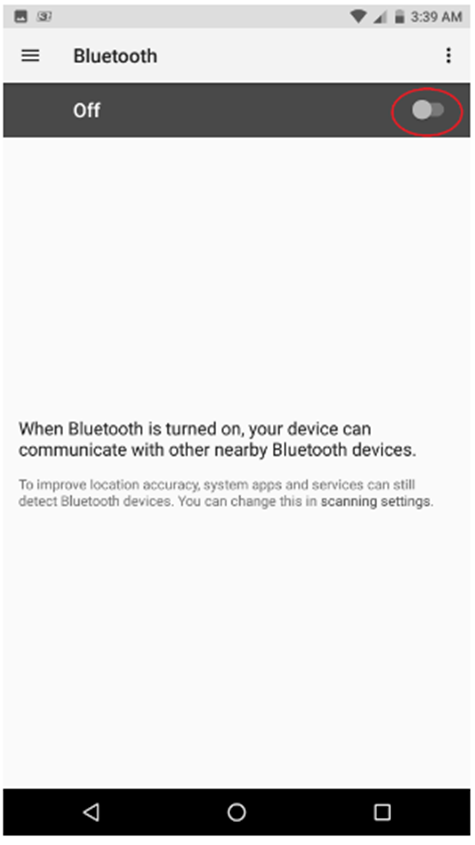
  3. Tap the slider to enable Bluetooth.

    Bluetooth switch on an Android Nougat screen

  4. Locate your Bluetooth device on the available device list.
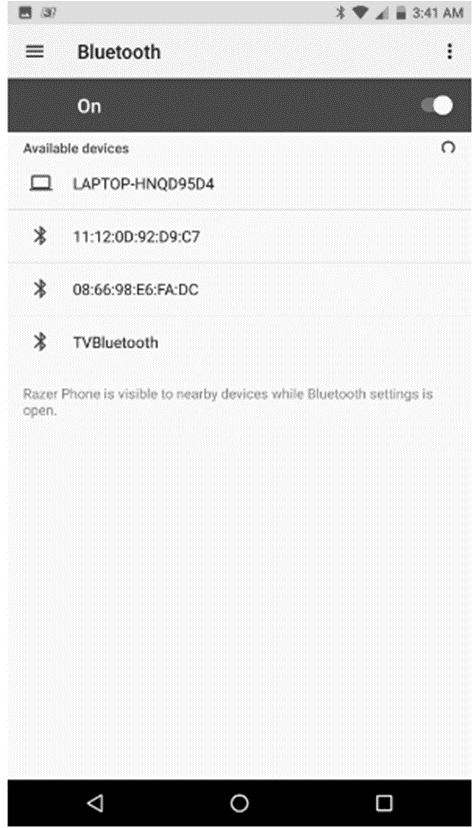
    List of available devices under Bluetooth on an Android Nougat screen

  5. Select the device and click "PAIR".

    PAIR option in the pop-up window under Bluetooth on an Android Nougat screen

You should see the Bluetooth turned On and the selected device paired.

List of paired devices under Bluetooth on an Android Nougat screen

Is this answer helpful?