You are always welcome to share your feedback with us if you are experiencing issues or would like to provide feedback about our software.
Note: Razer Synapse can function without an internet connection. However, the ability to send feedback is limited.
- Razer Synapse 4 displays an error if you attempt to submit feedback without an internet connection.
- Razer Synapse 2.0 allows you to send feedback, which will be stored within the session and sent automatically once an internet connection is established.
Follow the detailed instructions below to submit feedback for Razer Synapse issues and suggestions.
Select Razer Synapse version
Razer Synapse 4
-
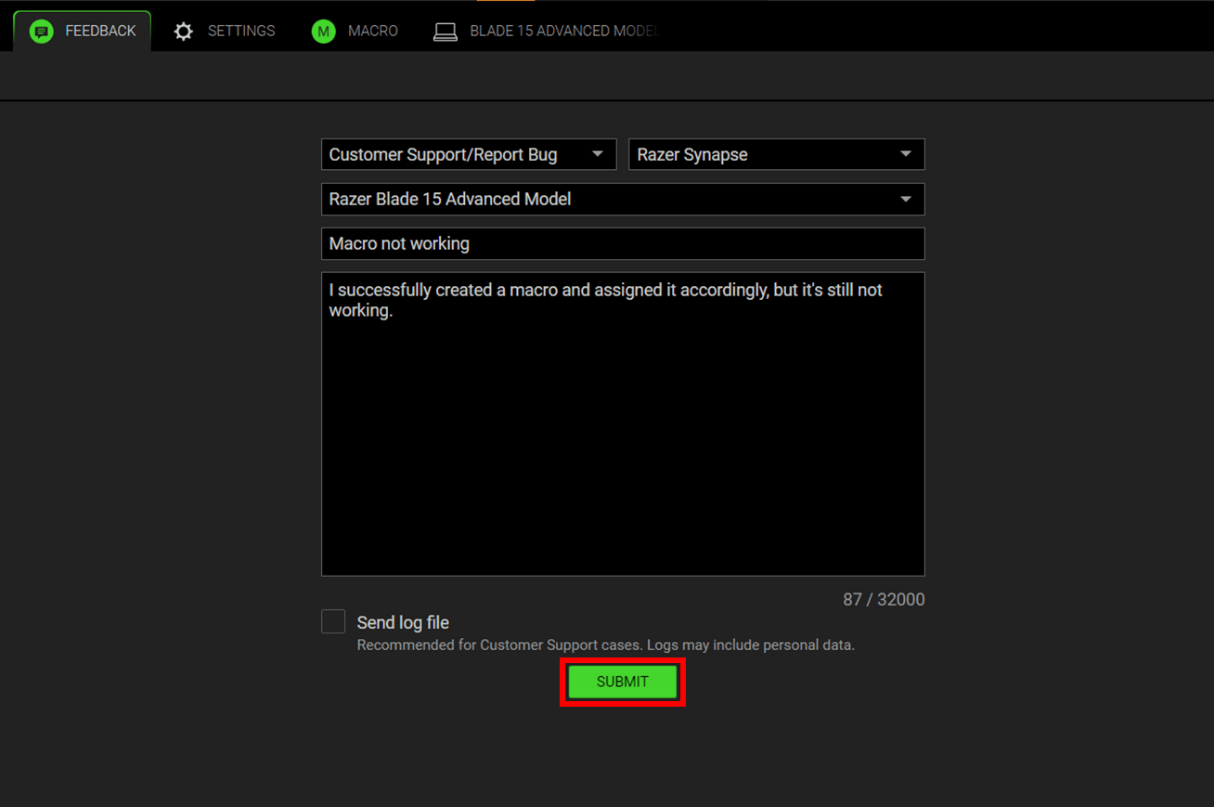
Click on “FEEDBACK” from the DASHBOARD or go to the “FEEDBACK” tab.
-
Indicate your concern in detail.
-
Click “SUBMIT” to send us your feedback.
Note: If you are reporting a bug, check the "Send log file" for us to review and investigate the issue in detail.
Razer Synapse 2.0
-
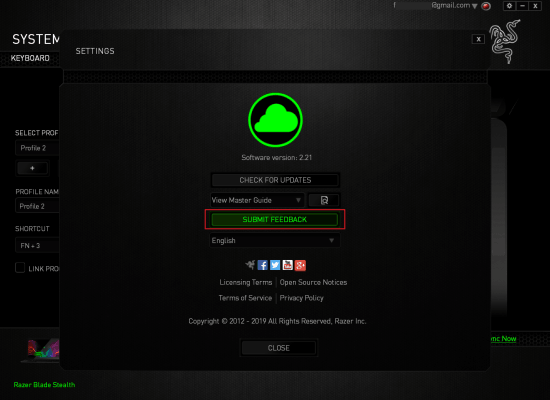
Click the “cog” icon beside your email address located at the top-right part of the window.

-
Click “SUBMIT FEEDBACK”.
-
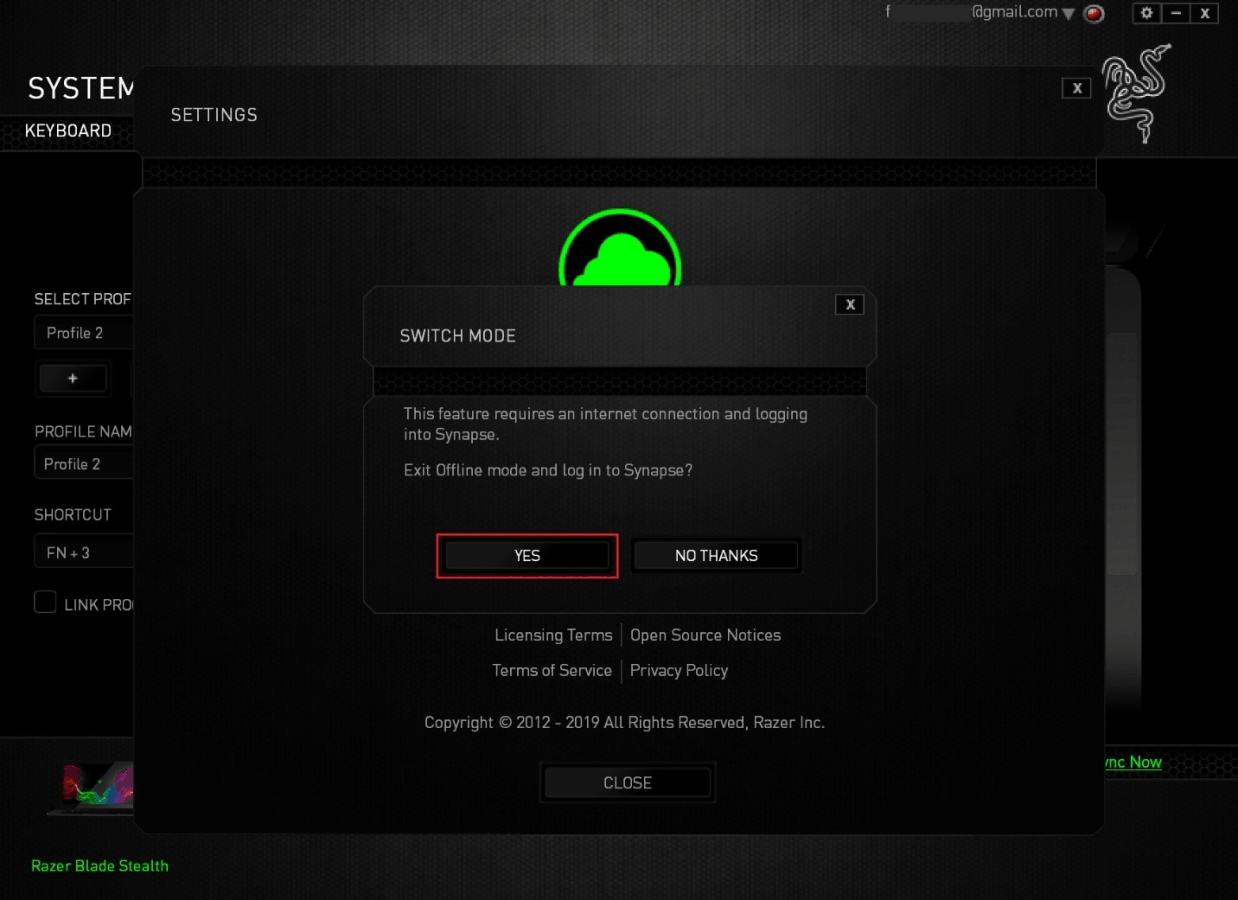
If you are in “Offline Mode”, this window will pop up. Select “YES”.
-
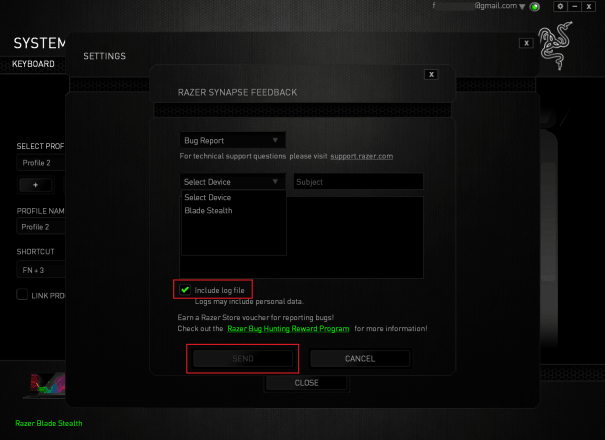
Indicate your concern in detail. If you are reporting a bug, check the "Include log file" for us to review and investigate the issue in detail. Then, click “SEND” to send us your feedback.