
This issue is indicated by lack of response from the device. If the computer or laptop comes from a cold start, the Razer mouse does not work properly. This is normally caused when the hibernation mode of the computer/laptop is enabled.
To fix the issue, we need to disable the computer/laptop’s hibernation mode. There are two (2) phases in performing this.
First, we need to disable it through the “Device Manager”:
Second, we need to disable the hibernation support itself:
-
Go to Control Panel and select “Hardware and Sound”.
-
Click on “Device Manager” under Hardware and Sound.

-
Expand the “Universal Serial Bus” tree to see the “Root Hubs”.
-
Right-click on any root hub and select “Properties”.

-
Once the Properties window appears, go to the “Power Management” tab.
-
Ensure that the “Allow computer to turn off this device to save power” is disabled.

-
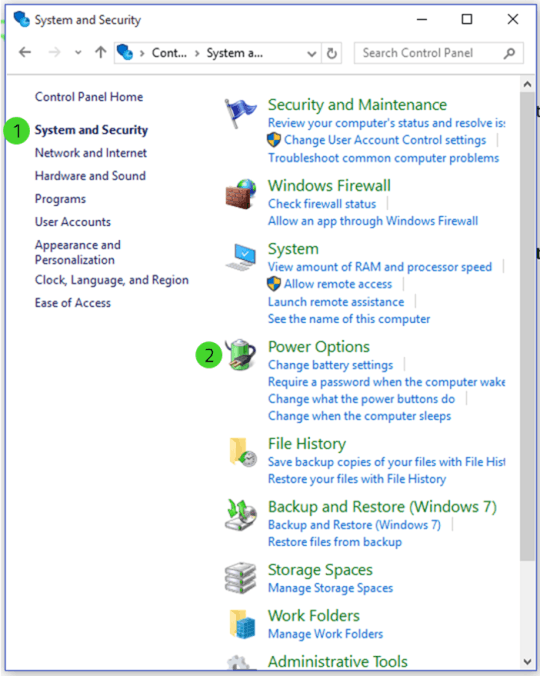
Go to Control Panel and select “System and Security”.
-
Click on “Power Options”.
-
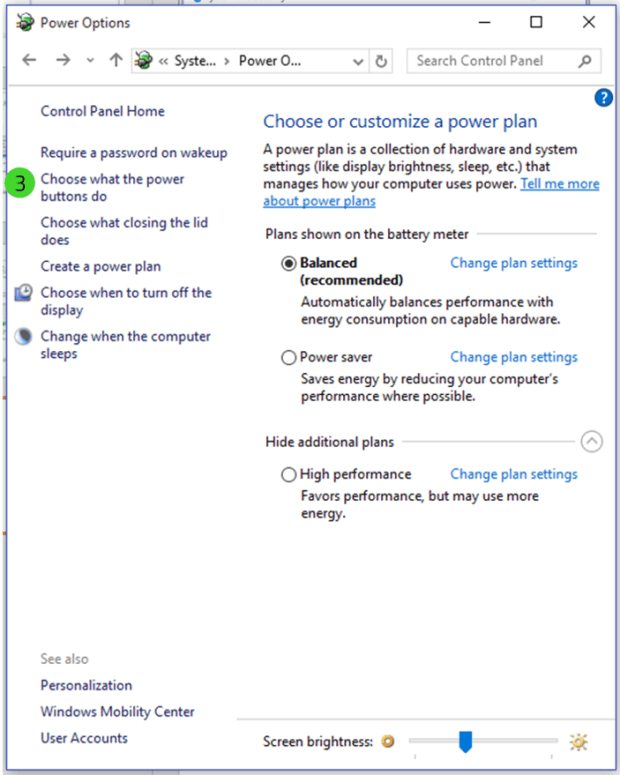
Once the Power Options menu is up, click on the “Choose what the power buttons do” option on the left side of the window.
-
On the next page that appears, click on “Change settings that are currently unavailable”.
-
Hover down at the bottom of the same window and ensure that the “Hibernate” tick box is left blank.
-
Click “Save Changes”.


