
Applicable Models
Firmware v1.02.01_r2
- https://rzr.to/bdwXn | May 27, 2019
- Fixed an issue where a long Macro assignment doesn’t play correctly.
- Fixed an issue where the button assigned with Turbo key eventually stops responding after several continuous presses
Step-by-step Process
-
If you have not already done so, download the latest firmware update at the link above.
- Close Razer Synapse before launching the firmware update.

- Plug the USB wireless receiver (dongle) into your PC and click "Update" to begin the update process.

- The progress bar should begin to move.
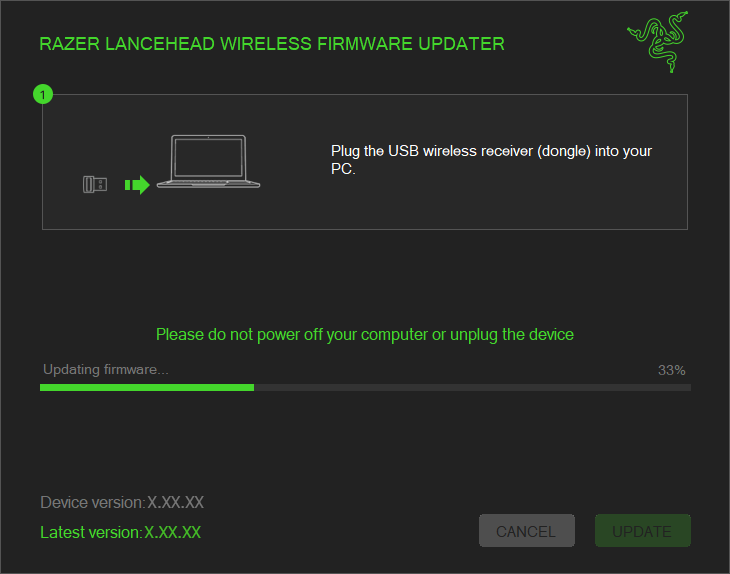
- You should see a confirmation message once the firmware update has been successfully applied to the dongle. Click "NEXT" to proceed.

- Connect the Lancehead Wireless using the supplied USB cable into your computer and click "UPDATE".

- The progress bar should begin to move.

- You should see a confirmation message once the firmware update has been successfully applied to the mouse. Click "Next" to proceed.
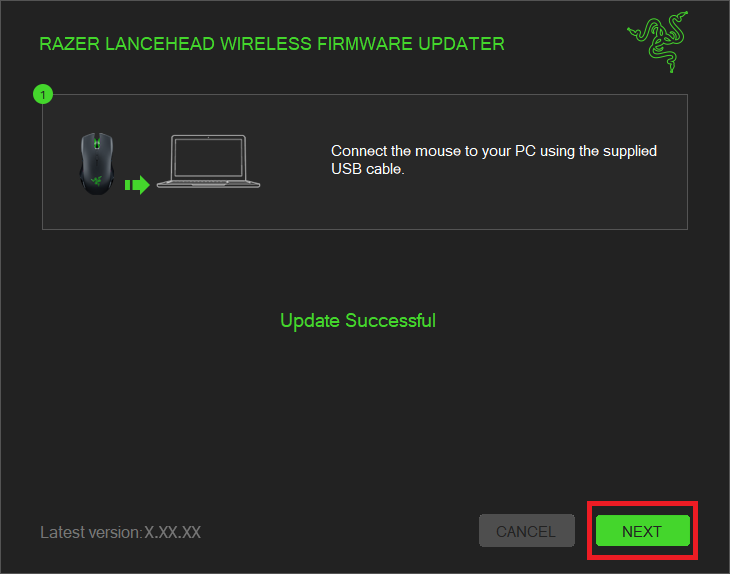
- Once the firmware has been successfully updated, click "Close" to close the updater.

