
If your Blade is running low on storage, here are a few ways to free up some drive space:
Delete Files with Storage Sense
If you have storage sense turned on in Storage settings, Windows can automatically free up space by getting rid of files you don't need, like temporary files and stuff in your recycle bin. Or, you can delete them manually.
-
Open the Start menu and select Settings > System > Storage.

-
Turn on "Storage Sense".

- To delete unnecessary files manually:
- Select Free Up Space Now.
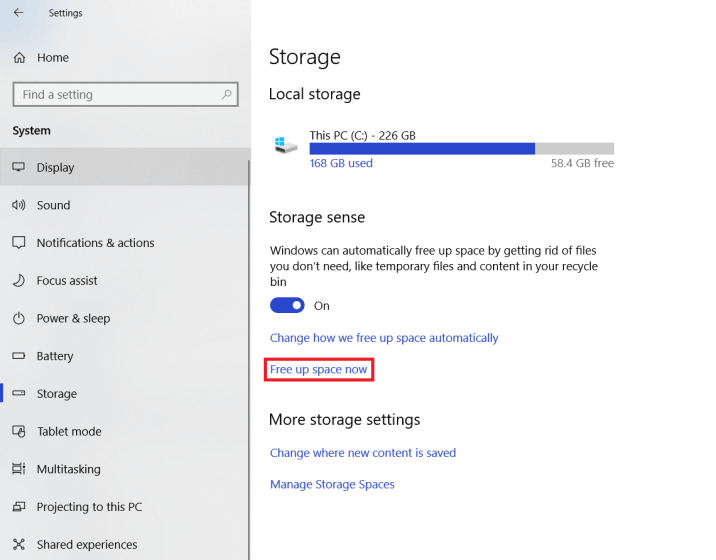
- Check or Uncheck the files you wish to remove and then click "Remove files".

- Select Free Up Space Now.
- To specify which files you want storage sense to delete automatically:
-
Select "Change how we free up space automatically".

-
Select the period in running Storage Sense (Every day, Every week, Every Month, or When Windows decides).
-
Select or deselect the checkbox for options under Temporary Files and select the duration in keeping temporary files (Never, 1 day, 14 days, 30 days, or 60 days). Storage sense will then automatically delete files over the duration.
- Select the duration in keeping files in the Download Folder (Never, 1 day, 14 days, 30 days, or 60 days). Storage sense will then automatically delete files over the duration.

-
Move Files to a Different Drive
If you have photos, music, or other files that you want to keep but don't use very often, consider saving them to removable media, like a USB drive. You'll still be able to use them when the drive is connected, but they won't take up space on your PC.
-
Connect the removable media to your PC.
-
Open File Explorer from the taskbar and find the files you want to move.
-
Select the files, go to the "Home" tab, and then select Move to > Choose a location.
-
Select your removable media from the location list, and then select "Move".
Save New Files to Another drive
Instead of saving all your new files to the same drive, save some of them to a different drive.
Note: This only applies to Blades with multiple storage drives.
-
Open the Start menu and select Settings > System > Storage.
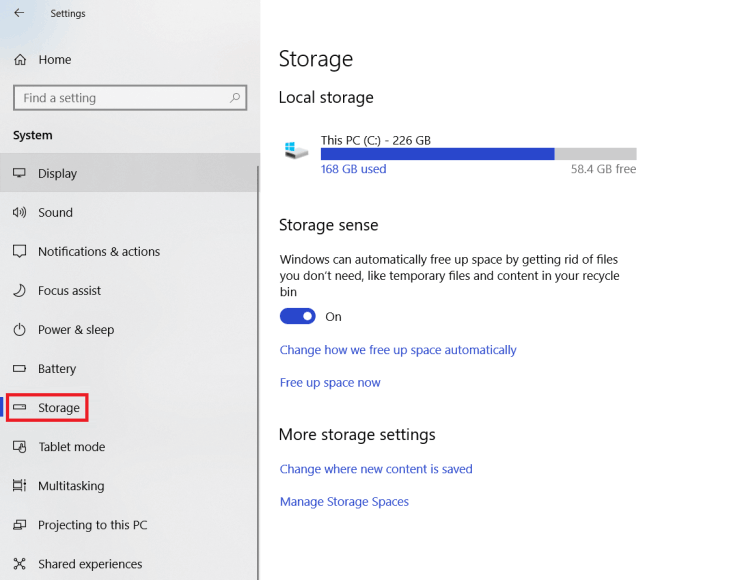
-
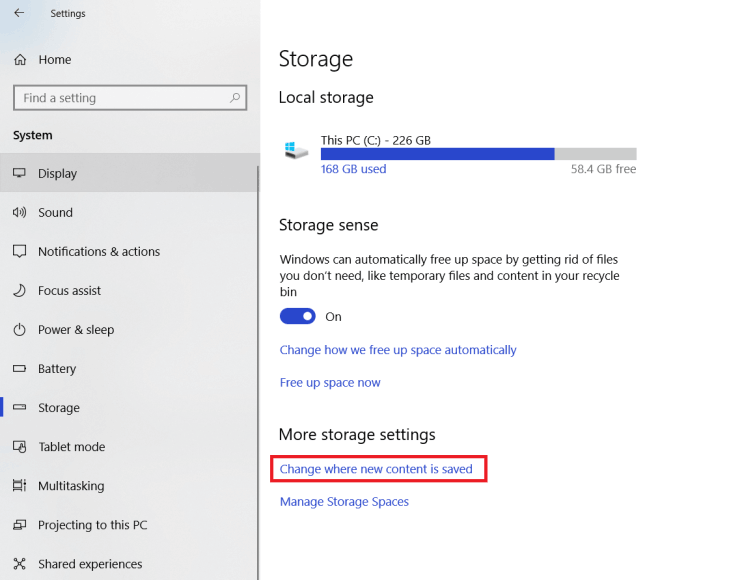
Under More storage settings, select "Change where new content is saved".
-
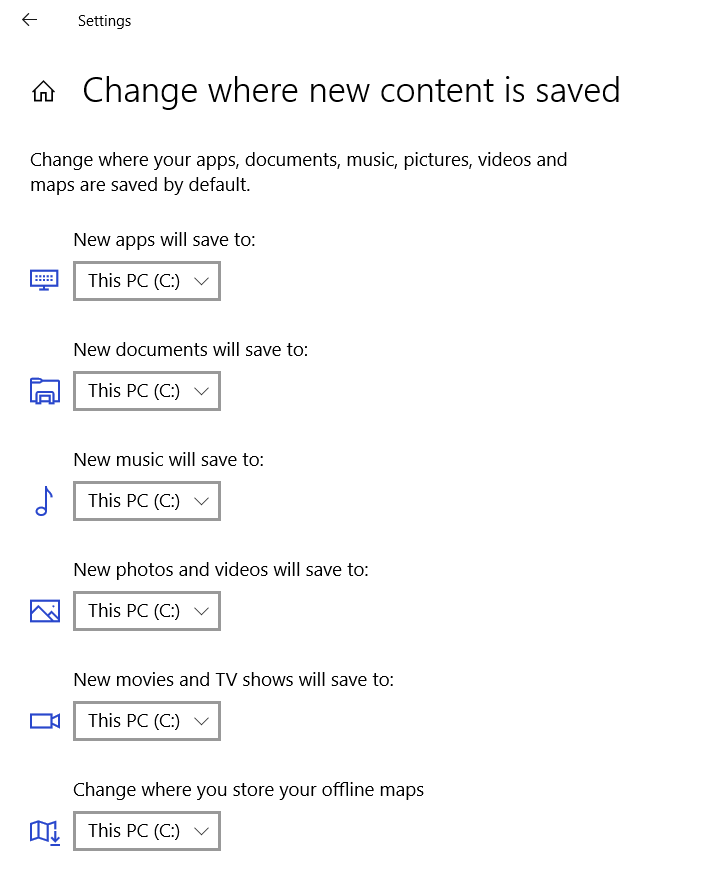
For each content type, select a drive from the dropdown menu. If the drive you want to use isn't listed there, make sure it's connected to your PC.
Turn on OneDrive Files On-Demand
If you've updated to the latest version of Windows 10, save space by turning on OneDrive Files On-Demand. You'll be able to get to your OneDrive files from your PC without having to download them all. See Learn about OneDrive Files On-Demand for more info.

