A firmware updater is a tool that keeps your gaming gear running at its best. Installing the latest firmware can improve performance, fix known issues, and help devices work more smoothly and reliably.
Applicable models:
Firmware v1.13.00_r1
- https://rzr.to/JaYwAA | October 26, 2023
Release notes
- Improved Keyboard and mouse lighting effect when dynamic lighting is toggled on.
Follow the detailed instructions below to run the updater on your device.
Step-by-step Process
-
Make sure the laptop is plugged into a wall outlet and not just running on battery before proceeding.
-
Download the latest firmware update.
-
Save all files and close all programs.
-
Run the downloaded firmware. Click "NEXT".

-
Choose the device to update then click "NEXT". In this process, choose the Wireless USB dongle first.
Wireless Option is for:
- Dongle Firmware
Wired Option is for:
- Mice Firmware
- Keyboard Firmware

-
Plug in the wireless USB transceiver (dongle) to your PC. Click "UPDATE".

-
Wait while the USB dongle update is ongoing. Do not interrupt.

-
After completing the update for the USB dongle, click "NEXT".

-
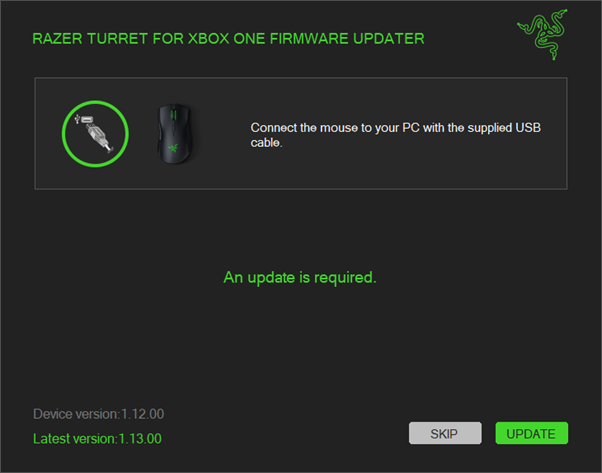
Connect the mouse to your PC using the USB cable. Click "UPDATE".
-
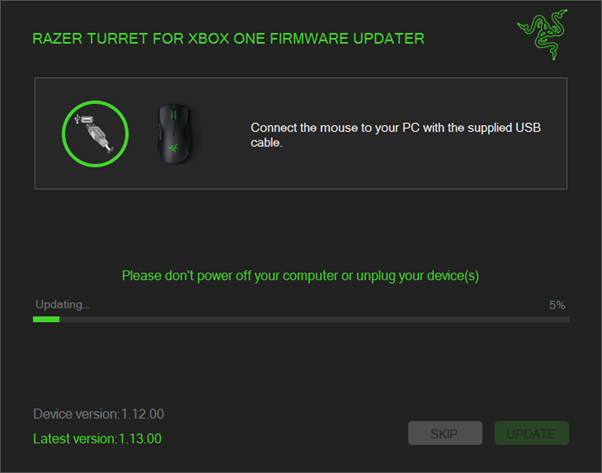
Wait while the mouse update is ongoing. Do not interrupt.
-
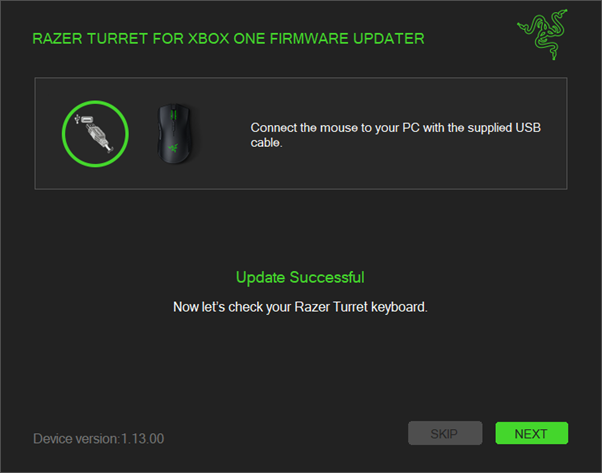
After completing the update for the mouse, click "NEXT".
-
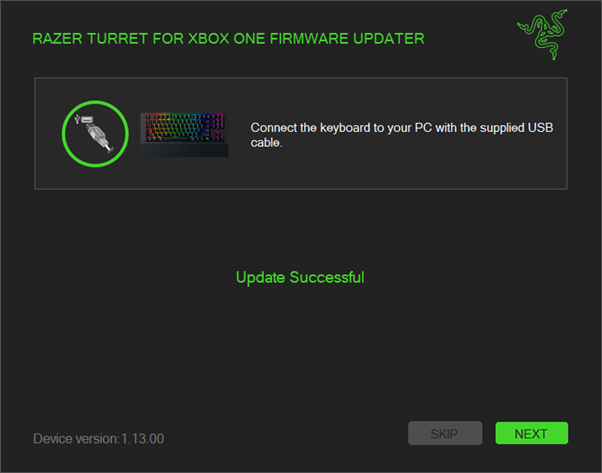
Connect the keyboard to your PC using the USB cable. Click "UPDATE".

-
Wait while the keyboard update is ongoing. Do not interrupt.

-
After completing the update for the keyboard, click "NEXT".
-
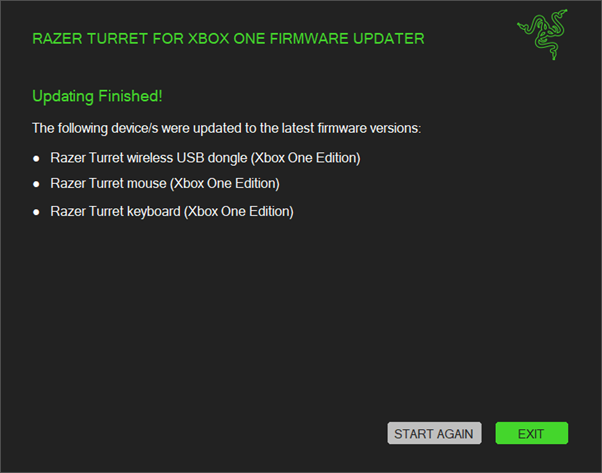
You have now successfully updated your mouse and keyboard. Click "EXIT".