
If you experience issues sending or receiving messages on the Razer Phone, try performing the troubleshooting steps below to resolve the problem:
- Perform a hard reset.
- If the issue persists, use another SIM card.
- If the Razer Phone begins to send or receive messages with another SIM card, contact your network provider.
- If you are still having trouble sending or receiving messages despite using another SIM card, backup your phone data and perform a factory reset.
- If the Razer Phone shows no service, check the network coverage. Network signal is affected by walls, buildings, trees, and weather conditions. In most cases, call issues are due to the network coverage in the location you are in. If this is the case, follow the steps below:
- On the top part of your Razer Phone, swipe it down twice to reveal the “Quick Settings” top menu.
- Be sure that the “Airplane mode” and the “Do not disturb” option is turned off.

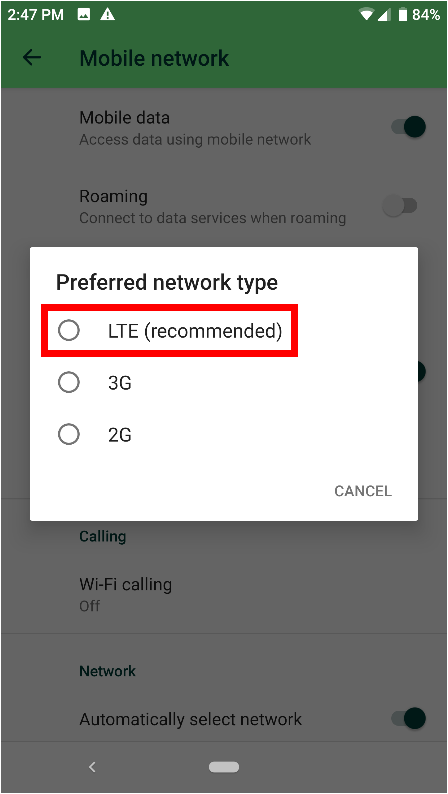
- Manually check the network connection by going to Settings > Network & Internet > Mobile Network and expand “Advanced”.
- Ensure that the “Preferred network type” is “LTE (recommended)”. By choosing this, LTE will be your default network type, but it will automatically switch network types if the signal goes down.
- If all the settings are correct and you are still experiencing the issue, perform a hard reset.
- If the issue persists, contact your network provider to verify that everything is okay on their end and try using another SIM card.
- If the issue persists, back up your phone data and perform a factory reset.

