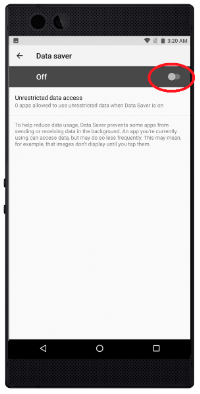
Setting a Data Limit will automatically turn off your mobile data once it reaches the limit. This will prevent unexpected charges in your bill. Follow the steps below to set a data limit on your Razer Phone.
Note: Since data usage is measured by your phone and your service provider may account for usage differently, we advise setting a conservative data limit. Before you proceed, ensure the Razer Phone is up to date. See How to check for software updates on the Razer Phone.
For Android Oreo
If you do not know the version of your Android OS, refer to How to determine the version of the Android OS on the Razer Phone.
-
Go to your apps list.
-
Select "Settings".

-
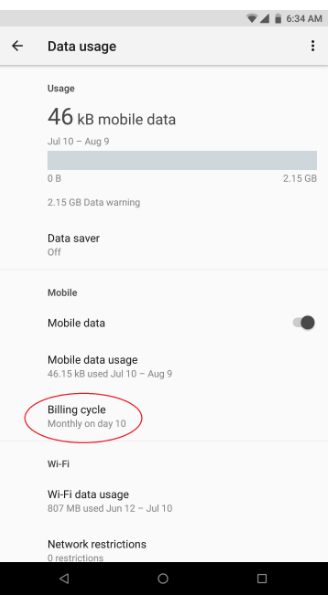
Go to Network & Internet > Data usage > Billing cycle.

-
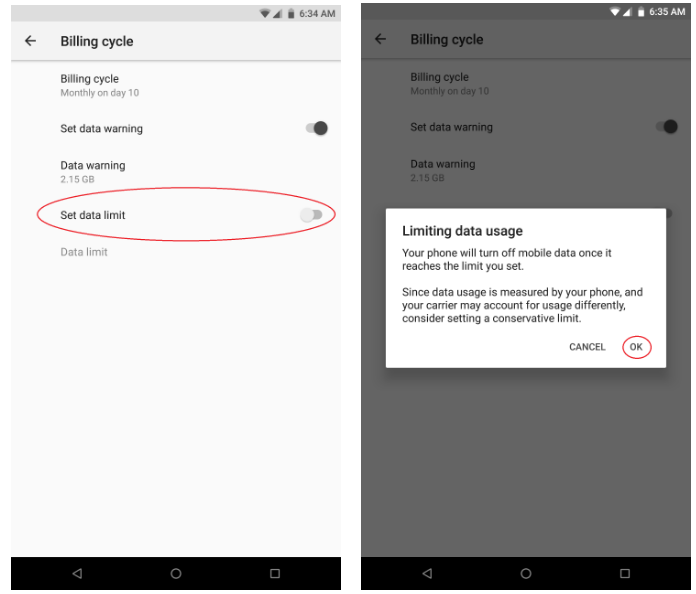
Tap "Set data limit" and click "OK".
-
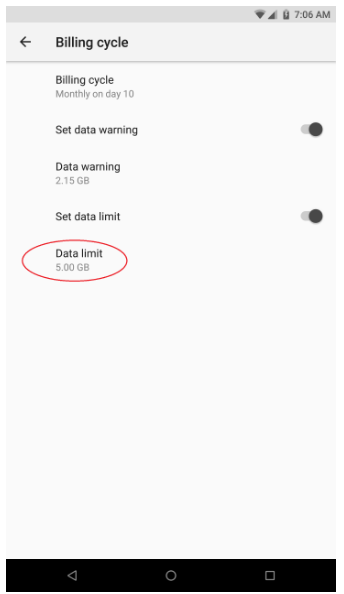
Tap "Data limit".
-
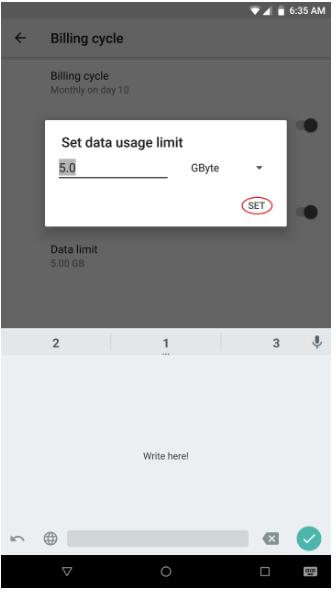
Input the desired data limit and tap "SET".
For Android Nougat
If you do not know the version of your Android OS, refer to How to determine the version of the Android OS on the Razer Phone.
-
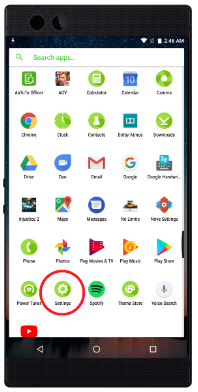
Open the app list and tap "Settings".
-
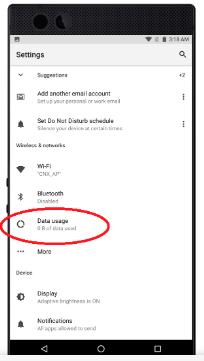
Select "Data usage".
-
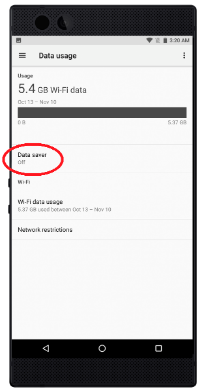
Select "Data saver".
-
Tap the slider to turn on data saving.