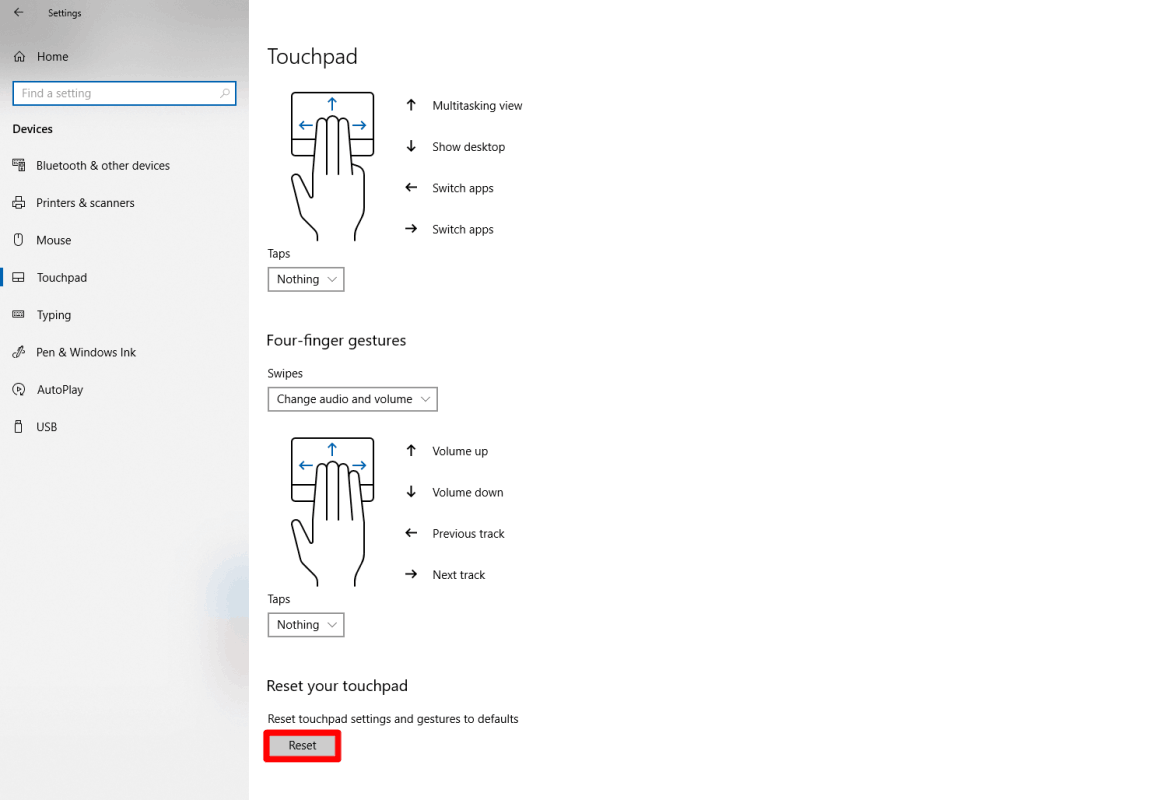
The Razer Blade does come pre-installed with the Precision Touchpad out of the box. Combined with the Razer Blade’s top-of-the-line hardware, the Windows Precision Touchpad driver allows for a smooth and accurate experience. Touchpad’s sensitivity, functions, and advanced gestures can be customized through Windows settings.
You can view the video below for instructions or review a copy of the video transcript.
Access the Precision Touchpad settings by going to Settings > Devices > Touchpad.
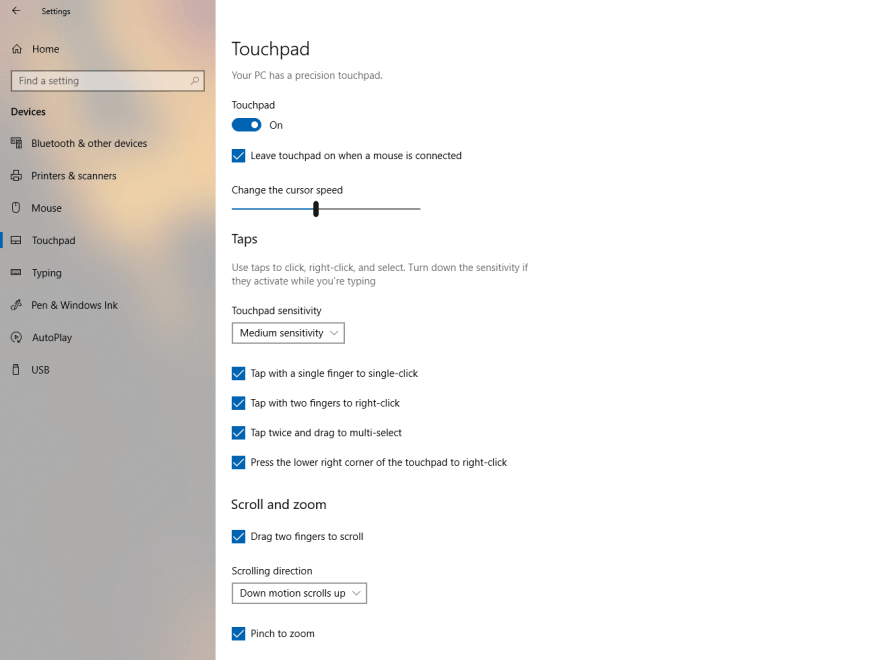
Enable or disable certain preset functions for the touchpad such as “Tap twice to right-click” or “Press the lower right corner of the touchpad to right-click” or both.
Customizing the three-finger and four-finger gestures
The Razer Blade’s touchpad can handle three-finger and four-finger gestures. Windows’ precision touchpad allows users to customize the three-finger and four-finger gestures with preset functions. These preset functions can be accessed via drop-down menus and are grouped as “Swipes” or “Taps”.
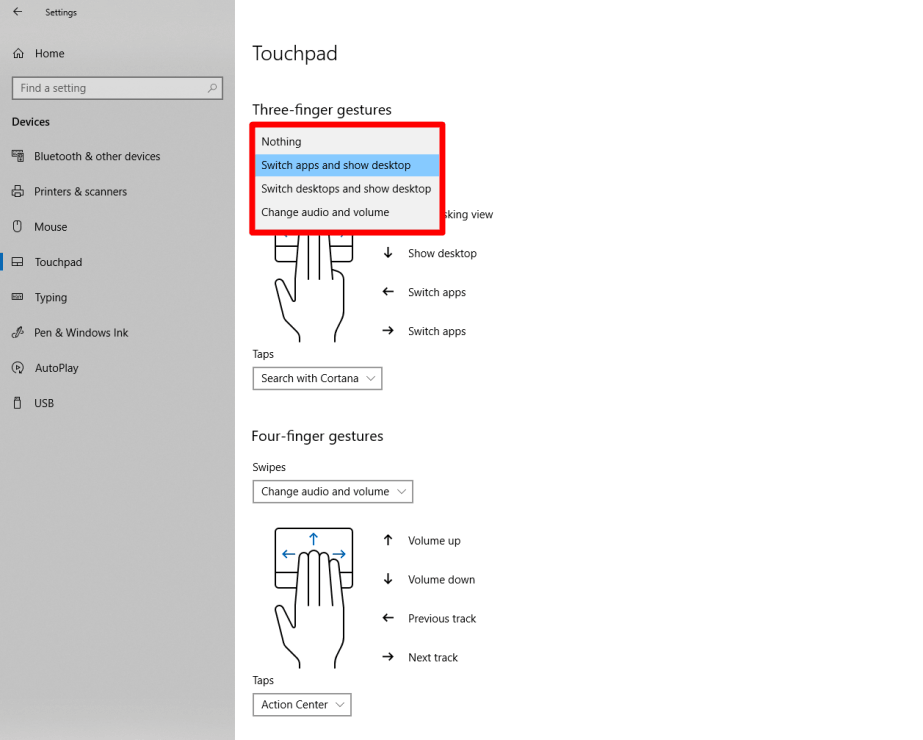
Options for swipes include "Switch Apps and Show desktop", "Switch desktops and show desktop", "Change audio and volume", and "Nothing."
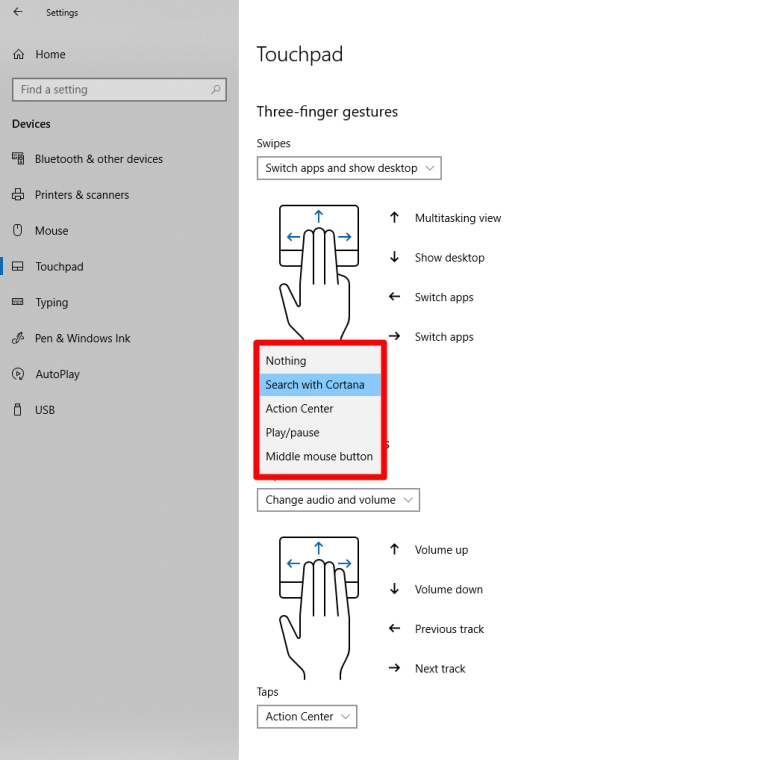
Options for Taps include "Search with Cortana", "Action Center", "Play/pause", and "Middle mouse" button
Configuring advanced gestures
For the advanced settings, Windows allows users to combine individual actions.

To record a keyboard shortcut to either your three-finger or four-finger tap.
-
Click on the drop-down menu for Taps and select “Custom shortcut.”
-
Click "Start recording" and perform the keystroke.
-
Hold the "ESC" key on your keyboard to stop recording and save your gesture.
To go back to the default controls:
-
Go back to Settings > Devices > Touchpad.
-
Click “Reset” at the bottom of the page.