How to adjust the DPI setting on a Razer mouse through Razer Synapse

| Answer ID: 1712
This answer shows you how to adjust the DPI setting on a Razer mouse through Razer Synapse.

Effective February 3, 2026, Razer Synapse 3 will no longer receive updates or support cloud services. After this date, cloud syncing of configurations across PCs using the same Razer ID will be disabled.

Note: Your installed devices will continue to be configurable in Razer Synapse 3. However, if you uninstall these devices completely, you will need to upgrade to Razer Synapse 4 to continue customization.

Download Razer Synapse 4 and migrate your existing Razer Synapse 3 profiles using the Profile Migration Tool to retain access to your configurations. See How to migrate your Razer Synapse 3 Profile to Razer Synapse 4 for instructions.

Configure the sensitivity level of your mouse in two ways. 

Select preferred method

Sensitivity Stages

Razer Synapse 4

  1. Open Razer Synapse 4.

  2. Select your mouse from the “DASHBOARD”.

  3. Go to the "PERFORMANCE" tab.

  4. Toggle "Sensitivity Stages" on.

    Sensitivity stages pane

  5. Select the DPI stage you want to apply.

    Sensitivity stages pane

    If you prefer a specific DPI level, key in the specific DPI value you want to apply or use the slider.

    Sensitivity stages pane

    Note: If you prefer different DPI levels for horizontal (X) and vertical movement (Y), proceed to the next step.

  6. Hover on the slider and click the “x/y” icon.

    Sensitivity stages pane

  7. Move each slider or input your preferred DPI levels.

    Sensitivity stages pane

Razer Synapse 3

  1. Open Razer Synapse and click on your mouse.

    Synapse 3 device

  2. Go to "PERFORMANCE" tab.

    Performance tab

  3. Toggle "Sensitivity Stages" on.

    Sensitivity stages

  4. Select the number of sensitivity stages you prefer.

    Number of stages

  5. Select the stage you want to apply.

    Select the stage

    Note: If you prefer a specific DPI level, proceed to the next step.

  6. Key in the specific DPI stage you want to apply.

    Specific DPI stage

Sensitivity Sliders

Razer Synapse 4

  1. Open Razer Synapse 4.

  2. Select your mouse from the “DASHBOARD”.

  3. Go to the "PERFORMANCE" tab.

  4. Click and drag the sensitivity slider to your preferred DPI level. Alternatively, key in the specific DPI value you want to apply.

    Note: If you prefer different DPI levels for horizontal (X) and vertical movement (Y), proceed to the next step.

  5. Hover on the slider and click the “x/y” icon.
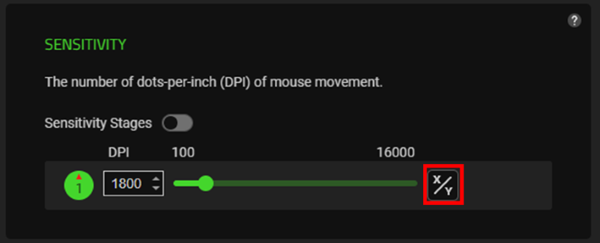
    Sensitivity stages pane

  6. Move each slider or input your preferred DPI levels.

    Sensitivity stages pane

Razer Synapse 3

  1. Open Razer Synapse and click on your mouse.

    Synapse 3 device

  2. Go to "PERFORMANCE" tab.

    Performance tab

  3. Click and drag the sensitivity slider up to youu preferred DPI level.

    Sensitivity level

    Note: If you prefer different DPI levels for and horizontal (X) and vertical movement (Y), proceed to the next step.

  4. Click "Enable X-Y" to enables X and Y sliders.

    Enable X-Y

  5. Move each slider to reach your preferred DPI levels.

    Sensitivity sliders

Is this answer helpful?