
DPI settings on compatible Razer mice are managed through Razer Synapse when the device is detected and the software is correctly installed.
Follow the detailed instructions below to adjust the DPI setting on a Razer mouse through Razer Synapse.
Select a method
Sensitivity Stages
-
Open Razer Synapse.
-
Select your mouse from the “DASHBOARD”.
-
Go to the "PERFORMANCE" tab.
-
Toggle "Sensitivity Stages" on.

-
Select the DPI stage you want to apply.

If you prefer a specific DPI level, key in the specific DPI value you want to apply or use the slider.

Note: If you prefer different DPI levels for horizontal (X) and vertical movement (Y), proceed to the next step.
-
Hover on the slider and click the “x/y” icon.

-
Move each slider or input your preferred DPI levels.

Sensitivity Sliders
-
Open Razer Synapse.
-
Select your mouse from the “DASHBOARD”.
-
Go to the "PERFORMANCE" tab.
-
Click and drag the sensitivity slider to your preferred DPI level. Alternatively, key in the specific DPI value you want to apply.

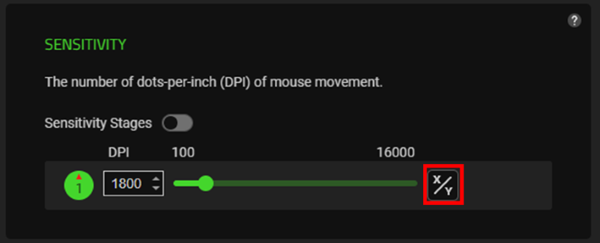
Note: If you prefer different DPI levels for horizontal (X) and vertical movement (Y), proceed to the next step.
-
Hover on the slider and click the “x/y” icon.
-
Move each slider or input your preferred DPI levels.


