
Below are the steps to fix camera issues on your Razer Phone.
-
Ensure there are no obstructions such as phone covers and screen protectors on the camera. Do this for both the front and back cameras.
-
Check if you are running the latest software for the device. Ensure the "Razer Camera 2" application is updated as well.
-
Clear up some storage space by deleting unused files, apps, images, or videos if an error message shows up telling you that the memory is full.
-
If the camera does not completely work, shows a blank screen, or does not work at all, force close the app to reboot the camera.
- Go to Settings > Apps & notifications.

- Tap on "Camera".

- Tap on "FORCE STOP".

- Launch the Camera app again to check.
- Go to Settings > Apps & notifications.
-
Perform a factory reset if the issue persists.
- Back up your data before resetting your phone. Go to Settings > System.

- Tap on “Advanced”.

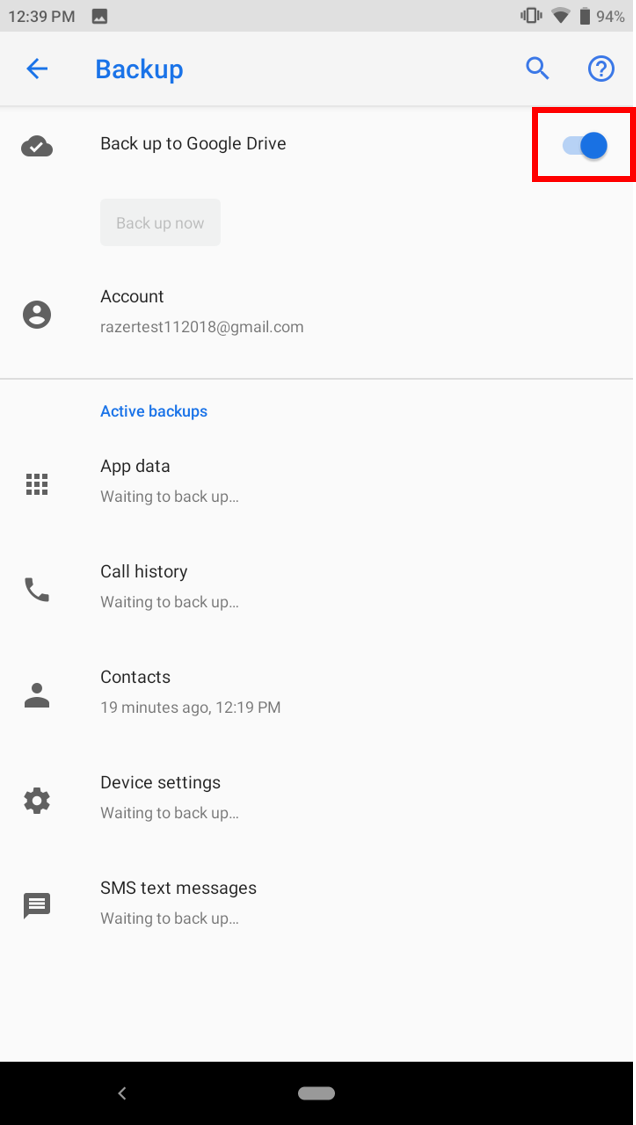
- Tap on “Backup”.

- Toggle “Back up to Google Drive” on.
- Go back to Settings > System > Advanced.
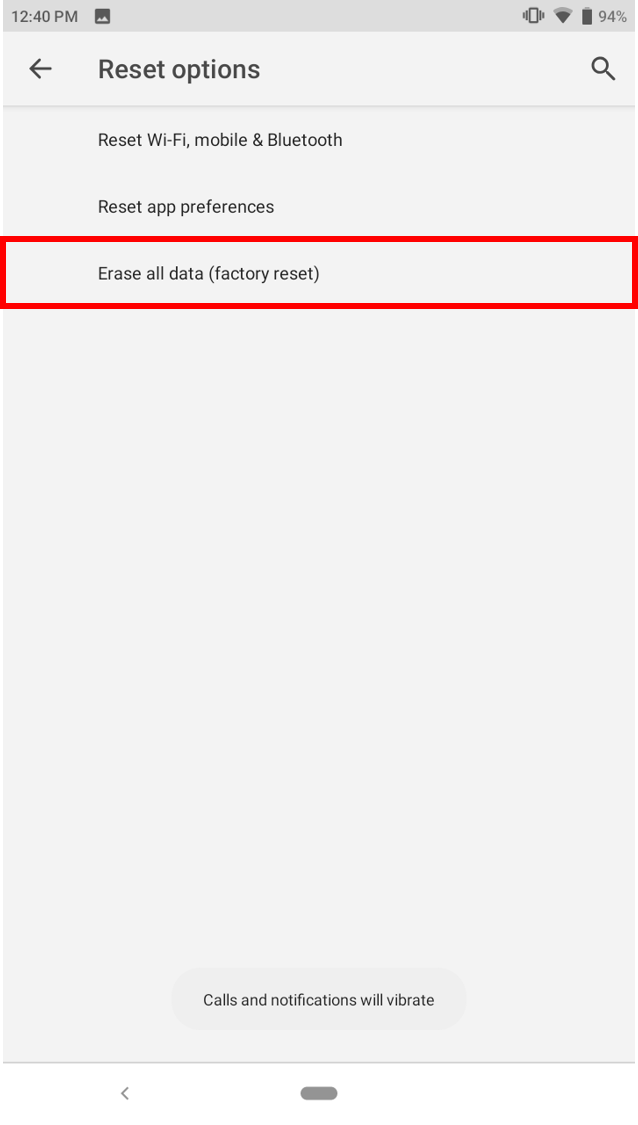
- Tap on “Reset options”.

- Tap on “Erase all data (factory reset)”.
- On the next window, tap “RESET PHONE”.
- Back up your data before resetting your phone. Go to Settings > System.

