Effective February 3, 2026, Razer Synapse 3 will no longer receive updates or support cloud services. After this date, cloud syncing of configurations across PCs using the same Razer ID will be disabled.
Note: Your installed devices will continue to be configurable in Razer Synapse 3. However, if you uninstall these devices completely, you will need to upgrade to Razer Synapse 4 to continue customization.
Download Razer Synapse 4 and migrate your existing Razer Synapse 3 profiles using the Profile Migration Tool to retain access to your configurations. See How to migrate your Razer Synapse 3 Profile to Razer Synapse 4 for instructions.
Razer Chroma-enabled devices allow integration with games and applications for a truly immersive lighting experience. Custom Chroma lighting effects will start once you launch the game or application.
For Chroma Workshop Apps
The Chroma SDK also helps you develop standalone apps to take over the lighting of your Chroma devices. Play Snake on your keyboard or enjoy your Music Visualizer in its full Chroma Glory today. Visit Razer Chroma Workshop Apps for the list of apps available for download.
Select Razer Synapse version
Razer Synapse 4
- Launch Razer Chroma.
- Select Chroma Apps.
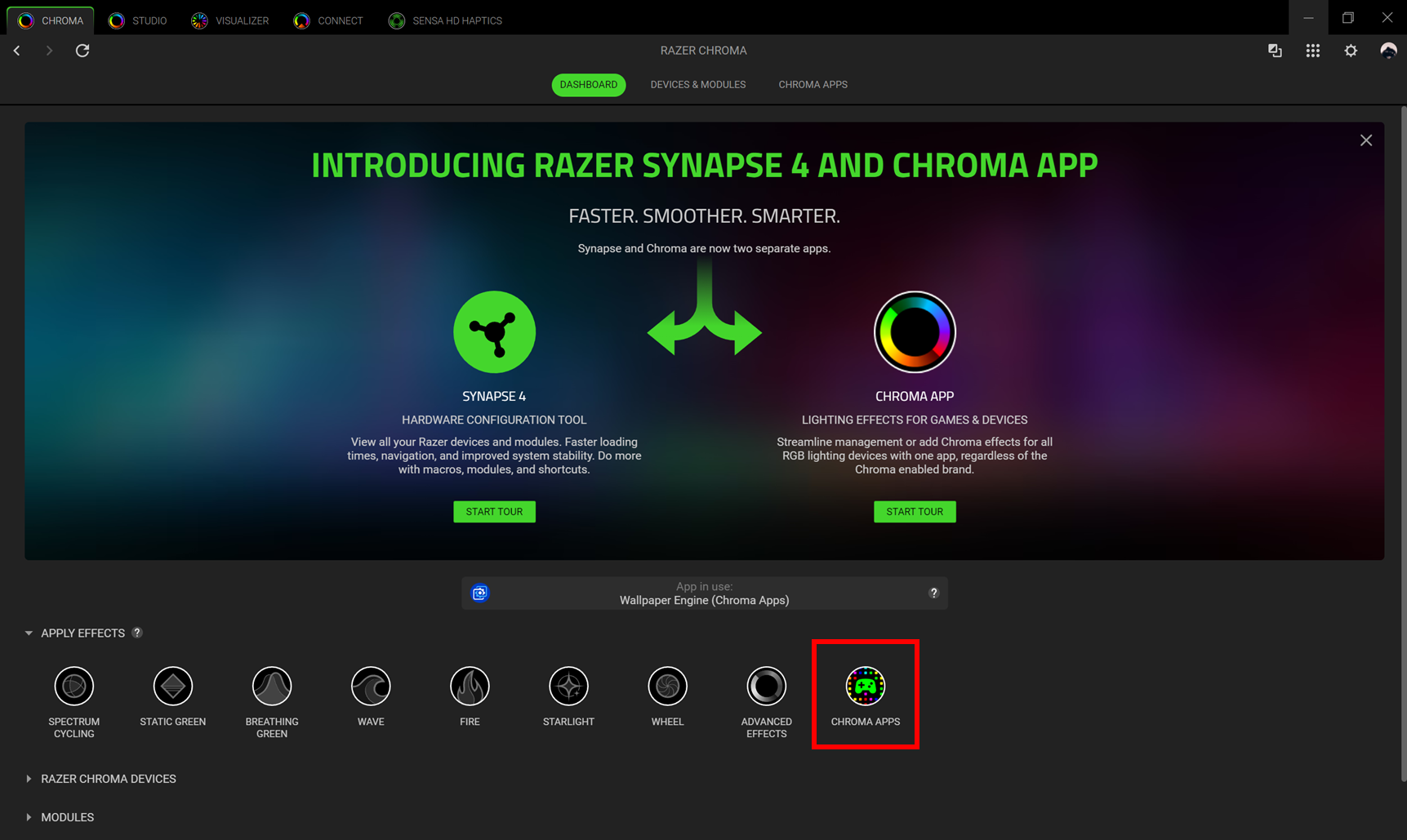
- Toggle “CHROMA APPS” on.
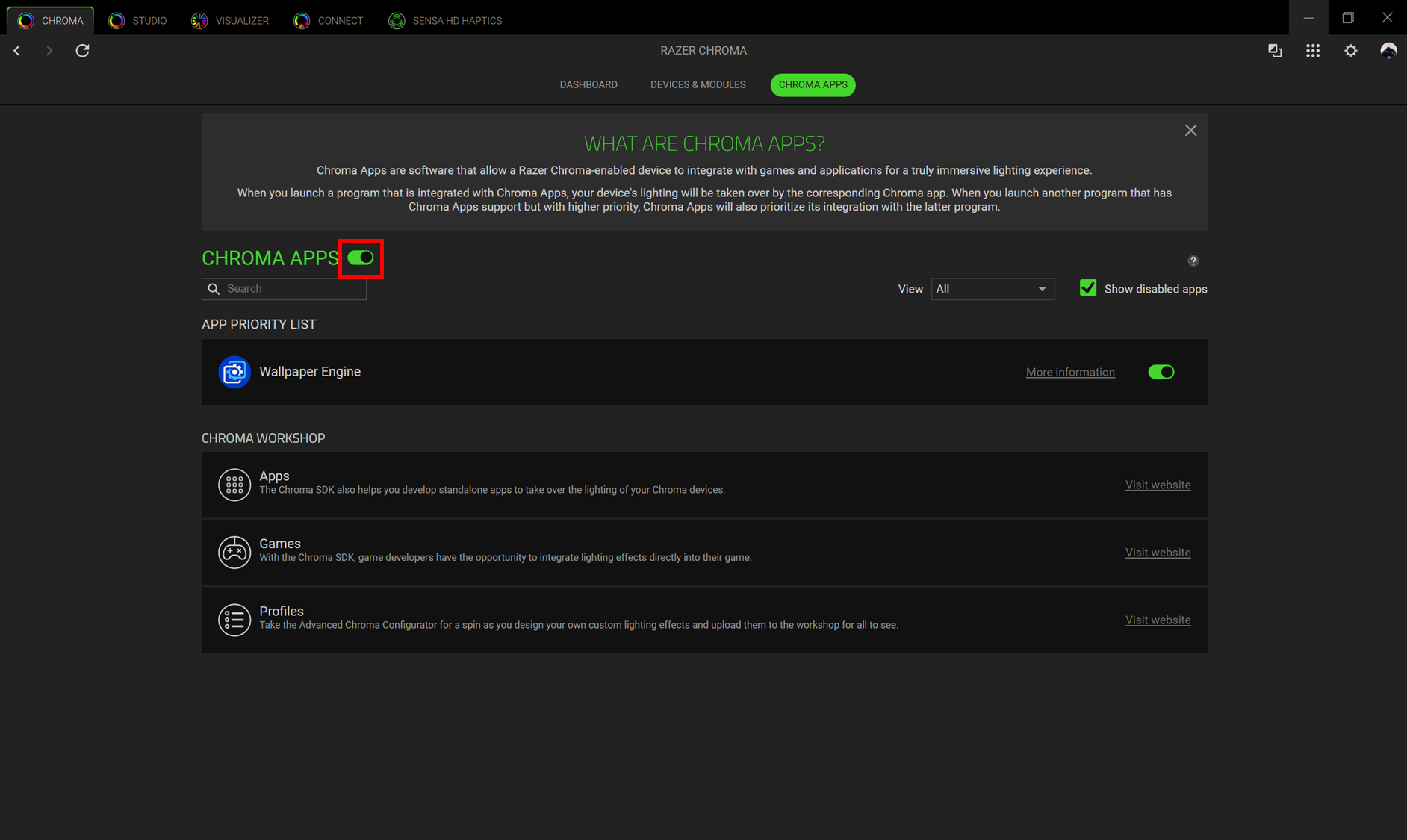
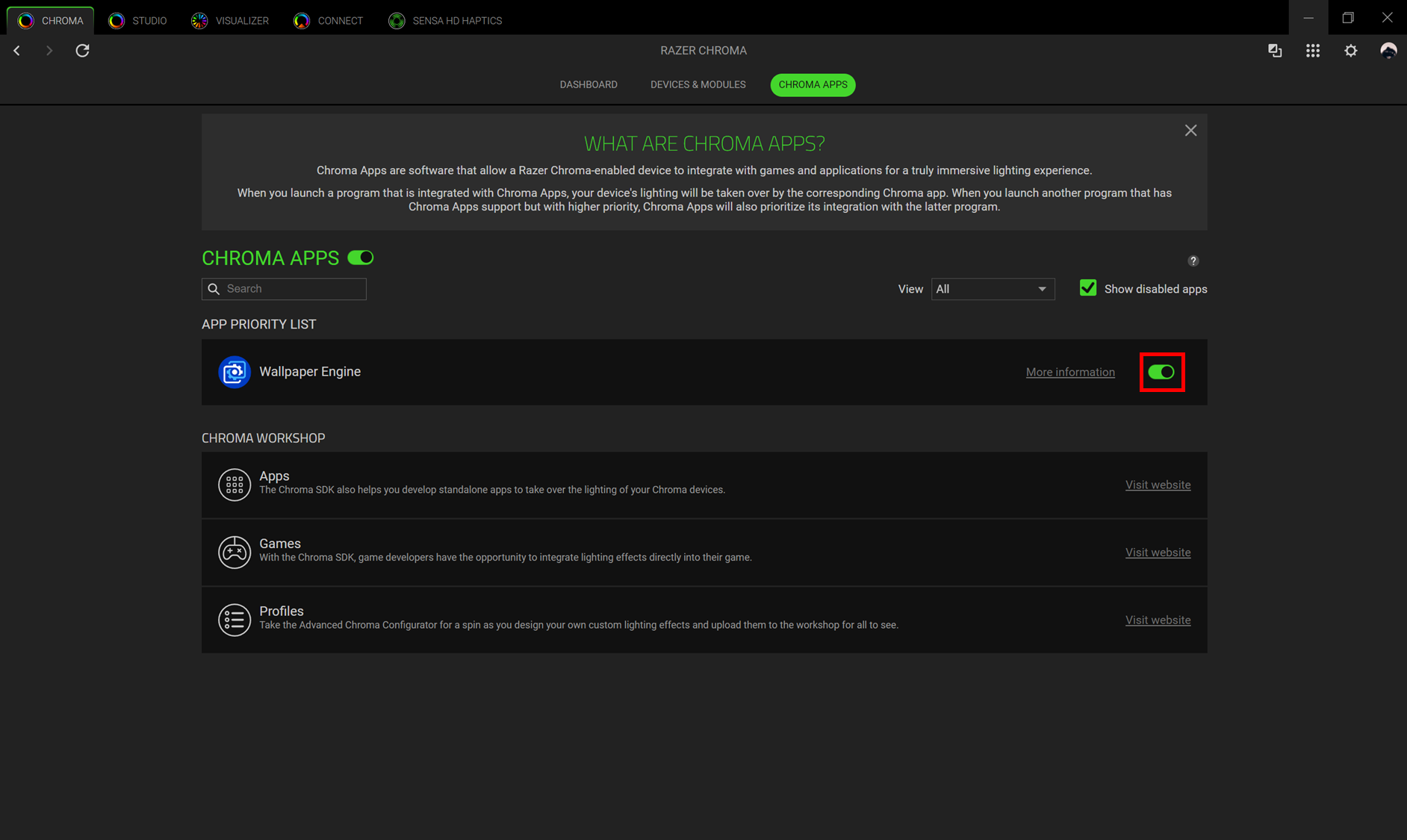
- Select the App and toggle to enable or disable it.
Note: Apps may not be detected right away.
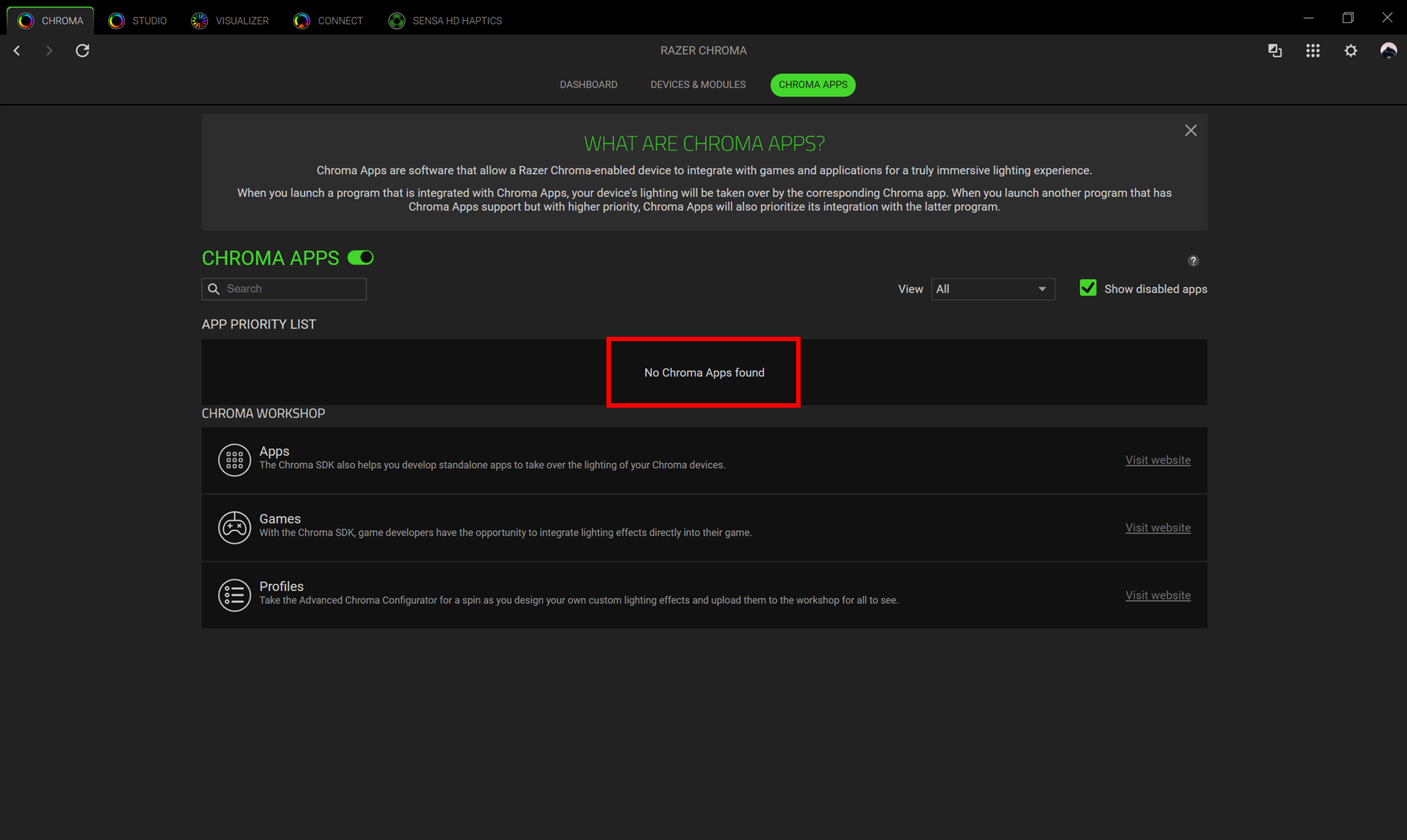
- Launch the App for the first time for the system to detect it.
Razer Synapse 3
-
Launch Razer Synapse 3.
-
Select CONNECT > APPS. Enable "CHROMA APPS".

-
Select the App and toggle the "ENABLE THIS APP" to enable or disable the app.
-
Some Apps will also need to be launched after they are enabled.

For Chroma Workshop Games
When the Chroma app integration is enabled, the Chroma app will automatically turn on after you launch a supported game with the latest Synapse update.
Note: You can verify which games and applications are connected to Chroma Apps by viewing the list of supported games.
To enable or disable the Chroma Workshop Games:
-
Launch Razer Synapse.
-
Select CONNECT > APPS.
-
Toggle "CHROMA APPS" to enable or disable Chroma app integration.
