
Razer Chroma-enabled devices allow integration with games and applications for a truly immersive lighting experience. Custom Chroma lighting effects will start once you launch the game or application.
For Chroma Workshop Apps
The Chroma SDK also helps you develop standalone apps to take over the lighting of your Chroma devices. Play Snake on your keyboard or enjoy your Music Visualizer in its full Chroma Glory today. Visit Razer Chroma Workshop Apps for the list of apps available for download.
Follow the detailed instructions below to enable or disable Razer Chroma Workshop.
Razer Synapse 4
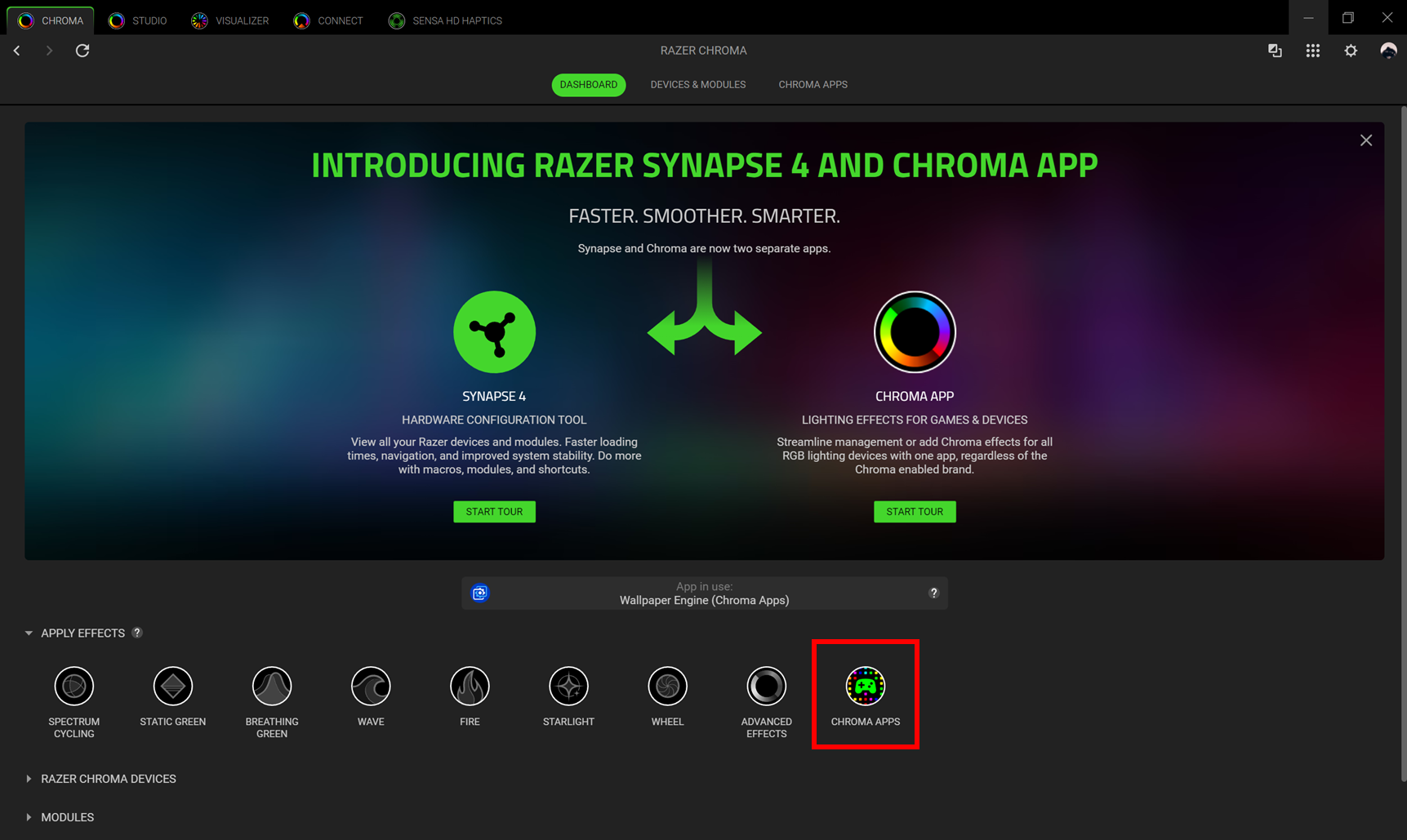
- Launch Razer Chroma.
- Select Chroma Apps.
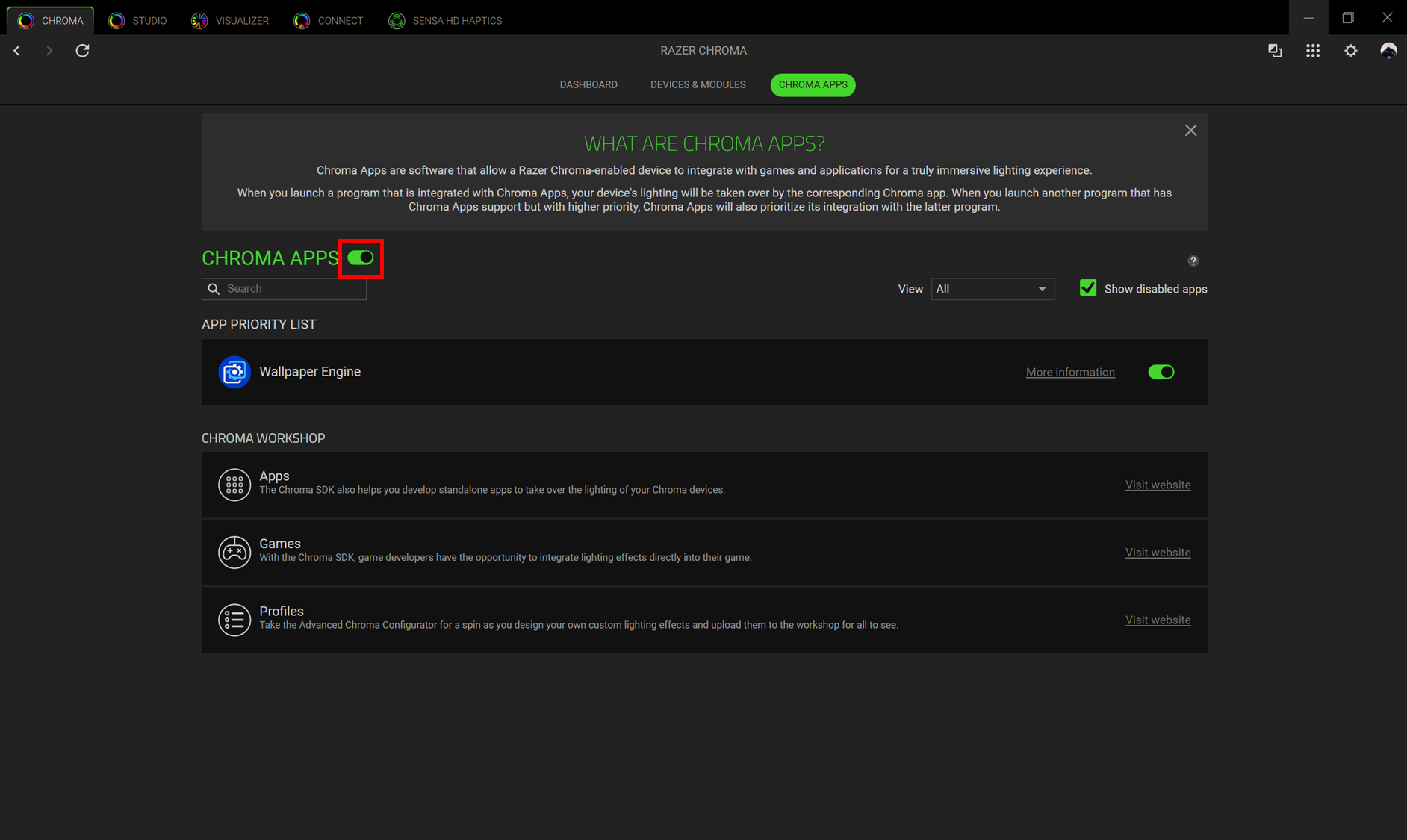
- Toggle “CHROMA APPS” on.
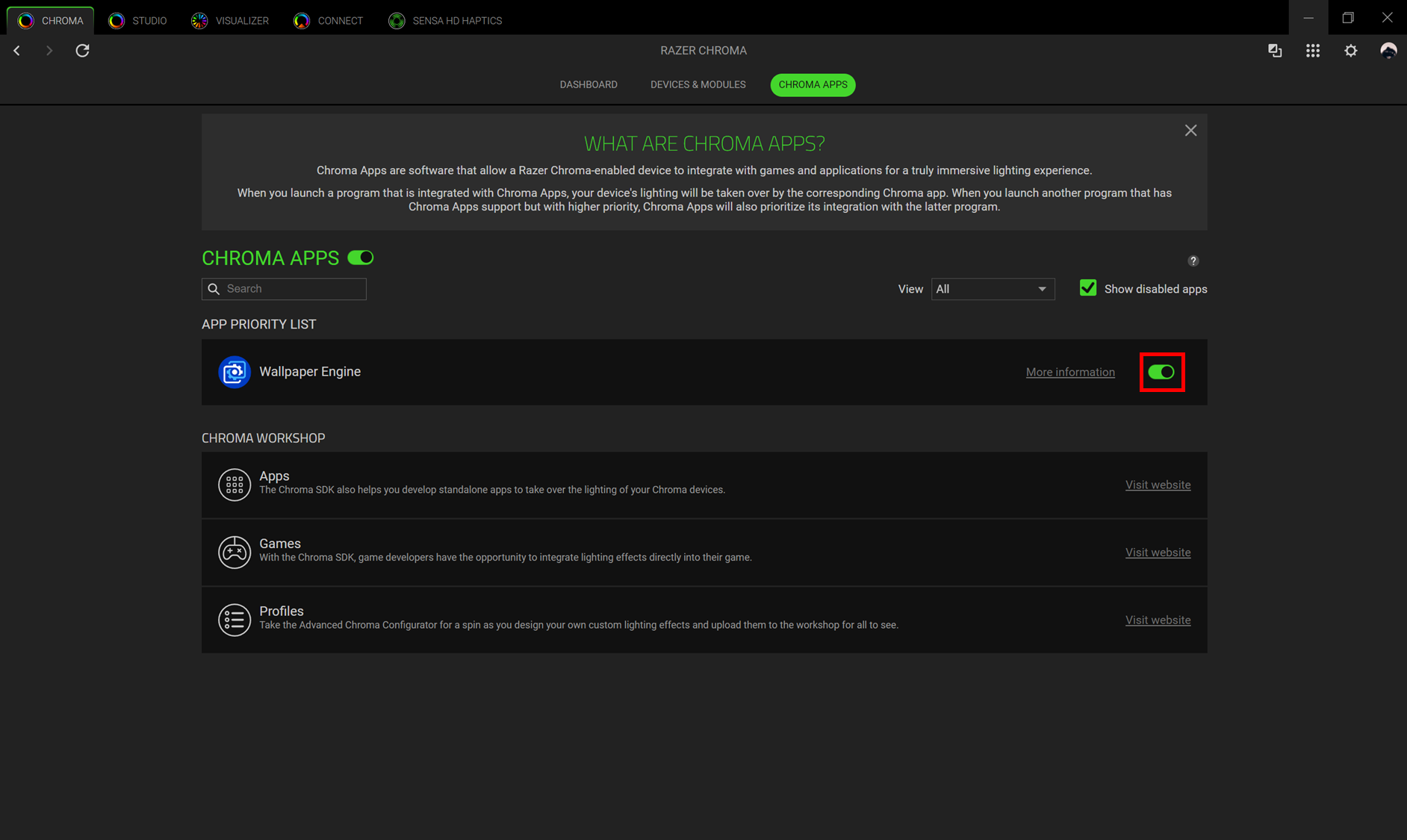
- Select the App and toggle to enable or disable it.
Note: Apps may not be detected right away.
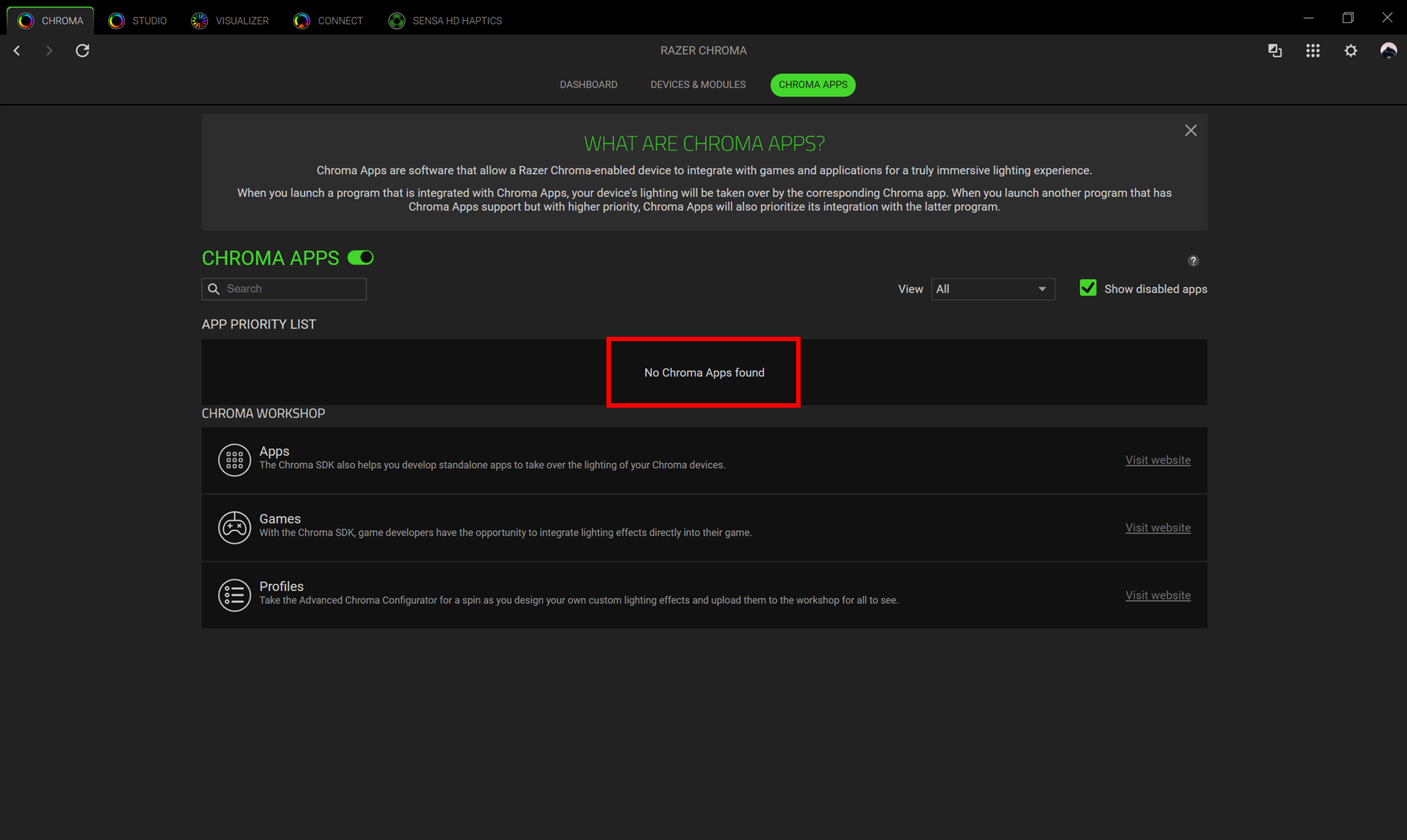
- Launch the App for the first time for the system to detect it.

