
Important: Make sure your refresh rate is set to 120 Hz to unlock all the stunning benefits of the Razer Phone's 120Hz UltraMotion™ screen.
Step-by-step process on how to adjust the refresh rate on your Razer Phone
-
Go to “Settings”.
-
Tap on “Display” and select “Refresh rate”.

-
Choose the “120Hz” option.

If you encounter issues playing using the 120Hz settings, set individual games to 60Hz frame rate through the Razer Cortex.
-
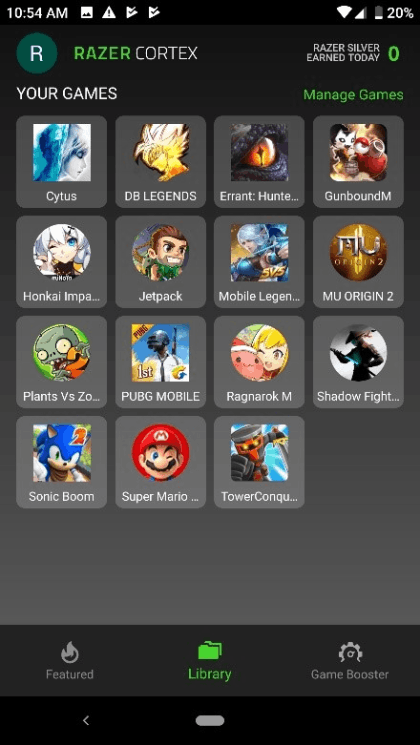
Open the Razer Cortex app.
-
Select the games within “Razer Game Booster”.
-
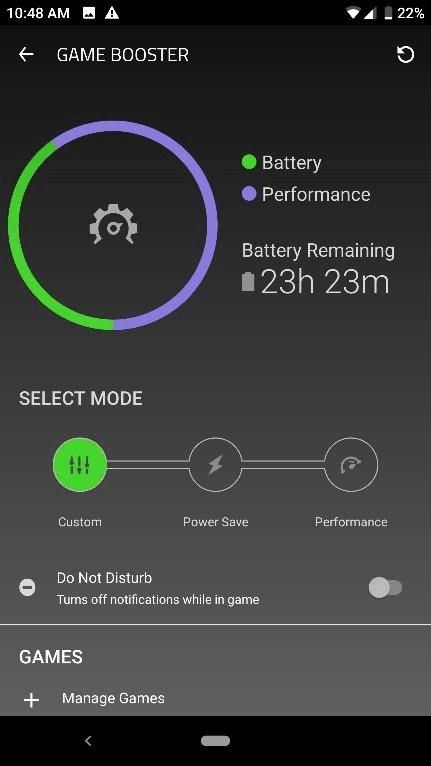
Tap on “Manage Games”.
-
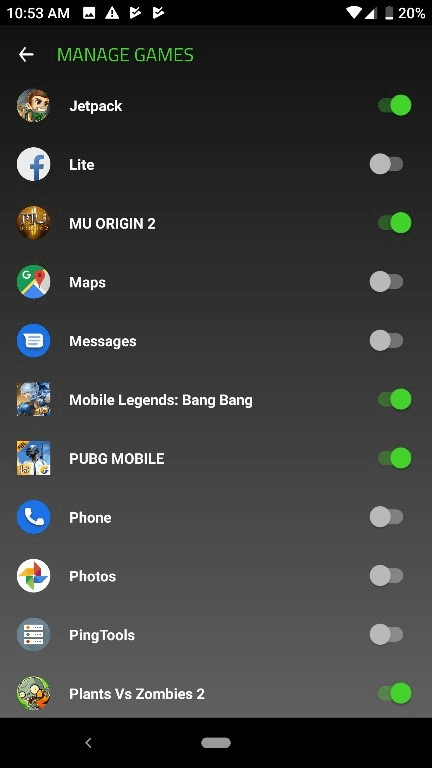
Select which game you want the settings to be changed.
-
Track back to “Game Booster”.
-
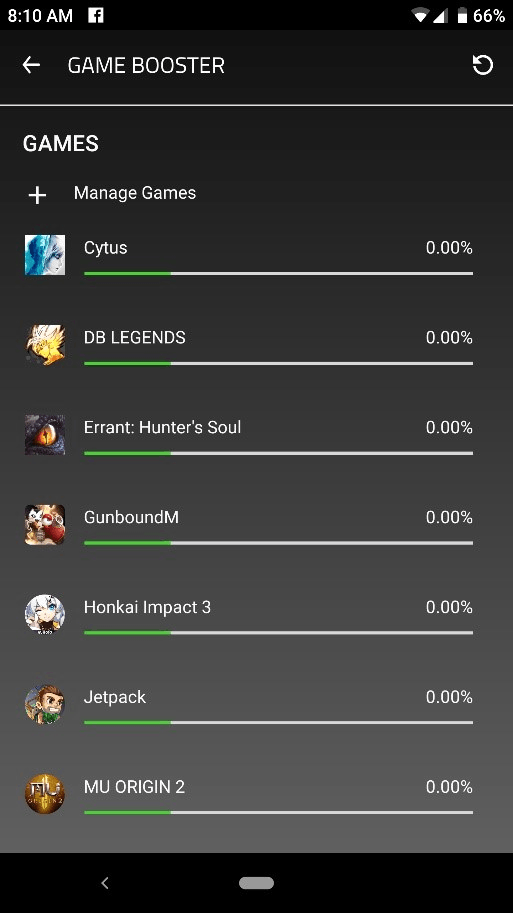
Under “GAMES” tab, click on the game.
-
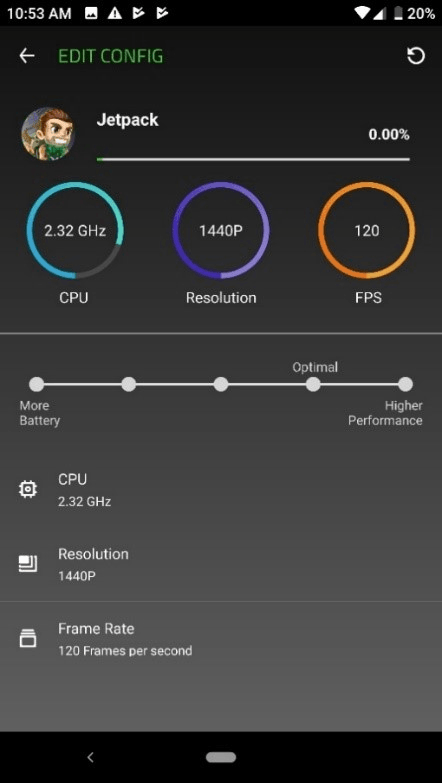
Tap on “Frame Rate”.
-
Select the “60 Frames per second” option.
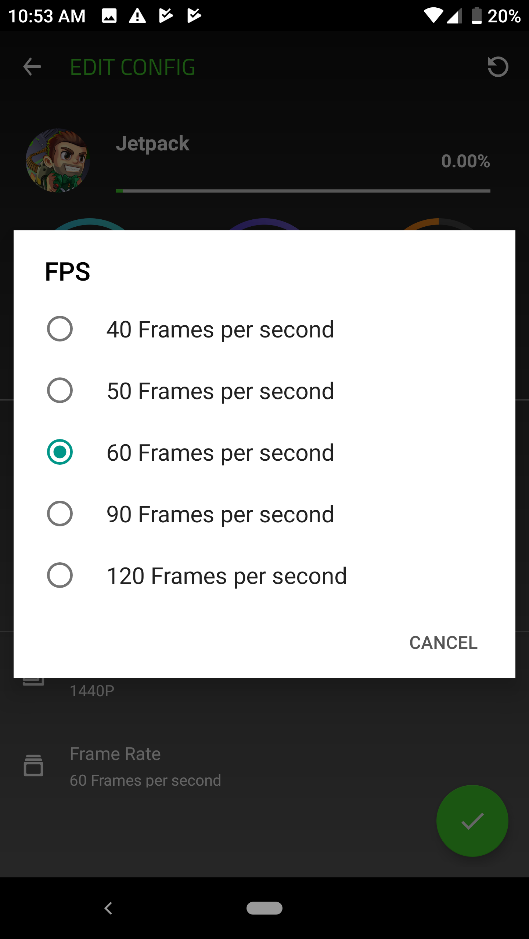
Note: Once done, those games will automatically set its default to 60Hz without affecting the refresh rate on other applications. Higher refresh rates can have some minor effect on battery life.

