
There are several ways to connect a Bluetooth device to your Razer Blade. To access the Bluetooth settings:
Through the system tray
-
Open the system tray located at the lower-right side of your desktop and click the Bluetooth icon.
-
Select "Add a Bluetooth Device".

Through Settings
-
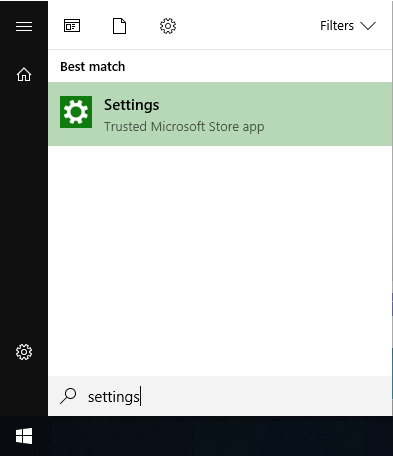
Type and select "Settings" in the Start menu.
-
Click on "Devices".

Once you're in the "Bluetooth & other devices" settings, follow these steps:
-
Turn on the "Bluetooth" toggle switch.

-
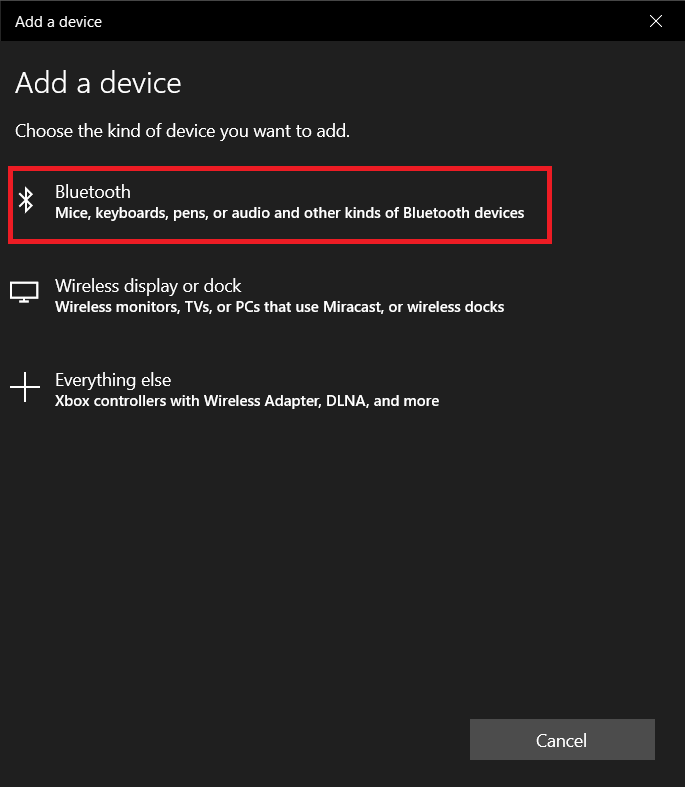
Click the "Add Bluetooth or other device" button to connect a new device.
-
Select the Bluetooth option, but note that you can also connect other devices, including wireless displays, and other peripherals.
-
Configure the peripheral you want to connect to be discoverable. This process will be different on most devices, as such check your device manufacturer support website for more details
-
Click the device to connect.
-
On the Bluetooth device, see if the PIN matches with one shown in the Windows 10 Bluetooth wizard. This will depend on the Bluetooth device. Some devices, such as Bluetooth speakers, do not need a pin verification.
-
Click the "Connect" button to pair.
-
Click the "Done" button after successfully pairing the device.

