How to export and import macros in Razer Synapse

| Answer ID: 1800
This article shows how to copy macros from one computer to another.

Effective February 3, 2026, Razer Synapse 3 will no longer receive updates or support cloud services. After this date, cloud syncing of configurations across PCs using the same Razer ID will be disabled.

Note: Your installed devices will continue to be configurable in Razer Synapse 3. However, if you uninstall these devices completely, you will need to upgrade to Razer Synapse 4 to continue customization.

Download Razer Synapse 4 and migrate your existing Razer Synapse 3 profiles using the Profile Migration Tool to retain access to your configurations. See How to migrate your Razer Synapse 3 Profile to Razer Synapse 4 for instructions.

You can view the video below for instructions or review a copy of the video transcript.

Important: Synapse 3 macro files will not work with Synapse 4 and vice versa.

Select preferred action

Export macros to computer

Razer Synapse 4

  1. Open Razer Synapse.

  2. Go to the “MACRO” tab.

  3. Find the macro you want to export under the “MACRO LIST”.

  4. Click on the 3-dot icon next to the macro name and click “Export”.
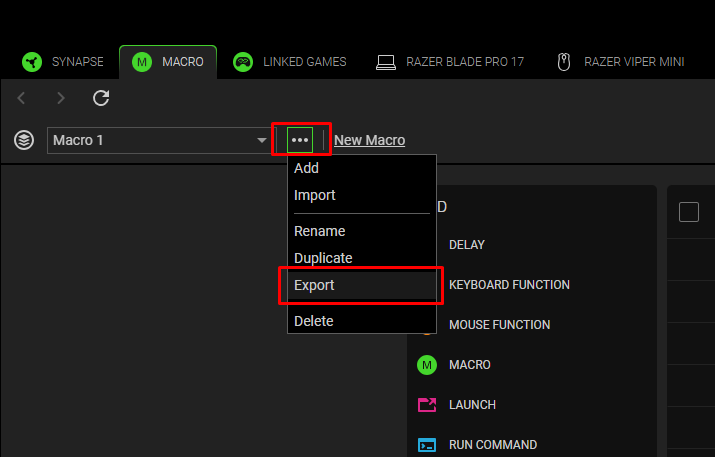
    Export Macro in Synapse

  5. Choose a location where you want to save the macro file.

  6. Click “Save”.

    Folder location to save the file

    Saved file

Razer Synapse 3

  1. Open Razer Synapse.

  2. Go to the “MACRO” tab.

  3. Find the macro you want to export under the “MACRO LIST”.

  4. Click on the 3-dot icon next to the macro name and click “Export”.

    Export Macro in Synapse 3

  5. Choose a location where you want to save the macro file.

  6. Click “Save”.

    Folder location to save the file

    Saved file

Import macros from computer

Razer Synapse 4

  1. Ensure you have access to exported or saved macro files on your computer.

    Ensure you have access to exported or saved macro files on your computer

  2. Open Razer Synapse.

  3. Go to the “MACRO” tab.

  4. Click on the 3-dot icon next to the macro name and click “Import”.

    Click on the import icon in Synapse 3

  5. Browse to the location of your macro files and select the macro you want to import.

  6. Click “Open”.

    Open saved file

The selected macro is now on your “MACRO LIST”, ready for key binding.

The macro is listed in the MACRO LIST

Razer Synapse 3

  1. Ensure you have access to exported or saved macro files on your computer.

    Ensure you have access to exported or saved macro files on your computer

  2. Open Razer Synapse.

  3. Go to the “MACRO” tab.

  4. Click on the import icon on the top of the “MACRO LIST”.

    Click on the import icon in Synapse 3

  5. Browse to the location of your macro files and select the macro you want to import.

  6. Click “Open”.

    Open saved file

The selected macro is now on your “MACRO LIST”, ready for key binding.

The macro is listed in the MACRO LIST

Assign macros

Is this answer helpful?