
Touch screen errors are can caused by outdated drivers or errors in the calibration process. This can be fixed by updating your drivers or recalibrating the screen for touch input.
-
Ensure Windows is up to date. See How to get the latest software and driver updates from Windows.
If you just updated Windows, please install the "Optional updates" under Settings > Windows Update > Advanced options.
-
Restart the device and test if the issue disappears.
-
If the issue persists, calibrate the screen for touch input.
- To activate the calibration process, press your Start button, then type the word “Calibrate”. Select “Calibrate the screen for pen or touch input”.

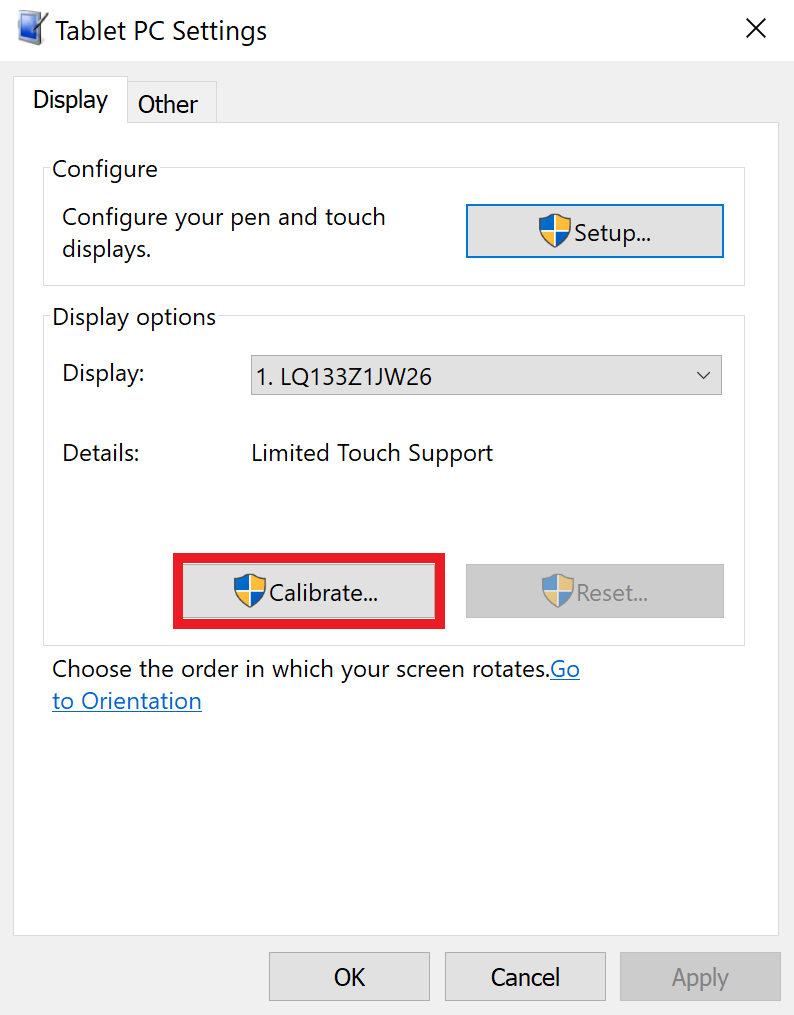
- Under Tablet PC Settings, click “Calibrate…”
-
Your screen will turn white and instruct you through the calibration process. Once the calibration process has been completed, the computer will prompt to save the calibration data.
-
Select “Yes” to save calibration data.
You can also reinstall the touch screen’s drivers to eliminate the possibility of corruption by going to the Device Manager.

-
Under Device manager, select and expand “Human Interface Devices”. Right-click “HID-compliant touch screen”.

-
Enable the device if it is currently disabled.
-
Disable the device if it is currently enabled, restart the Razer Blade, then re-enable the setting again.
-
Update the driver to check for any available updates.
-
Uninstall the device, then restart the Razer Blade to reinstall the driver.
-
If the steps above did not resolve the issue, consider performing a system recovery or factory reset.

