
The following are different ways to zoom in and out of the Blade's display.
-
Press and hold the "ctrl" button.
-
On the mouse wheel, scroll up to zoom in.
-
Scroll down to zoom out.
Note: This only works with laptops that have the touchscreen feature.
-
Place your fingers on the screen.
-
While your fingers are still on the screen, moving your fingers together zooms in.
-
Moving your fingers apart zooms out.
-
Press the Windows logo key and type in the word "Magnifier".

-
Select the Magnifier desktop app.
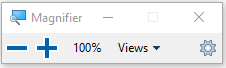
-
When Magnifier is on, zoom in and out by pressing the Windows logo key + Plus (+) or Windows logo key + Minus (-). You can also zoom in and out using the mouse by pressing Ctrl + Alt and scrolling the mouse wheel.
-
You can turn off Magnifier by selecting the "Close" button on the Magnifier toolbar.

