
Note: Live support for Razer Sila is no longer available. Please refer to our knowledge base or Insider Forum for support.
Follow the steps below to learn how to configure a DHCP reservation on the Razer Sila.
- Access the web UI of the Razer Sila and go to “LAN IP”.

- Click “DHCP/DNS Reservations”.

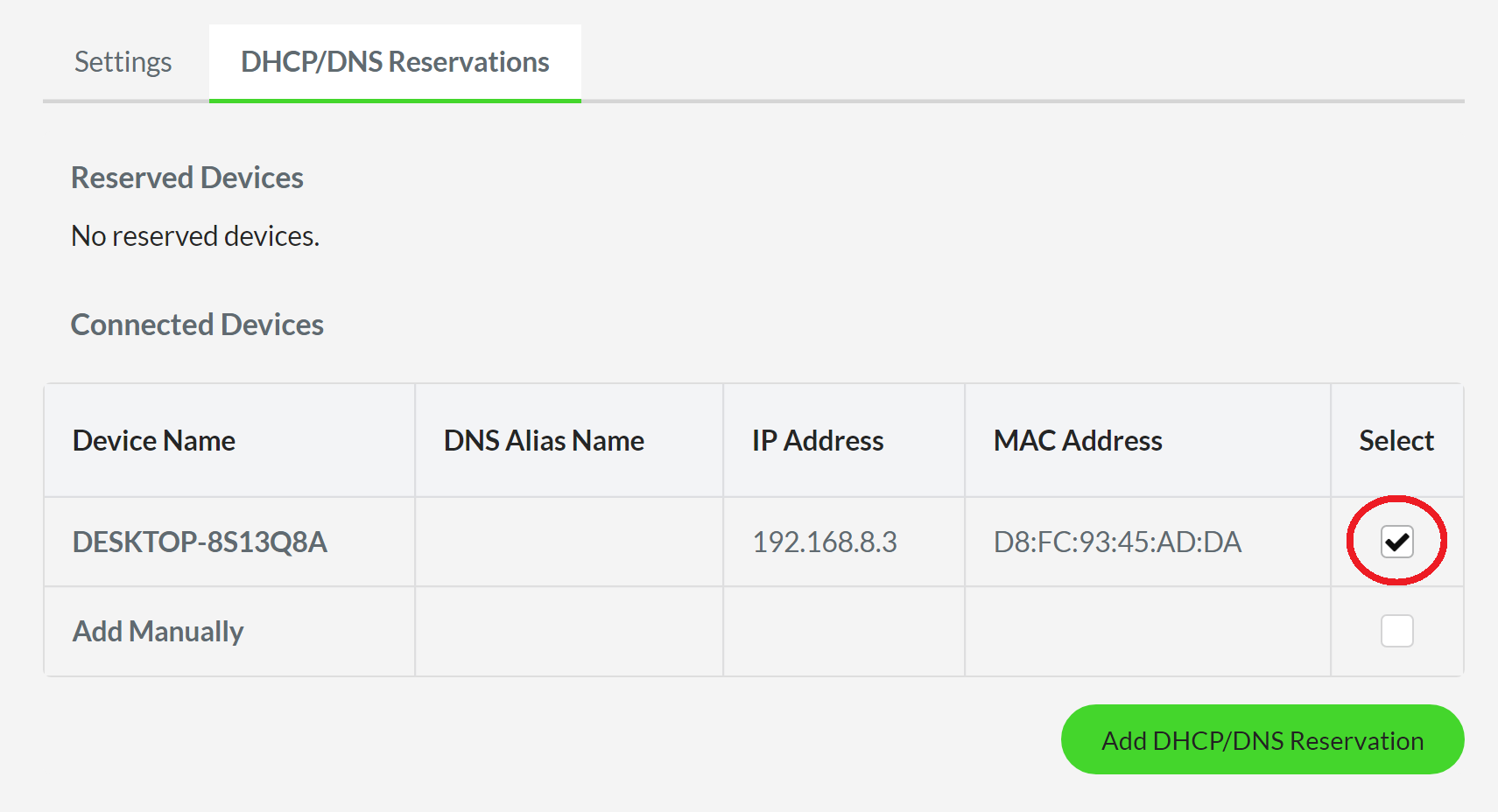
- Choose the device of your choice by checking on its “Select” box.
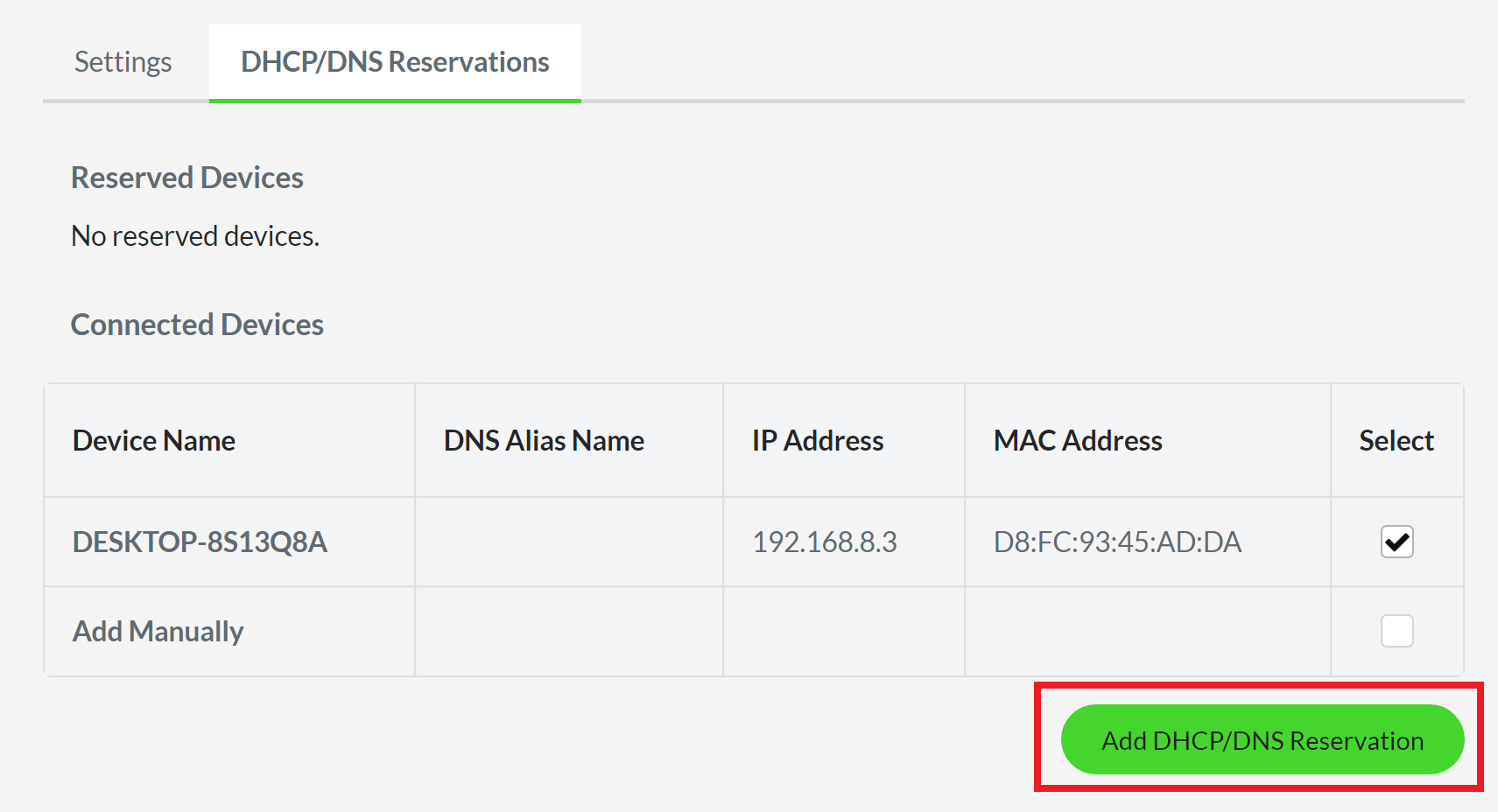
- Click “Add DHCP/DNS Reservation”.
- Enter the IP address that you want to assign for this device under the IP Address column or keep the existing IP address as it is.

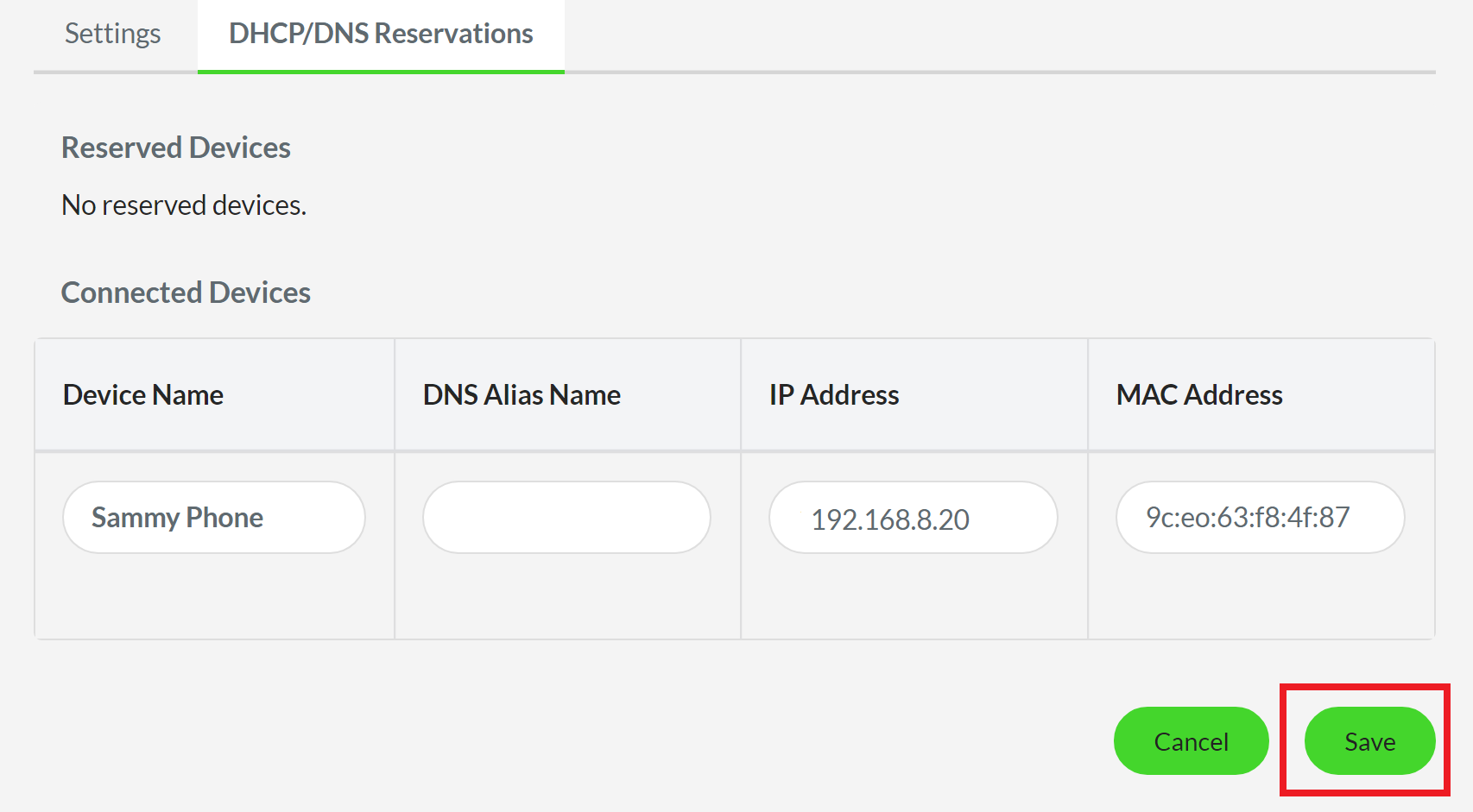
- Click “Save” to apply the changes.

A table that lists down all the devices connected on the router including the IP addresses assigned to them and their MAC addresses will be displayed. In this example, the table shows only one connected device.
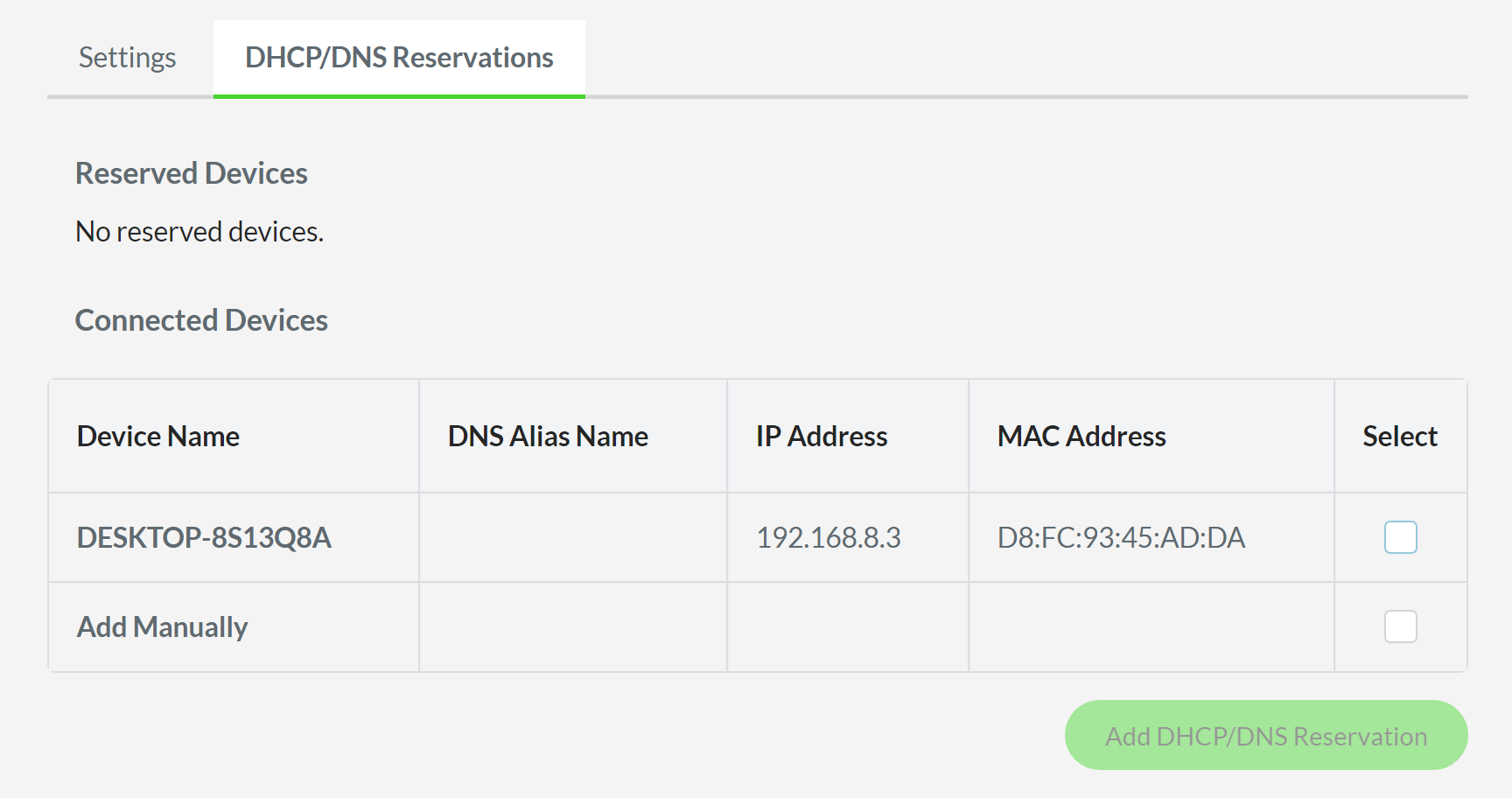
(Optional) You can also add a device on the list manually. To do this, check the box for “Add Manually”.
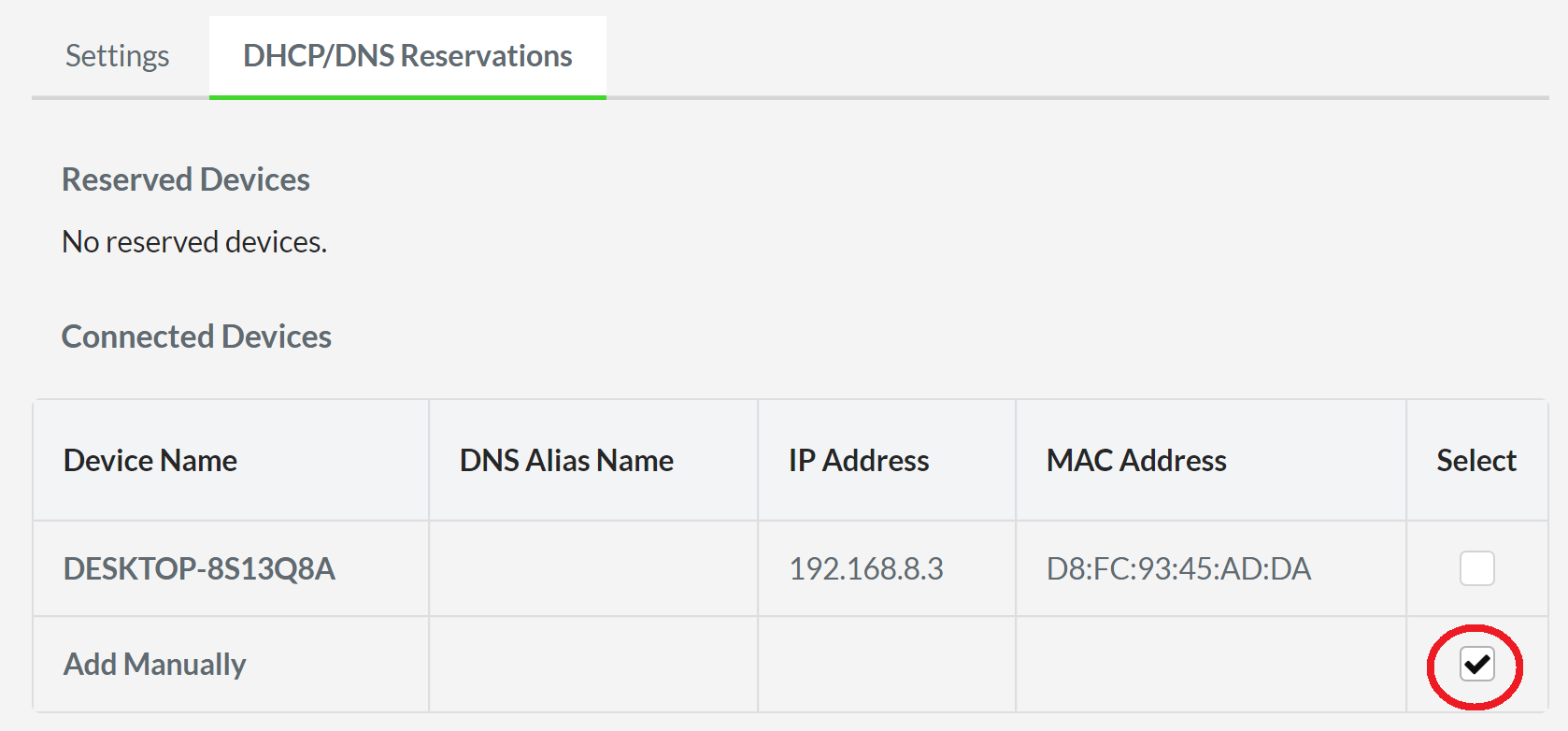
- Click “Add DHCP/DNS Reservation”.

- Enter the Device and Alias (optional) Names, and the IP and MAC Addresses in the fields provided.

- Click “Save”.
The new device is now added on the list.

