
If Razer Synapse fails to detect your Razer device, it could be due to one of the following issues:
- Software or hardware issue
- The device is not supported by Razer Synapse
- Outdated Riot Vanguard (version 1.7.0.27) blocking of Razer drivers for Windows PC
- Razer Synapse running in compatibility mode
Step-by-step process for Razer Synapse to detect your Razer device
Select Razer Synapse version
Note: Check whether your device is supported by Razer Synapse for Mac, Razer Synapse 4, Razer Synapse 3 or Razer Synapse 2.0 before proceeding. If your device is not supported by Razer Synapse, then it is incompatible and does not need Razer Synapse to work.
Razer Synapse for Mac
-
Ensure your Razer device is properly plugged in and connected to a USB-C hub.
-
Ensure that you have allowed all the required system permissions for Razer Synapse for Mac.
-
If the device is still not being detected, force quite Razer Synapse for Mac and relaunch it. See this answer for instructions.
Razer Synapse 4
You can view the video below for instructions or review a copy of the video transcript.
-
Ensure your Razer device is properly plugged in and connected directly to the computer and not through a USB hub.
-
Restart your PC if this is your first time installing a Razer device or if you have just completed an update.
-
Perform a repair of Razer Synapse if the issue persists.
-
Ensure Razer Synapse is not running in compatibility mode.
Razer Synapse 2.0
- Ensure your Windows OS and Razer Synapse 2.0 are updated. See the answers below:
-
Test the device on another PC with the same Razer Synapse version or try connecting to different ports. If the device is working properly on a different computer, have the USB port on your PC checked by the manufacturer or a reputable technician.
-
Ensure the device is properly plugged in and connected directly to the computer and not through a USB hub.
-
Clean reinstall your Razer Synapse 2.0 if the issue persists.
-
Remove old drivers from the Device Manager.
- Right-click on the Start button.
- Select “Device Manager”.
- Click on "View".
- Select "Show hidden devices".

- Expand the following:
- Audio inputs and outputs
- Human Interface Devices
- Keyboards
- Mice and other pointing devices
- Right-click on the unused drivers then select “Uninstall device”.
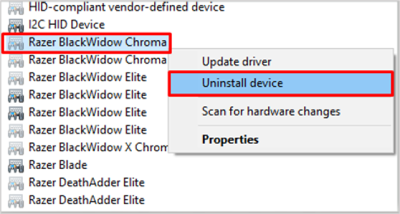
- Restart your PC to completely uninstall the drivers.
Razer Products use SHA-2 digital certificates for their drivers. If you are using a Windows 7 version that does not support SHA-2, the drivers for your device will not be installed correctly. Perform either of the two options below to fix the issue:
- Update your Windows 7 OS to the latest updates through Windows Server Update Services (WSUS).
- Upgrade your Windows 7 OS to Windows 10.

