
You can utilize the Sensitivity Clutch to temporarily switch between predefined DPI levels, allowing you to seamlessly return to your original DPI setting without cycling through all sensitivity stages. By default, these stages increase in increments of 800 DPI, up to a maximum of 16,000 DPI in a standard configuration.

You can easily switch from 1,800 DPI directly to 16,000 DPI without passing through the intermediate levels of 4,500 DPI and 9,000 DPI by setting 16,000 DPI as your Sensitivity Clutch value on your Razer mouse.
See the step-by-step instructions below on how to enable the Sensitivity Clutch on a Razer mouse.
Razer Synapse 4
-
Launch Razer Synapse.
-
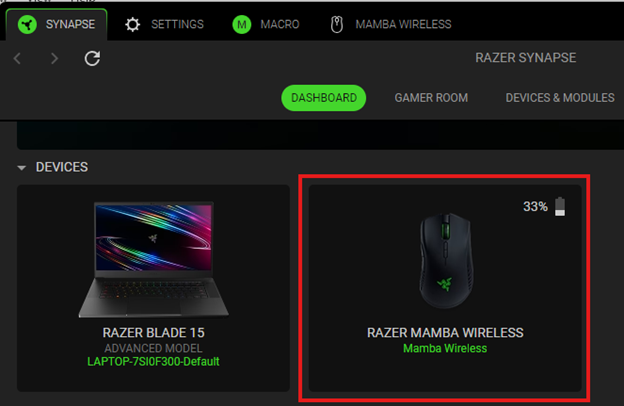
Select your mouse from the DASHBOARD.
-
Select a button you want to customize.

-
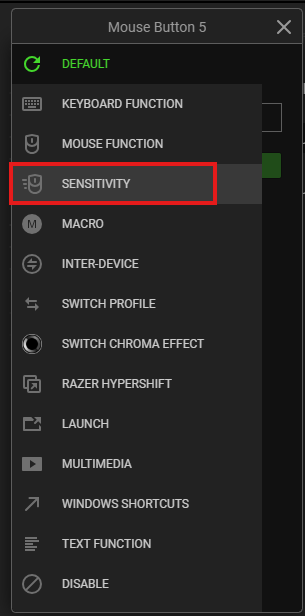
Click “SENSITIVITY”.
-
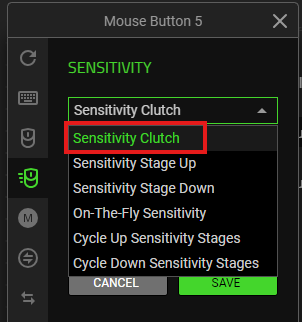
Choose “Sensitivity Clutch” from the SENSITIVITY dropdown list.
-
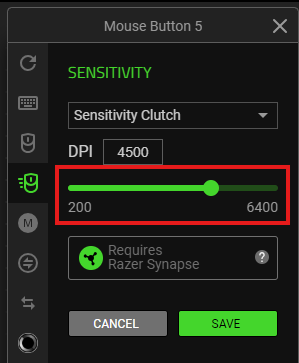
Set the DPI value for the clutch:
Note: Some mice may have varying settings.
-
Manual Input – Manually enter the figures of your desired value to set the DPI level.
-
Single Slider – Slide the DPI button left to right to increase or right to left to decrease the DPI level.
-
X and Y Sliders – Enable the X and Y axis and adjust the same way as the single slider to set the DPI level.
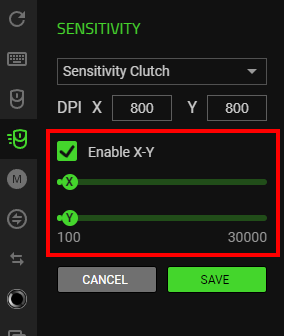
-
-
Click “SAVE” to complete the process.

Note: Keep Razer Synapse running in the background to use this function.
The programmed button is displayed after the shortcut on your device layout.
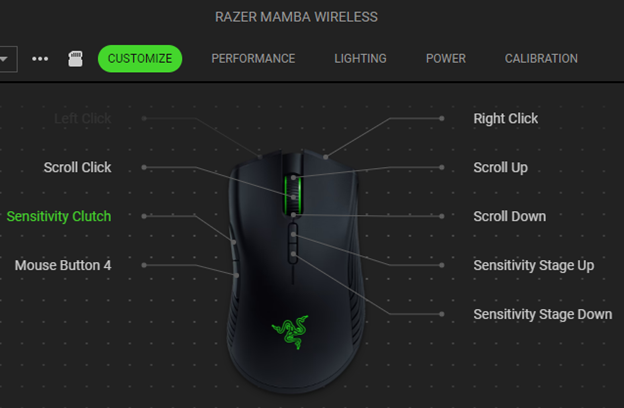
-
To use the Sensitivity Clutch, hold down the assigned button and release it to revert to your original DPI setting.

