
Note: Live support for Razer Sila is no longer available. Please refer to our knowledge base or Insider Forum for support.
Creating a separate wireless network intended for your guests is a smart move to protect your network from intruders. This guest network will allow visiting wireless devices to connect to the wireless network and enjoy browsing the internet without having access to your main wireless network and the devices connected to it. You can create a maximum of two wireless networks for your guests on the Razer Sila.
This article will guide you on how to create a separate wireless network for your guests. Follow the steps below:
- Access the web UI of the Razer Sila and click the “Wireless Configuration” tab in the left navigation panel.
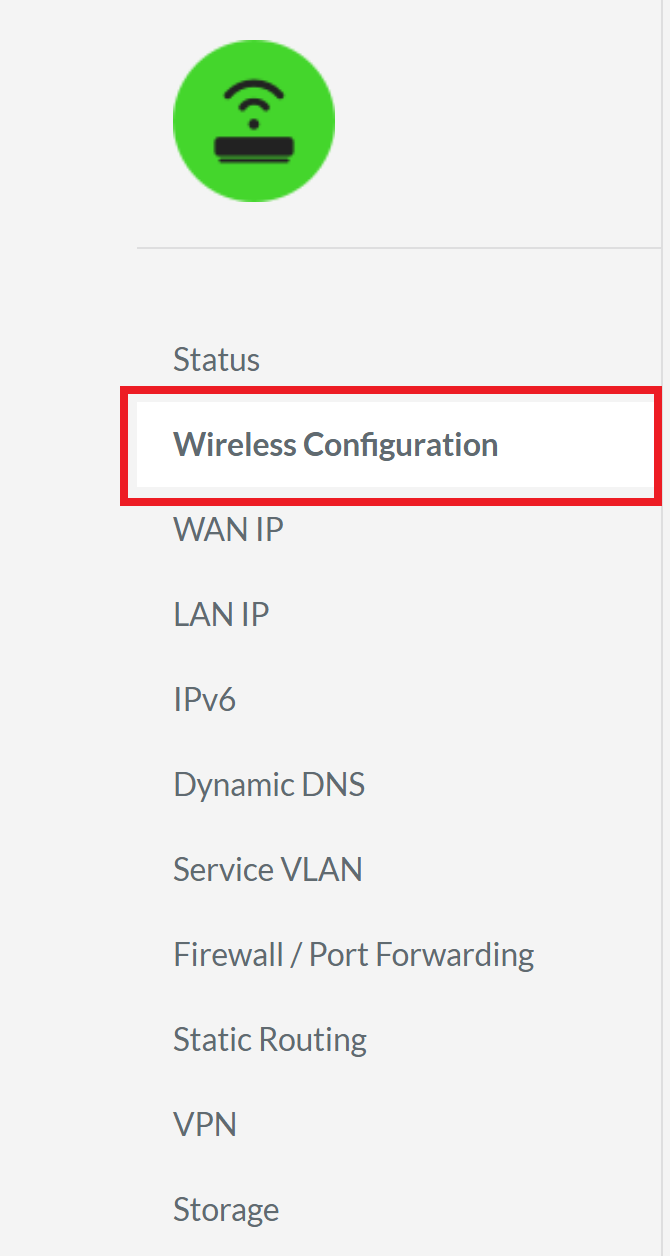
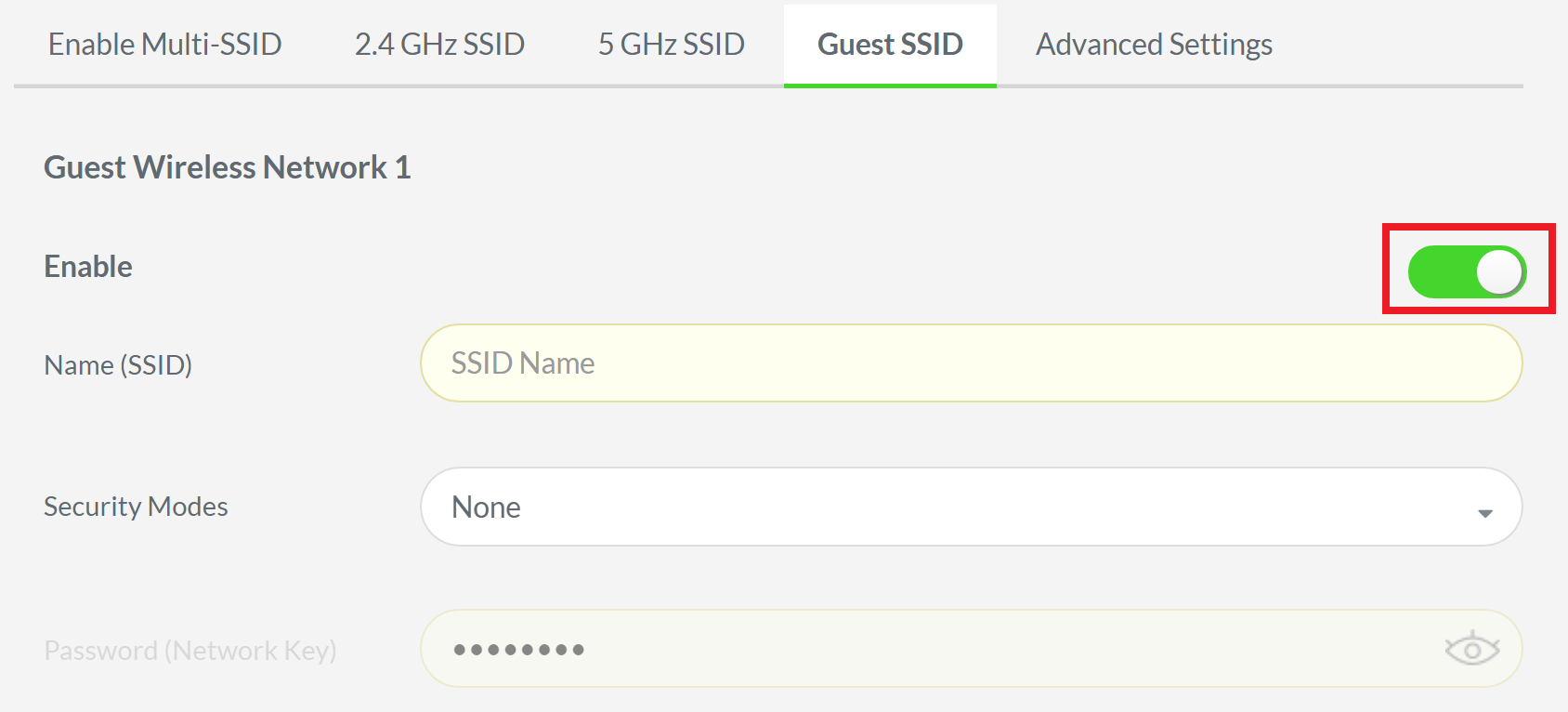
- Click the “Guest SSID” tab.

- Under Guest Wireless Network 1, enable the feature by tapping on the slider and turn it Green.
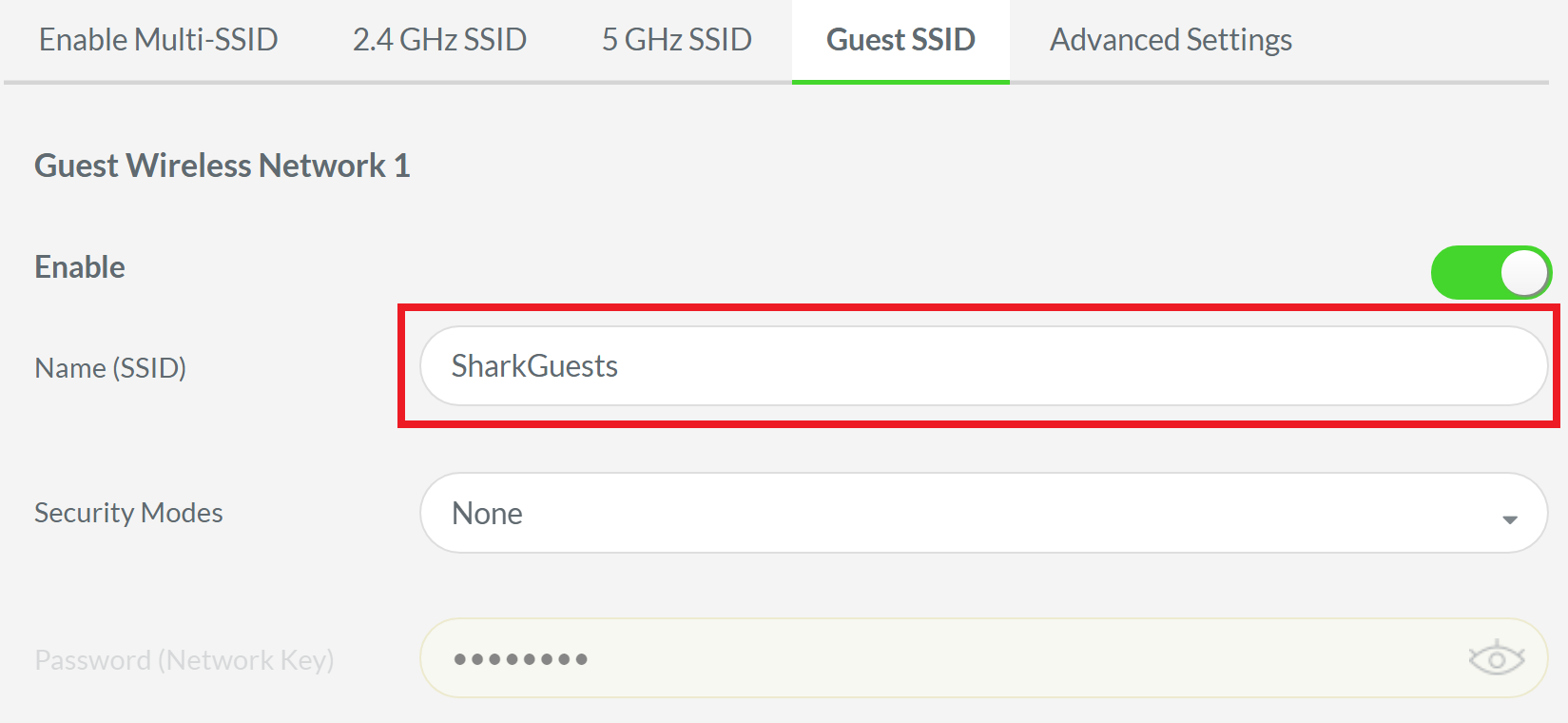
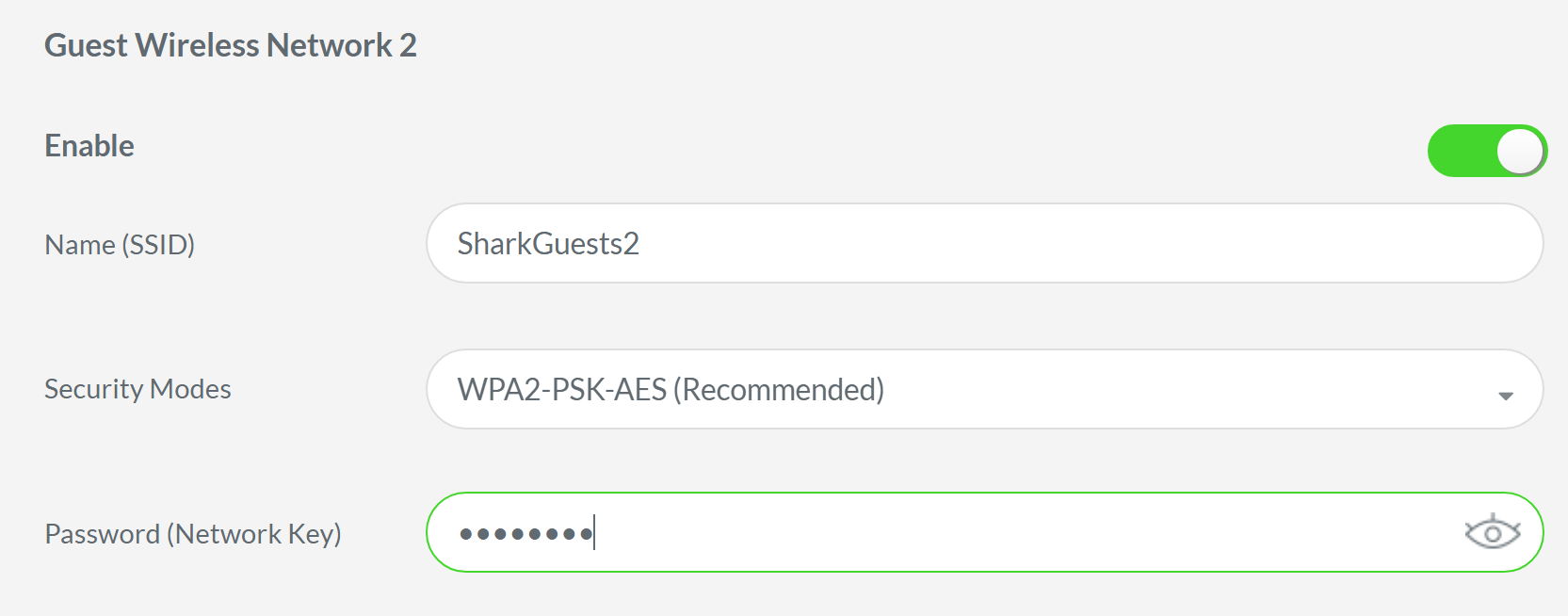
- Enter a name for this guest network.
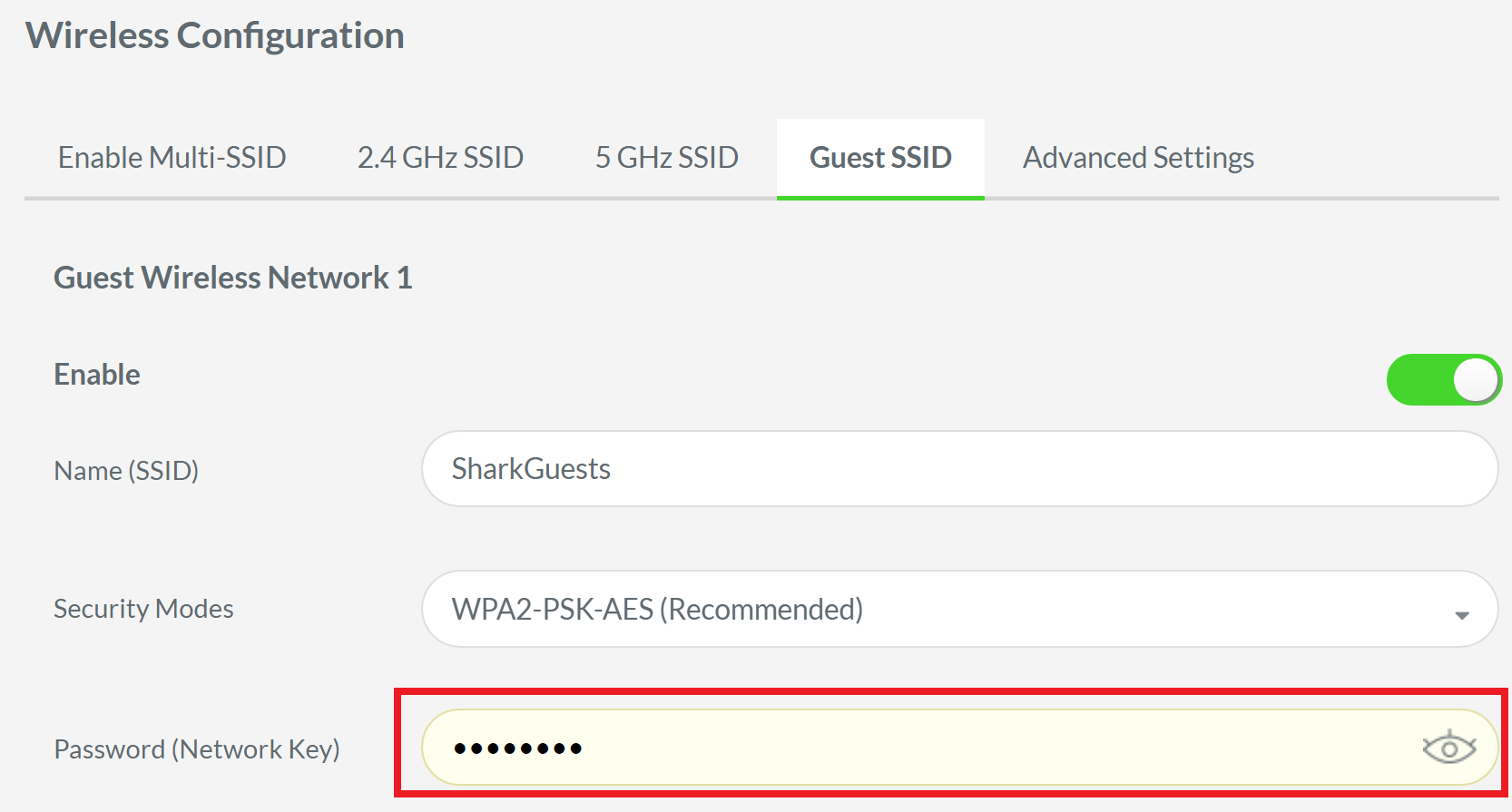
- Choose the Security Mode by clicking the drop-down arrow. WPA2-PSK-AES is the most recommended mode for having the latest encryption standard and the latest encryption protocol combined.

- Enter a password in the Password (Network Key) field.
- (Optional) Enable the Guest Wireless Network 2 and repeat steps 4-6 to create a second guest network.
- Click “Apply” to save all your settings.
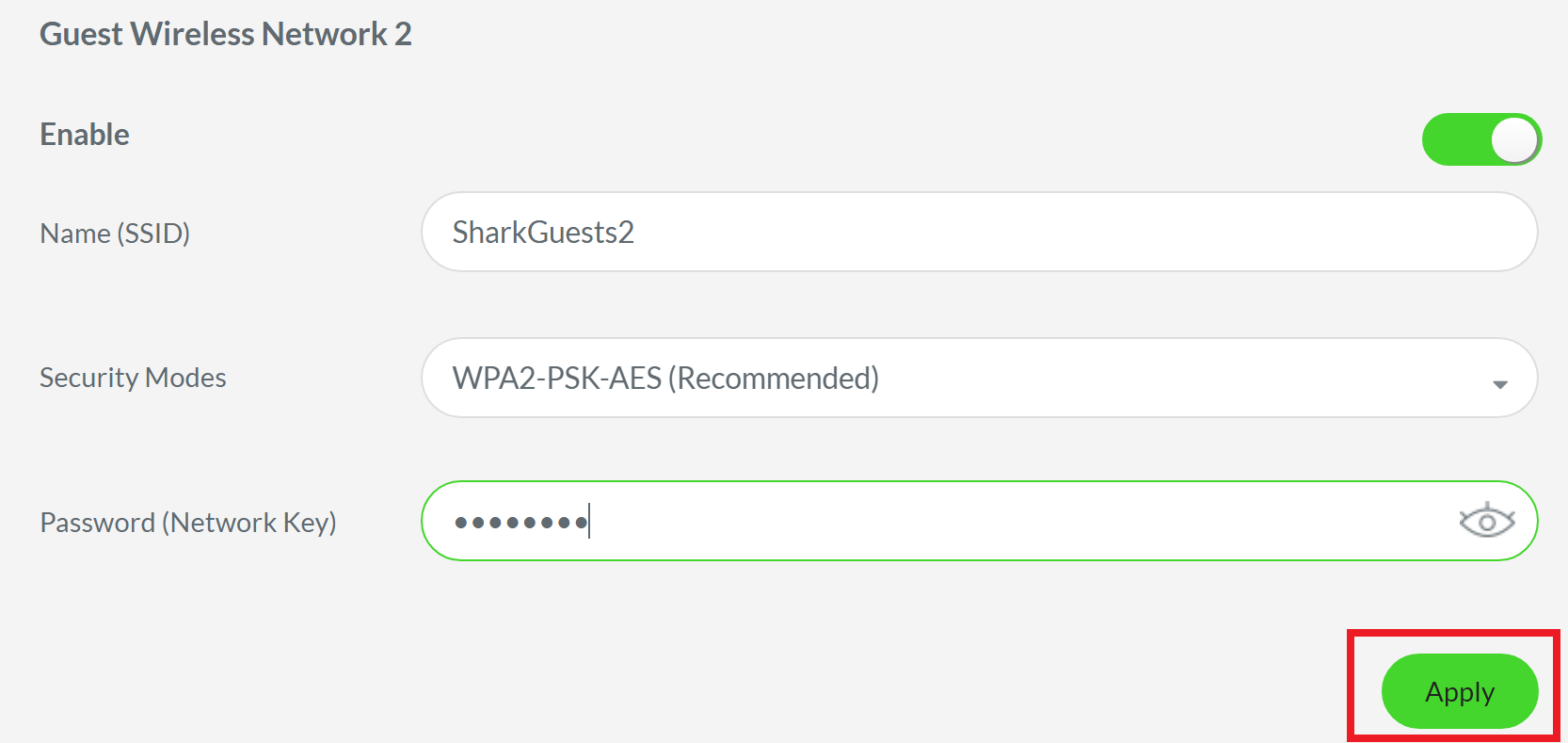
You should now have created separate wireless networks for your guests on the Razer Sila.

