
Unlike most routers, the Razer Sila can provide access to unused bandwidth frequencies, avoiding congested networks and traffic interference.
While the Razer Sila is designed to operate as stable as possible, there may be times when you’ll have trouble connecting to your network caused by the configuration of the channel bandwidth on the wireless network.
There are two-channel bandwidths on the Razer Sila that you can set based on the radio broadcast you are using on your wireless network.
- 20 MHz - this channel is recommended if you are using 2.4 GHz radio broadcast to accommodate devices that are using older technology on your network.
- 40 MHz - this channel is recommended if you are using 5 GHz radio broadcast to accommodate newer devices on your network supporting the 802.11n wireless technology.
This article will guide you on how to configure the channel bandwidth on your Razer Sila.
1. Access the web UI of your Razer Sila and click “Wireless Configuration” from the left navigation panel.

2. Click “Advanced Settings”.
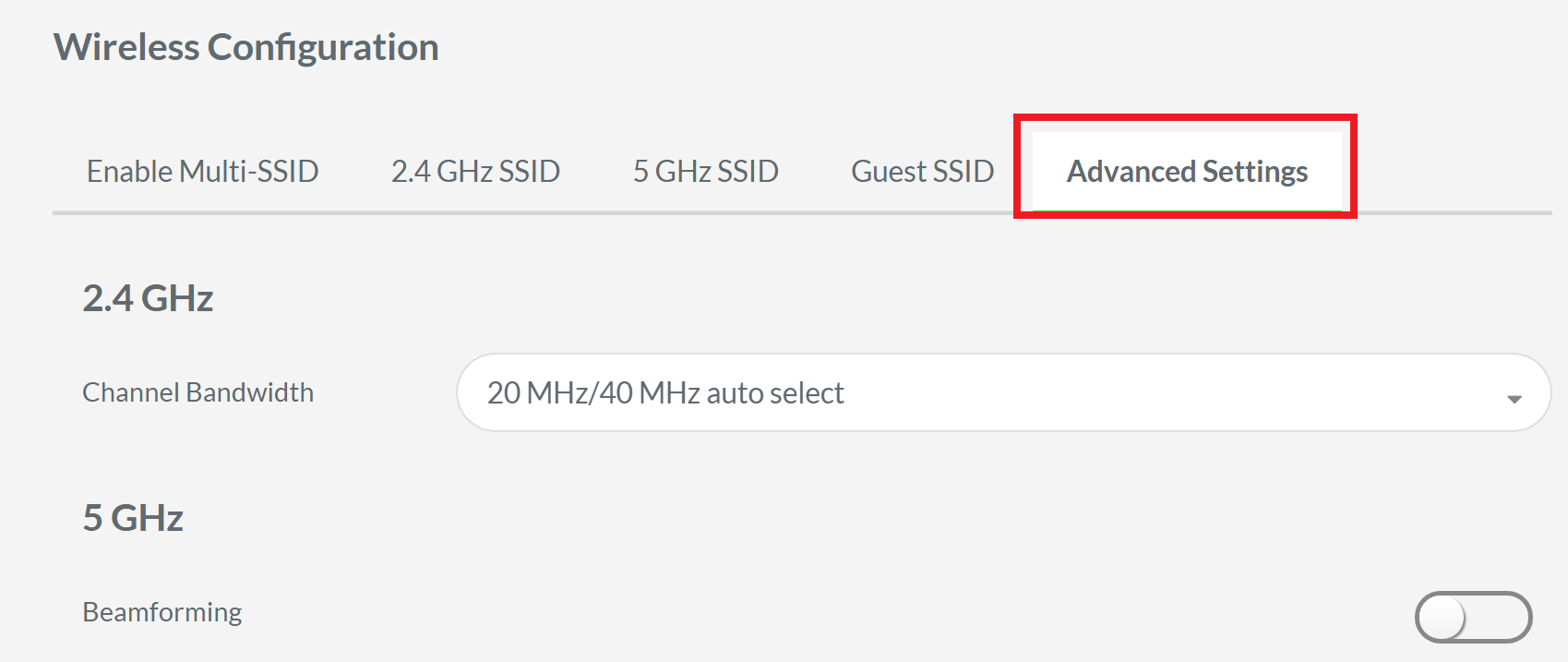
3. Click the drop-down arrow for the channel bandwidth and choose your desired setting based on the devices on your network. In this example, 20 MHz is chosen.

Note: Choosing the “20 MHz/40 MHz” option allows the router to automatically select the channel bandwidth depending on the devices connected to the network that it detects. This is best to choose if you have a combination of old and new devices connected to the Razer Sila. Choosing the “Forced 40 MHz” option forces your router to use the channel even if the radio broadcast used is 2.4 GHz if the connected devices require this method.
4. Click “Apply” to save your settings.
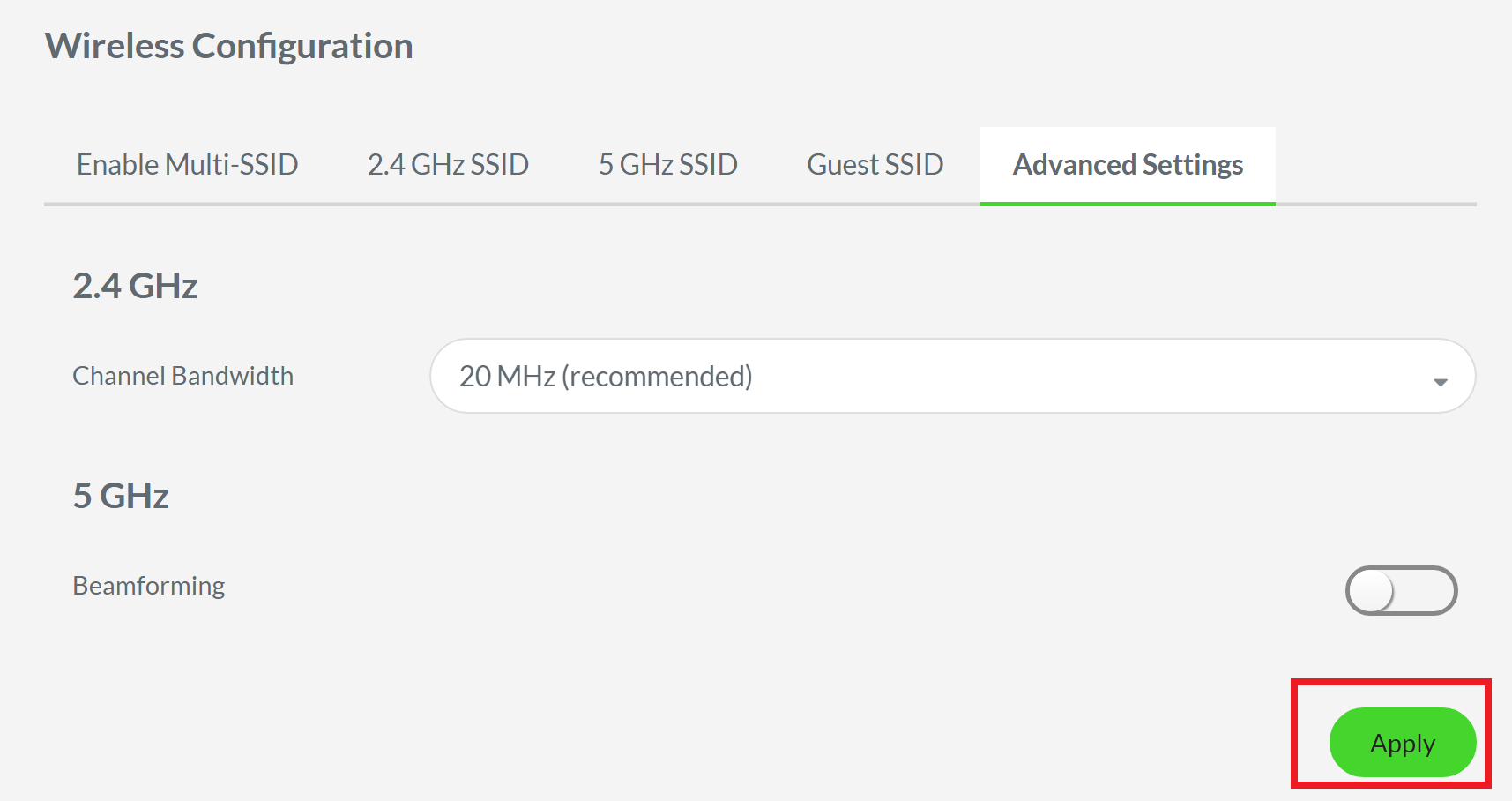
You should now have configured the channel bandwidth on the Razer Sila.

