A Media Access Control (MAC) address is a network address assigned to a specific device as its unique identifier. This address typically appears as a string of letters and numbers combined and separated by colons after each pair.
MAC addresses are assigned by the manufacturers to the interface cards to make each of them unique and identifiable.
As an added security in your wireless network, it is possible to filter MAC addresses of the devices to make sure only those that are authorized can access your network and use your network resources. This can be done by filtering out MAC addresses of the devices that are connected and allow or disallow them to connect. This means that even if an unauthorized device was able to connect using the wireless network password, it will be disconnected and can no longer connect if you prefer.
This article will guide you on how to configure the MAC address filter on the Razer Sila.
- Access the web UI of the Razer Sila and click “Firewall/ Port Forwarding” from the left navigation panel.

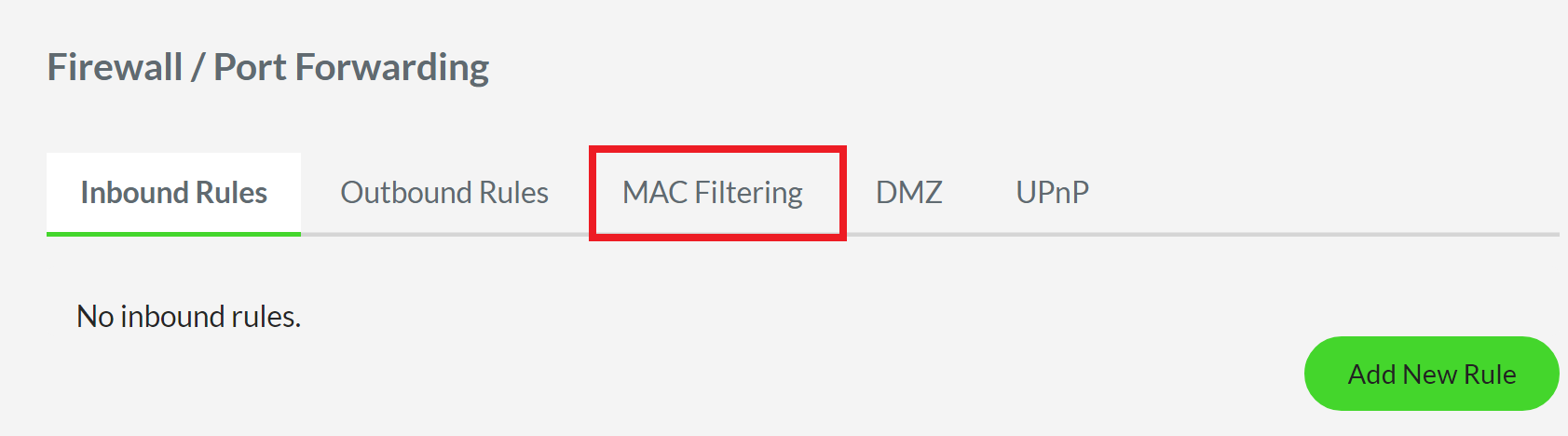
- Click “MAC Filtering”. The list of connected devices will be displayed.
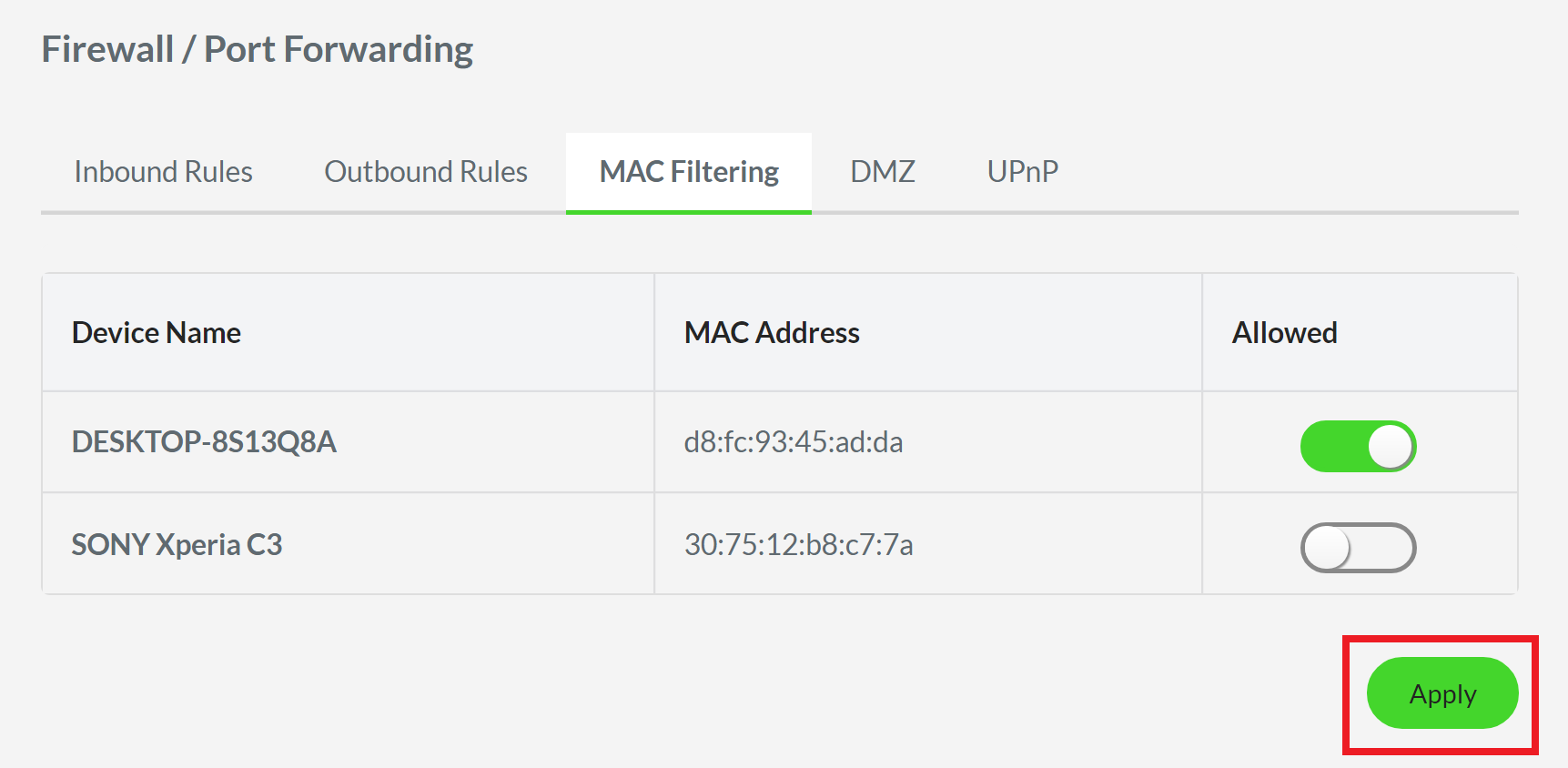
- Choose the device that you want to filter out. In this example, “Sony Xperia C3” is chosen.

- Tap the slider under “Allowed” to turn it off, disallowing its access from the network.

- Click “Apply”.