The Razer Panthera Evo offers a variety of features to ensure that you have maximum control over your controller to deliver the best arcade stick experience.
The Razer Panthera Evo’s special features are as follows:
Control Stick Switch
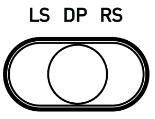
Use the Control Stick Switch to shift the joystick’s controller function to either left analog stick (LS), directional pad (DP), or right analog stick (RS).
Lock/Unlock Switch
Set this switch to “Lock” to disable the “Share” “Options”, and “PS” buttons.

Audio Volume Control Button
-
Press the Audio Volume Control button to cycle through the volume levels to the Headset Port.
-
Press and hold the Audio Volume Control button, and then flick the joystick upwards or downwards to increase or decrease the audio volume of the Headset Port respectively. You will hear a notification tone when the headset port volume reaches its lowest or highest settings.

Mic Mute Button
Press to mute or unmute the microphone of a headset connected to the Headset port. The mic button will light up in red when the connected headset’s microphone has been muted.