
Note: Live support for Razer Sila is no longer available. Please refer to our knowledge base or Insider Forum for support.
For devices that do not require changing internet protocol (IP) addresses, you can use dynamic host configuration protocol (DHCP) or domain name system (DNS) reservations to ensure that their IP addresses never change. Follow the steps below to set up a static IP address on your Razer Sila.
Step-by-step process:
-
Go to the URL "sila.razer.com" or "192.168.8.1". We recommend using "sila.razer.com" as it offers better security.

-
This will send you to the admin menu where you will need to enter the admin password.

-
Select "LAN IP" from the menu on the left.

-
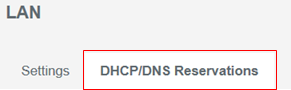
Select the "DHCP/DNS "Reservation tab under "LAN IP".
-
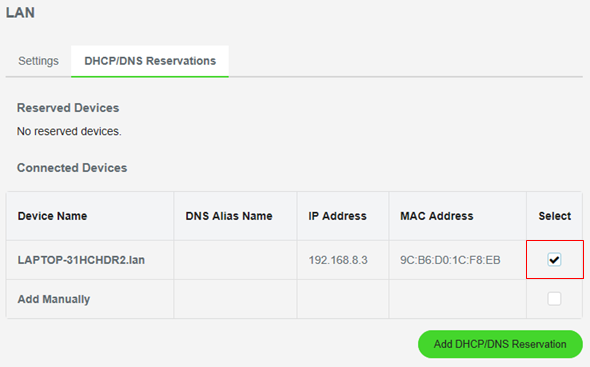
Check the select box for the device that you desire a non-changing address.
-
Click the "Add DHCP/DNS" Reservation button.


