
Learn how to interpret your Razer Sila’s status light, generate log files, check the firmware version, and troubleshoot common issues. Select a topic below for details and step-by-step instructions.
Why is the Razer Sila’s status indicator always in red?
A status indicator light in red means that the Razer Sila has no connection or is offline.
See the presentation of the status indicator colors below to help you understand the behavior and internet connectivity of the Razer Sila.

If the LED light stays red for a long time, the connection might be interrupted. Perform the following steps resolve the issue:
-
Check if the network cable is plugged securely to the Wide Area Network (WAN) port of the Razer Sila.

-
If the cable connection is good, reboot the Razer Sila and check the connection.
-
If there is still no internet connection, proceed to the next step.
-
- If you have a computer, connect it directly to the modem.
-
If you do not have a computer and/or the computer is not getting an internet connection, proceed to the next step.
-
If the computer gets an internet connection, proceed to step 8.
-
-
Check the status indicator of your modem and see if it shows a good internet connection.
-
Contact your Internet Service Provider (ISP ) if you found signs of internet connectivity issues on your modem.
-
If your modem has no problem, proceed to the next step.
-
- Connect another or an old router to your modem and test the internet connection.
- If the other router works, check if the Point-to-Point Protocol over Ethernet (PPPoE) information was needed for it to work.
-
After confirming that the PPPoE information was needed to have an internet connection, ask it from your ISP and input it into the Razer Sila.
Note: Some modems have built-in NAT capabilities that cause the conflict.
-
Refer to the user manual or contact your ISP to know how to disable the NAT capabilities of your modem.
-
Note: If the Razer Sila’s Bridge mode is enabled, some router features will no longer be available.
THS light on the Razer Sila intermittently turns red for 30 minutes at a time
If the internet is interrupted from the modem side, the Razer Sila | RZ37-02510 waits 30 minutes and then reboots itself to attempt to recover the connection.
If the THS logo turns red, the user can attempt to recover the connection manually if they are not able to wait out the 30mins.
To do this, they can unplug and replug the Ethernet cable on the WAN port or reboot the Sila by unplugging the power cord for about 10 seconds and plugging it back in.
The Razer Sila does not turn on or power on
A faulty power outlet causes a router not to turn on. Esure the power outlet you are plugging into has power. Otherwise, let an electrical professional do the tests and fixes on the power outlet.
However, if the issue still exists, ffollow the steps below:
-
Esure you attach the right plug to the power adapter.
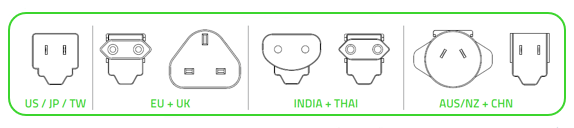
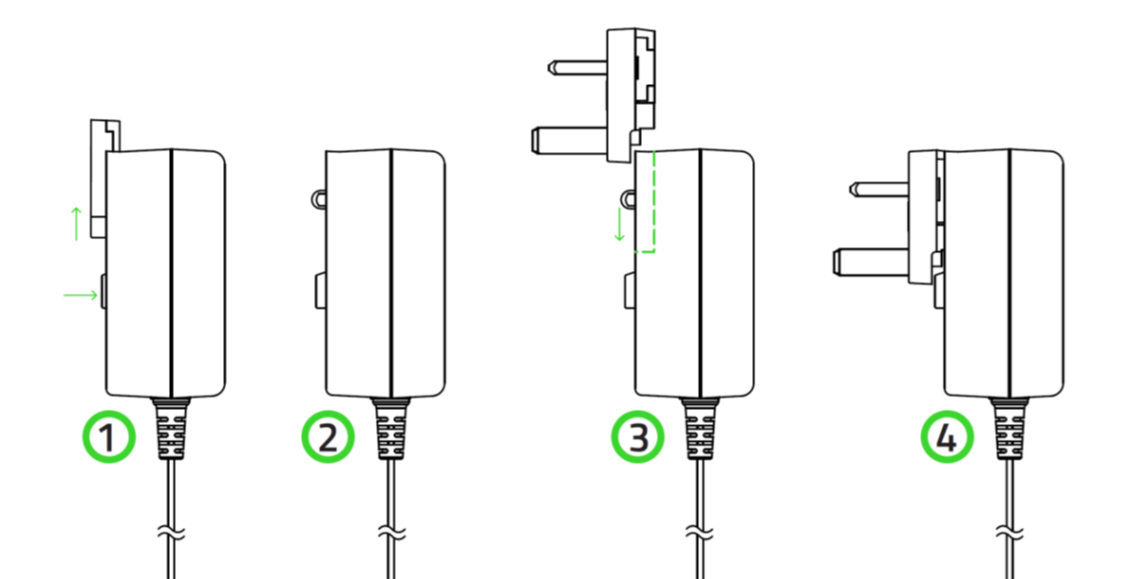
-
Plug the power adapter properly into the power outlet.
-
Check if the power adapter cable tip is not bent and is firmly connected to the Razer Sila.
-
Wait for the Razer Sila logo to light up.
-
If the issue persists, the power adapter might be broken.
How to generate Razer Sila log files
In the course of troubleshooting your Razer Sila, a representative from Razer will ask you to generate log files generated by the Razer Sila. Rest assured, the log files do not contain critical information that may be traced back to you. The data will only be used by our team to properly fix your issue.
-
Plugin a USB drive to the USB port 2 of the Sila router.
-
Ensure that the USB drive satisfies the following requirements:
-
It is plugged into a USB 3.0 port
-
The storage device's file format is supported ( ext3, ext4, vfat, ntfs, or exfat)
-
The storage is at least 500mb
-
-
Open a browser and type in "sila.razer.com".
-
Log-in using the admin password (default: password)
-
Select "Support" on the left panel.
-
Click "Start logging" to log the activity from the Sila router.
-
Once done, click "Stop logging".
-
Remove the USB drive and copy the log files with the suffix name "tar.en".
-
Send the log files to the support agent.
How to check the firmware version on the Razer Sila
Always check and keep the firmware version of your Razer Sila up to date for optimal performance.
-
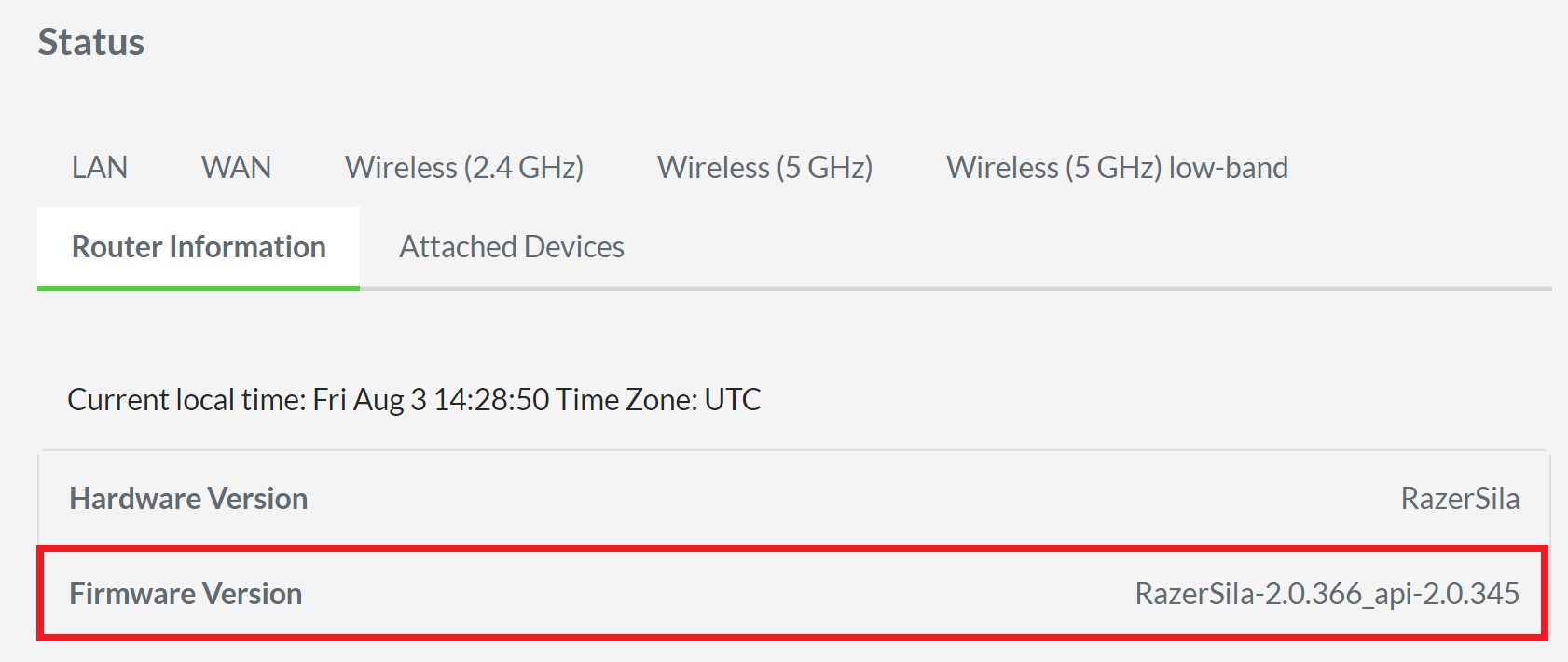
Access the web UI of the Razer Sila and go to “Status”.

-
Click the “Router Information” subtab.

-
Look for the “Firmware Version” among the router information displayed on the table.
Sila internet speed test is broken
The internet speed test tool built into the app will return zero results on all fields or will just continue running the test.


Use a speed test website like www.speedtest.net
If a speed test is necessary for FasTrack, follow these steps:
-
Ensure FasTrack is disabled.
-
Test the internet speed via a speed test website like www.speedtest.net.
-
Enable FasTrack.
-
Update the download and upload bandwidth.

